Make Bulk Payments
You can make one or more payments for fees or deposits.
|
|
 PREREQUISITES:
 NOTE: The currency type is automatically set according to your region and cannot be edited.
- From the home page, click Bulk Payment to open the Payments page.
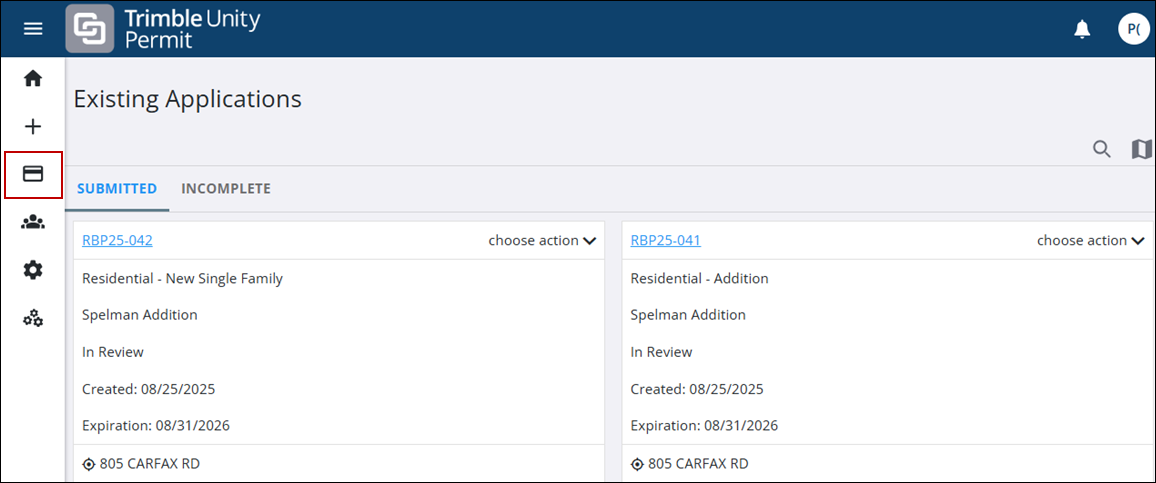
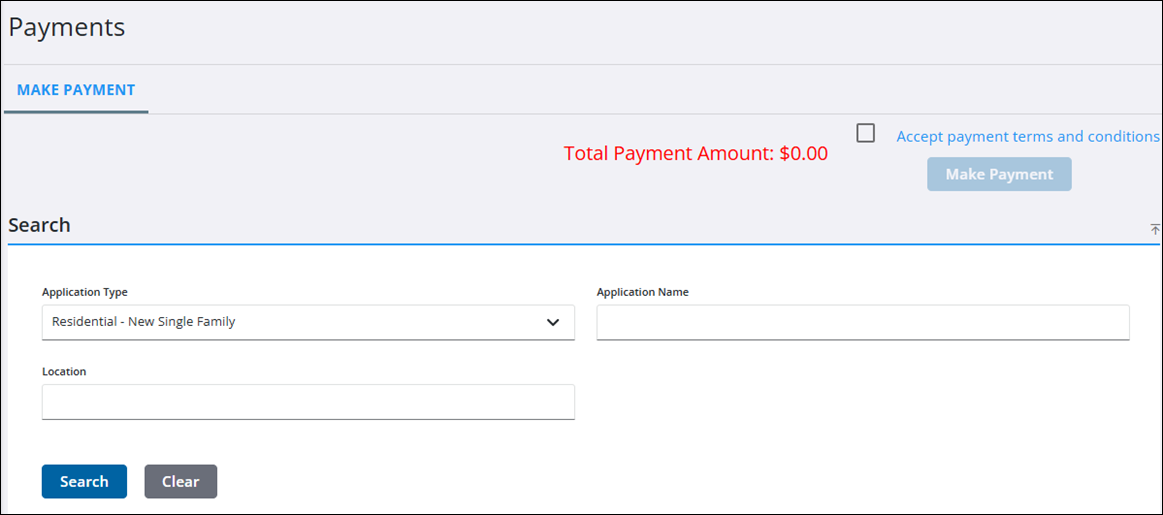
- Ensure Make Payment is selected.
- On the Search panel, use the Application Type drop-down list to select an application type.
- Use the Application Name (tag) and Location fields to further refine your search, if desired.
- Click Search.
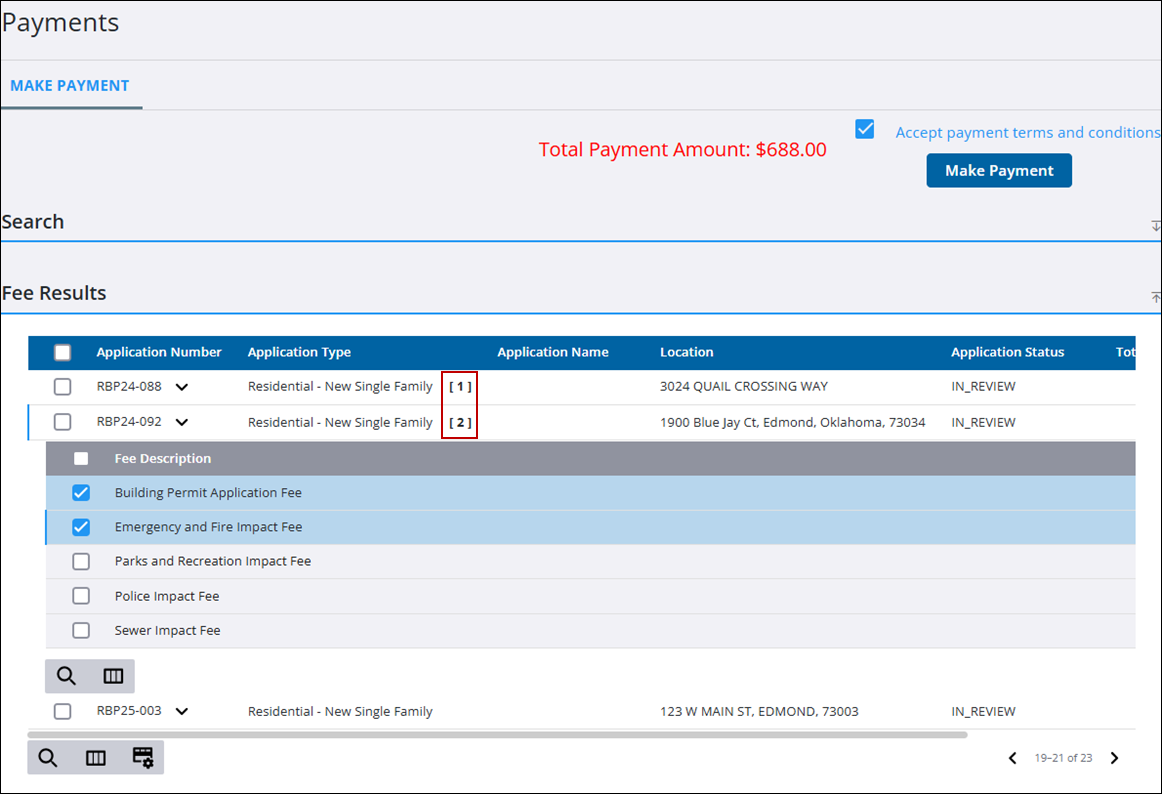
The Fee Results and Deposit Results panels populate with the search results. The process for making payments on either panel is identical. The example below shows the process on the Fee Result panel.
 TIP: You can filter the list of records displayed. See Filter Records for more information.
- Select a check box next to one or more applications to pay all fees associated with the selected applications. Alternatively, you can select the down arrow by an application number and select one or more fees individually within each application. A number next to the application type indicates the number of fees you selected to pay for that application. The Total Payment Amount updates with each fee that is selected.
- Carefully review the Payment Terms and Conditions, then select the check box.
- Click Make Payment.
The record of your payment is reflected on the Payments panel of the Application Overview page for each applicable application.