Add a Deposit
You may add as many deposits as necessary to a case. Depending on how the administrator has configured the template, certain deposits might already be on the case. They are listed in the panel.
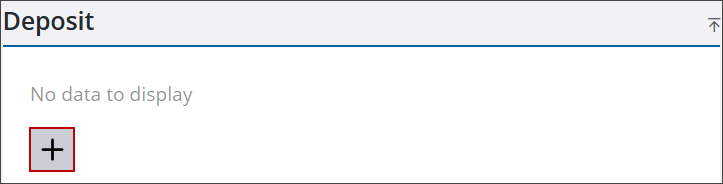
- Navigate to the Deposit panel.
- Click Add record to open the Add Deposit panel.
 TIP: You can filter the list of records displayed. See Filter Records for more information.
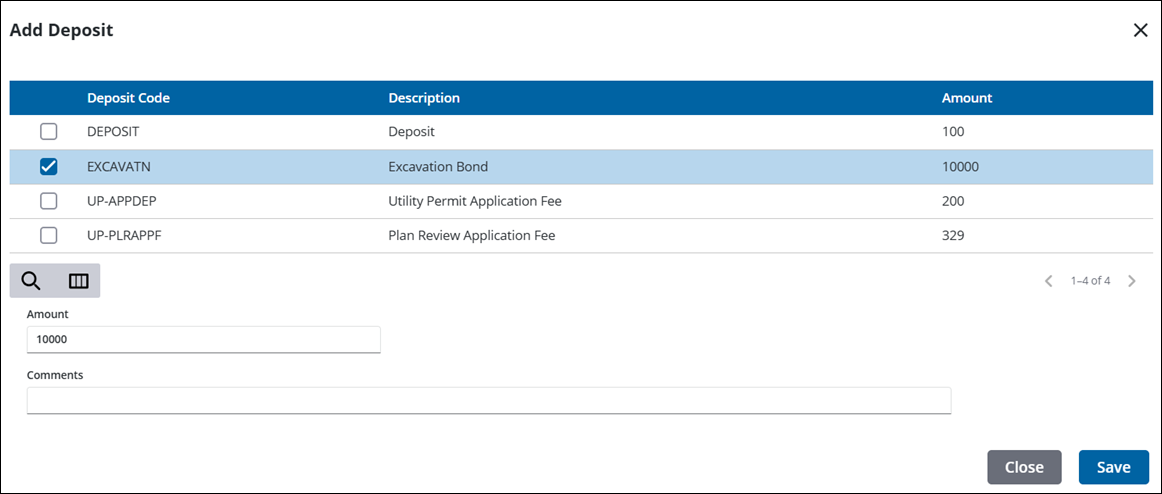
- Select the check box next to the deposit you want to add.
The value in the Amount field may automatically populate, but can be changed if desired.
- Enter any Comments.
- Click Save to add the deposit to the case.
From here you can remove, view, search, and recalculate deposits. See Deposit in the case summary page for more information. See Deposit Panel Fields for an explanation of the Deposit panel fields.
 NOTE: Custom forms can be configured by the administrator and applied to specific areas in the UI, such as based on a specific template, fees, comments, and more. See Custom Form in the Admin Guide for Trimble Unity Maintain and Trimble Unity Permit for more information. When a case is cloned, custom form values are copied to the child case. If the administrator added encrypted custom forms, you will see dots when typing in the field. A view icon allows you to view the encrypted text in the field.

