Add a Data Group
You can add a data group from the Data Group panel on the case summary page or from the Case Data page.
 From the Data Group Panel
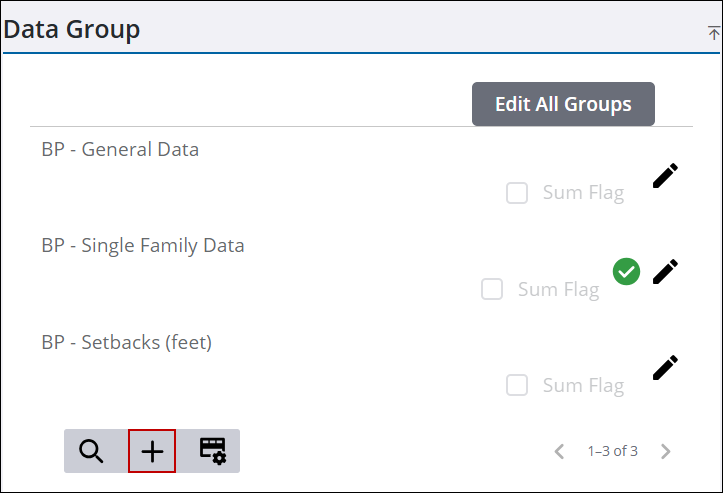
- Open a case and navigate to the Data Group panel.
- Click Add record to open the Data Group Add panel.
 NOTE: The administrator can add an option for multi-select values on data groups. A warning, red triangle with a white exclamation point, is shown if the field is required. When the required field is completed, a green circle with a white check box displays by the data group.
 TIP: You can filter the list of records displayed. See Filter Records for more information.
- Select the data group.
- Click Add to add the data group to the case.
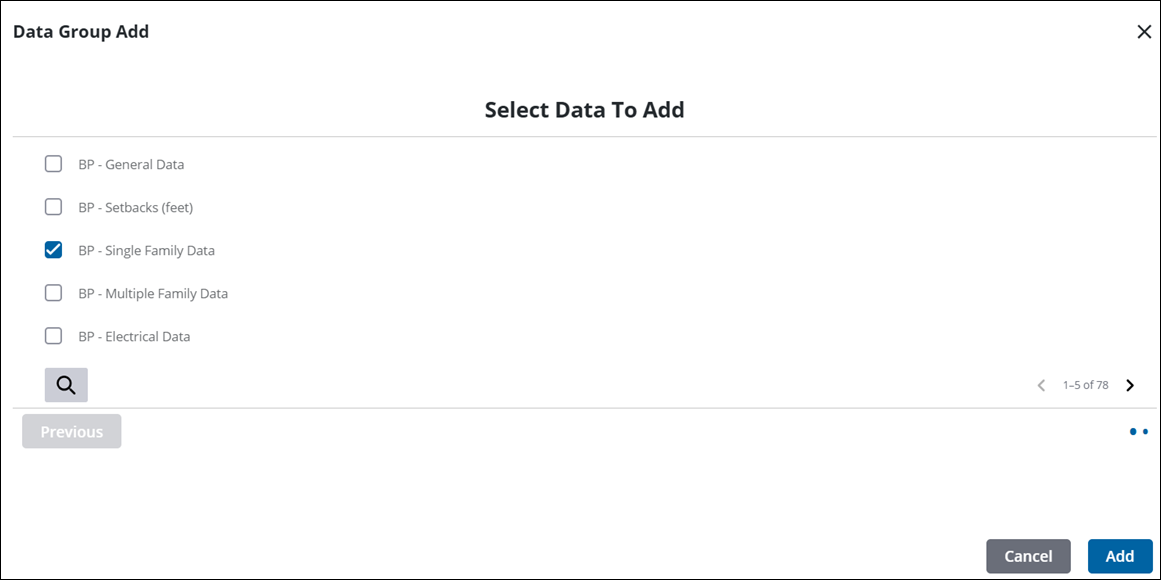
The data group is added to the case.
From the Case Data Page
- Open a case.
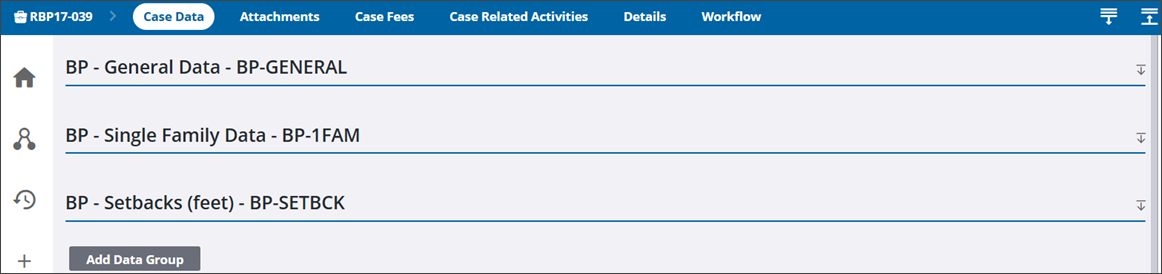
- From the activity toolbar, click Case Data to open the Case Data page.

- At the bottom of the page, click Add Data Group to open the Data Group Add panel.
TIP: You can filter the list of records displayed. See Filter Records for more information.
- Select the data group.
- Click Add to add the data group to the case.
The data group is added to the case.

