Edit a Data Group
You can edit information for individual or all data groups from the Data Group panel on the case summary page or from the Case Data page. Edits are saved automatically.
 NOTE: The administrator may have configured case details to automatically populate based on assets added as addresses to the case. See Configure GIS Data Fields in the Admin Guide for Trimble Unity Maintain and Trimble Unity Permit for more information.
 From the Data Group Panel
Individual Data Groups
- Open a case and navigate to the Data Group panel.
- Click the edit icon to the right of a data group to open the Data Group Edit panel.
- Click any of the fields to edit the information.
NOTE: These fields may differ according to the data groups set on the case. When a case data detail is configured to show a Yes/No value, only Yes is displayed next to the check box in the Data Group Edit panel.
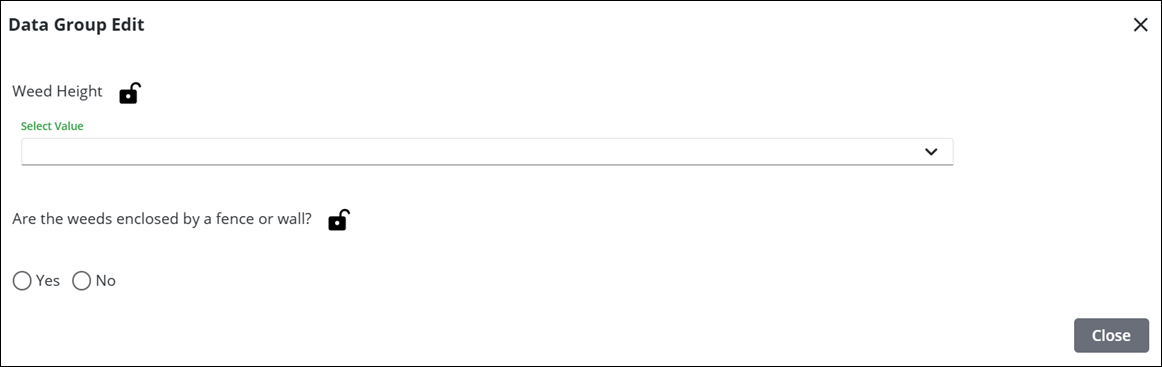
- Click Close after you've updated the data detail information and return to the case.
NOTE: A lock icon next to a case data detail indicates the case data cannot be edited by others. See Lock or Unlock Case Data Details for more information.
Multiple Data Groups
- Open a case and navigate to the Data Group panel.
- Click Edit All Groups in the upper-right corner to open the Edit All Data Groups panel.
- Click the top of the panel or arrow on the far-right of the panel to expand or collapse it and enter information for the data group.
NOTE: These fields may differ according to the data groups set on the case. When a case data detail is configured to show a Yes/No value, only Yes is displayed next to the check box in the Data Group Edit panel.
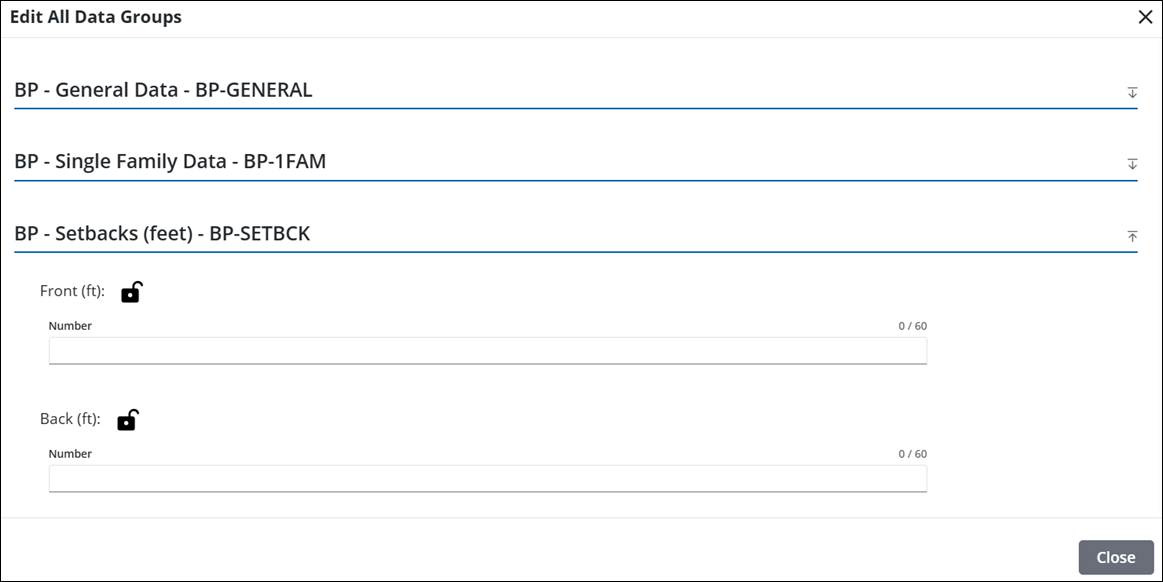
- Click Close after you've updated the data detail information and return to the case.
See Data Group Panel Fields for an explanation of the consistent Data Group panel fields.
From the Case Data Page
- Open a case.
- From the activity toolbar, click Case Data.

The Case Data page lists data groups associated to the case.
- Click any of the available fields to edit the information.
NOTE: When a case data detail is configured to show a Yes/No value, only Yes is displayed next to the check box in the Data Group Edit panel.
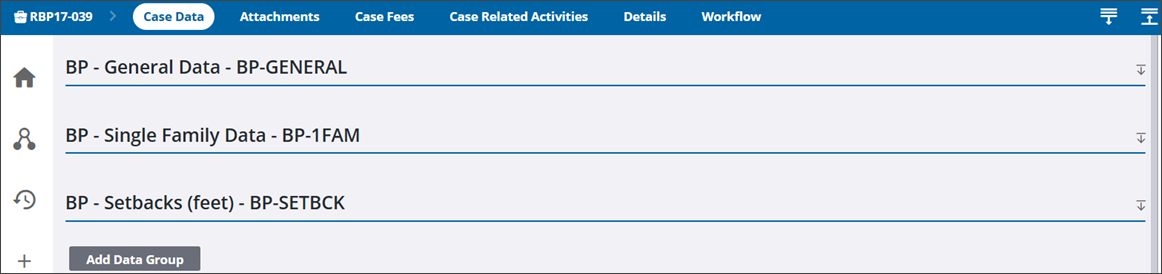
NOTE: A lock icon next to a case data detail indicates the case data cannot be edited by others. See Lock or Unlock Case Data Details for more information.
For an explanation of the consistent Data Group panel fields, see Data Group Panel Fields.

