Renumber a Case
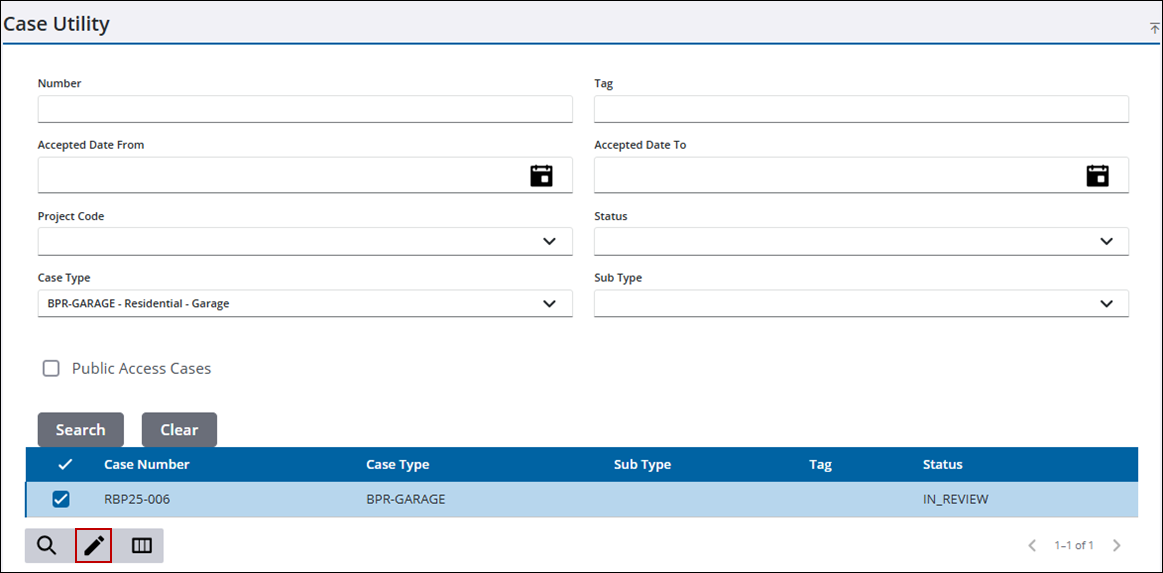
Use the Case Utility search panel to find an existing case or a group of cases to renumber.
|
|
 PREREQUISITES:
- Open the Case Utility tool.
- Enter search criteria, such as the case number, case type, or status in the corresponding fields.
- Click Search.
Results matching your search criteria display below the search form.
- Select the desired case(s) to update.
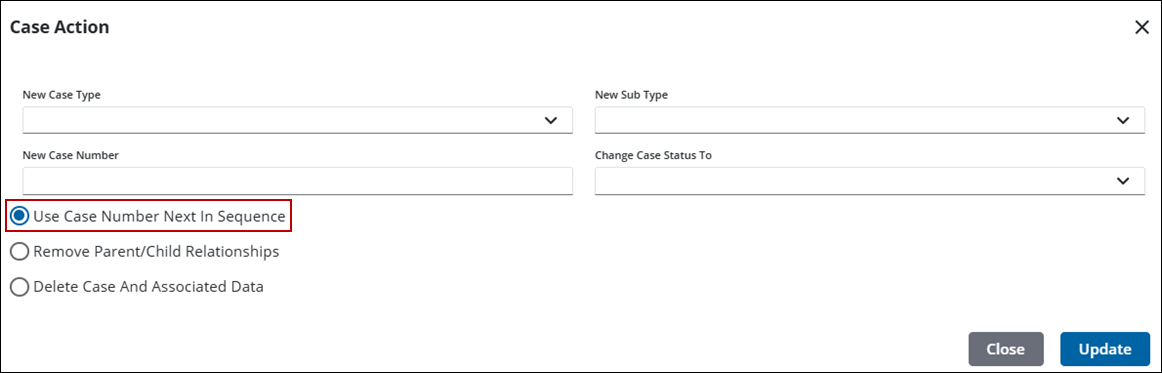
- Click Actions to open the Case Action panel.
- Select Use Case Number Next in Sequence.
- Click Update to update the selected case(s) with the renumbering information.
See Case Utility Fields for an explanation of the Case Utility panel fields.

