Add a Task
You can add a task from the Workflow panel on the case summary page, from the Workflow page, or using the graph. Tasks cannot be added to milestones that are completed. For example, if results for milestone 1 and 2 are completed, new tasks can only be added starting at milestone 3.
|
|
 PREREQUISITES:
 From the Workflow Panel
 NOTE: The beginning milestone is listed to the left of each task in the panel. A task may span more than one milestone depending on how long it takes to complete that task. Each task within a milestone must be completed before the next milestone can be opened.
 TIP: You can filter the list of records displayed. See Filter Records for more information.
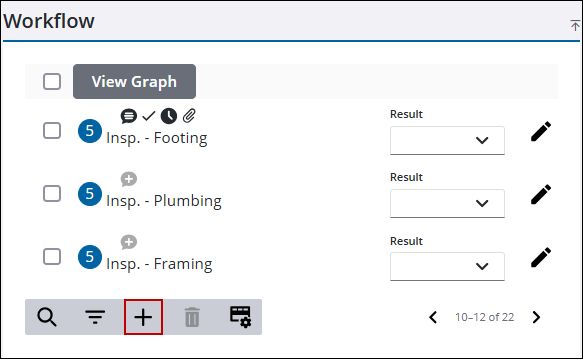
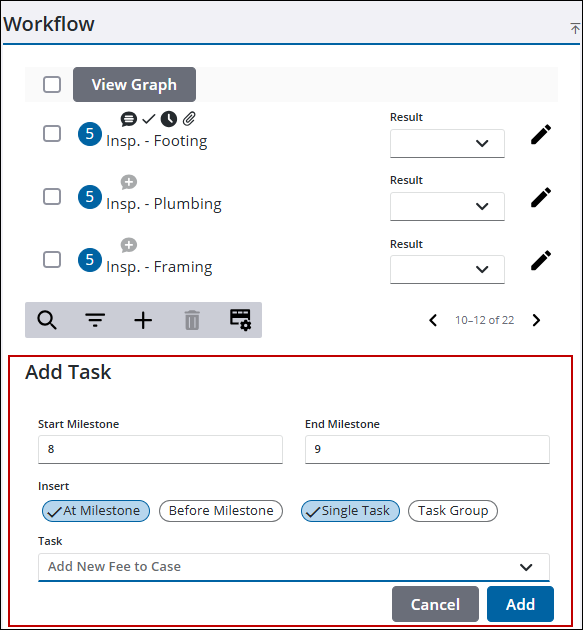
- Use the Start Milestone and End Milestone fields to identify which milestone(s) the task is assigned to. They may automatically populate with the last available milestone.
- Choose either At Milestone or Before Milestone to specify whether the task is inserted at the end or the beginning of the specified milestone.
- Select either Single Task or Task Group to select an individual task or a group of tasks to insert into the workflow.
- Select the desired task to add from the Task drop-down list.
- Click Add to add the task(s) to the case.
From the Workflow Page
- Open a case.
- From the activity toolbar, click Workflow to open the Workflow page.

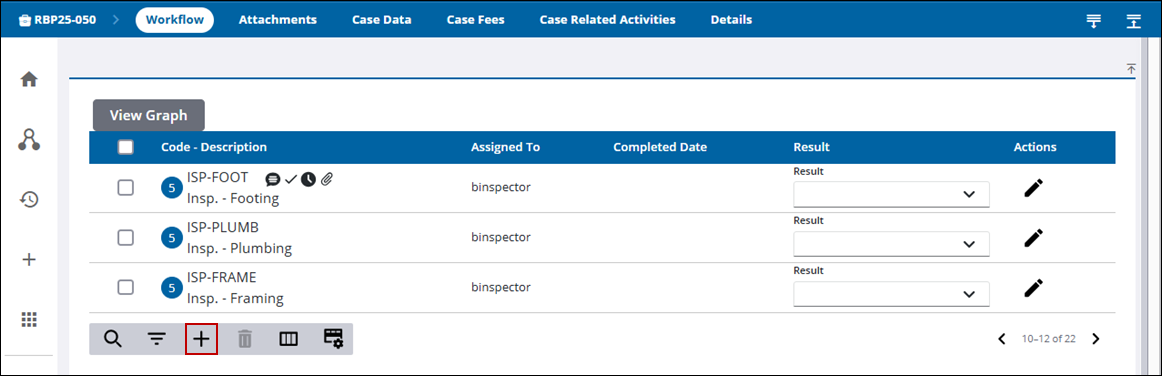
- At the bottom of the workflow page, click Add record to open the Add Task section.
NOTE: The beginning milestone is listed to the left of each task in the panel. A task may span more than one milestone depending on how long it takes to complete that task. Each task within a milestone must be completed before the next milestone can be opened.
TIP: You can filter the list of records displayed. See Filter Records for more information.
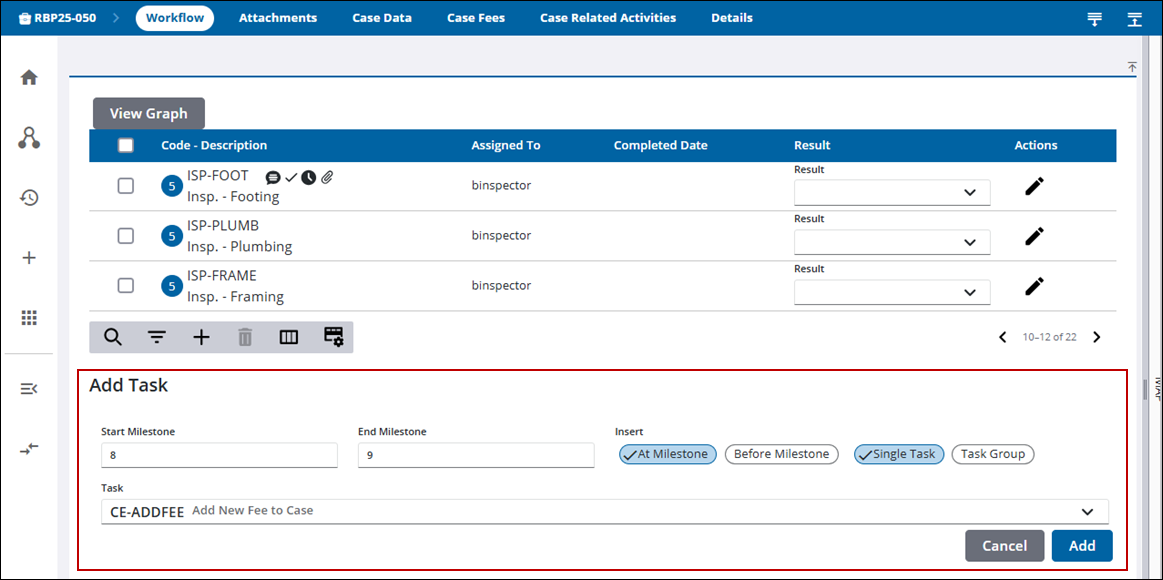
- Use the Start Milestone and End Milestone fields to identify which milestone(s) the task is assigned to. They may automatically populate with the last available milestone.
- Choose either At Milestone or Before Milestone to specify whether the task is inserted at the end or the beginning of the specified milestone.
- Select either Single Task or Task Group to select an individual task or a group of tasks to insert into the workflow.
- Select the desired task to add from the Task drop-down list.
- Click Add to add the task(s) to the case.
Use the Graph
You can view the tasks by milestones in a graph.
NOTE: A task can be added by using the graph on the Workflow panel or page.
- Open a case and navigate to the Workflow panel or page.
- Click View Graph in the upper-left side of the Workflow panel or page to open the graph.
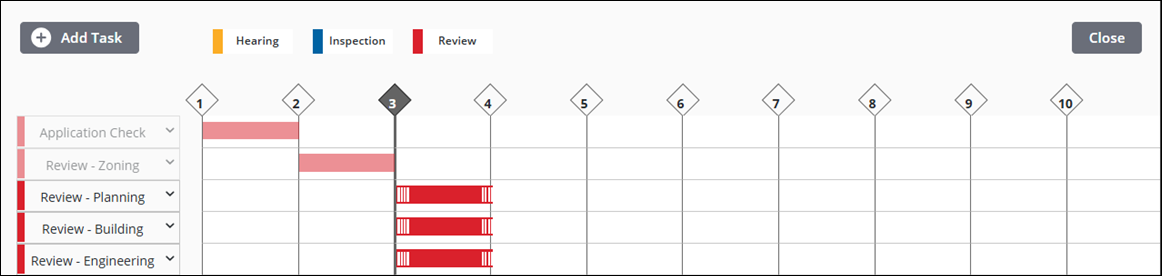
The next available milestone a task can be added to is automatically highlighted. In the following example, milestone 1 and 2 have been completed, so milestone 3 is highlighted. Milestones cannot be changed using the graph.
- Click Add Task.
- Select a task from the Select Task drop-down list.
- Click Add.
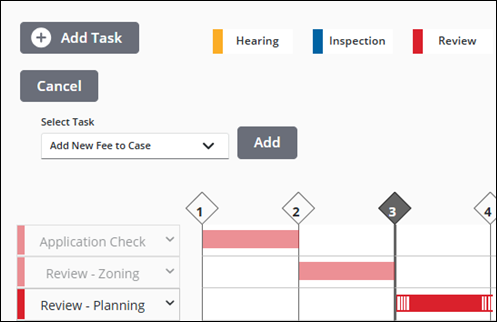
The task appears in the graph.
- Click Close to return to the Workflow panel or page.

