Reopen a Task
The Task Utility tool can be used to find an existing case or a group of cases with tasks to reopen.
|
|
 PREREQUISITES:
 TIP: See Update Tasks Using the Task Utility Tool on Trimble Unity for a quick start guide on this subject.
- Open the Task Utility tool.
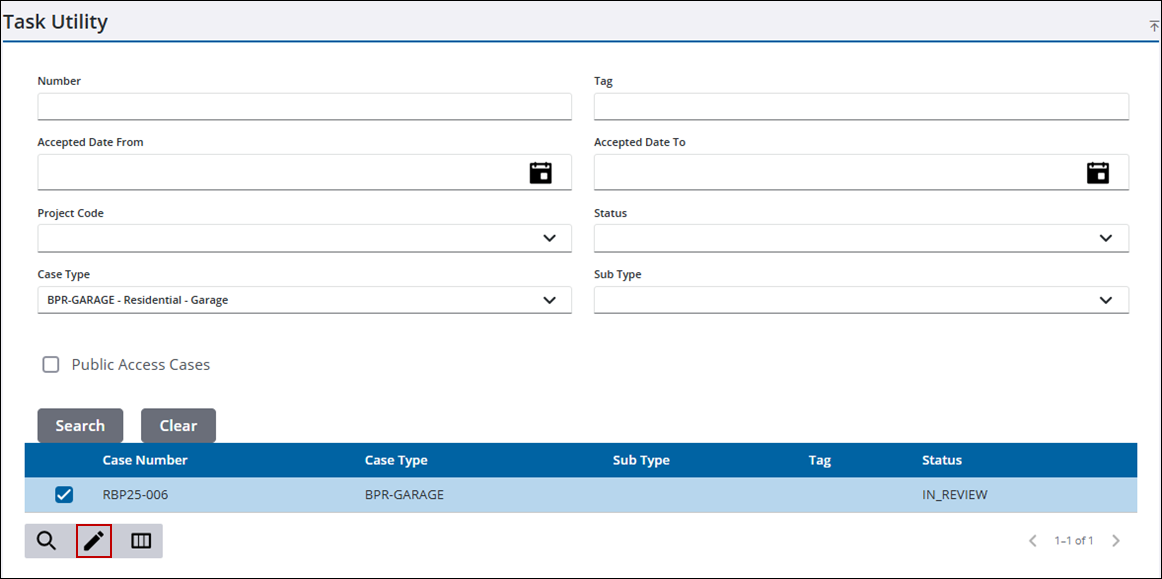
- Enter search criteria, such as the case type and status, in the corresponding fields.
- Click Search. Results matching your search criteria appear below the search form.
TIP: You can filter the list of records displayed. See Filter Records for more information.
- Select one of the cases.
- Click Actions to open the Task Action panel.
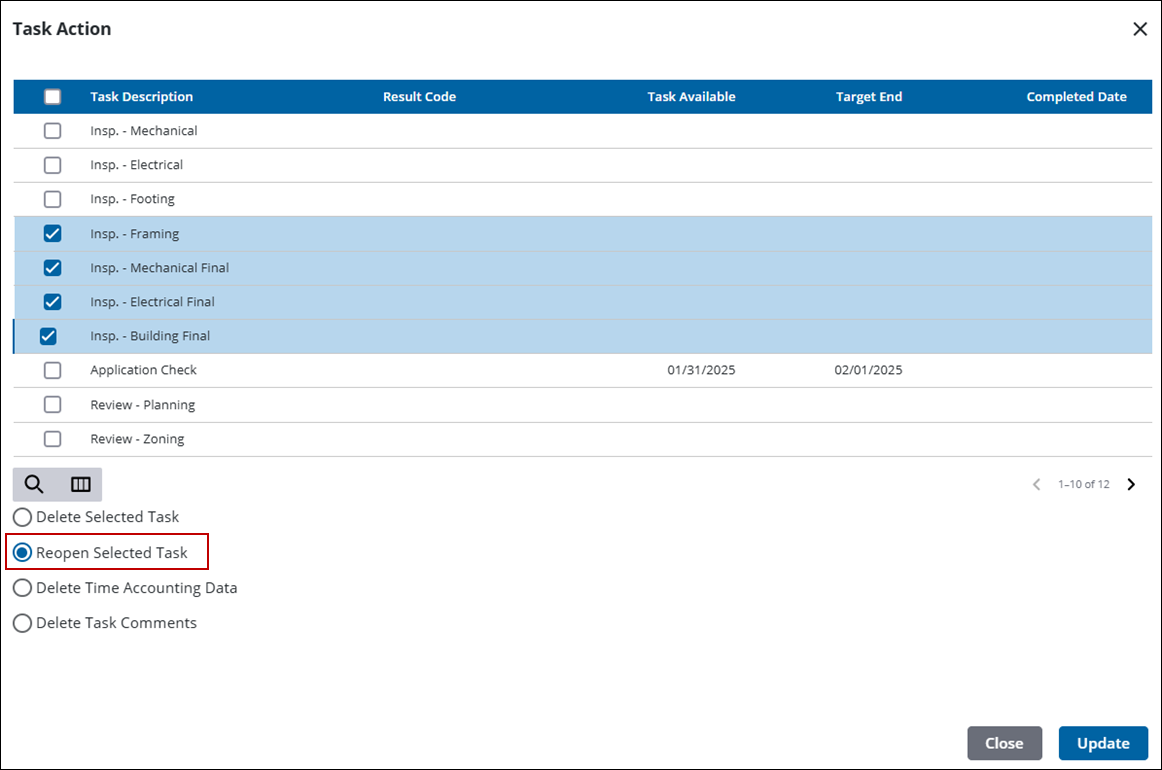
- Select the desired task(s).
TIP: You can filter the list of records displayed. See Filter Records for more information.
- Select Reopen Selected Task.
- Click Update.
See Task Utility Fields or an explanation of the Task Utility panel fields.

