View Work Activities
You can view work activities from each of the widgets configured on the dashboard.
 Use the Chart Widget
- Open a dashboard. See View a Dashboard for more information.
Depending on the type of chart the widget is using depends on how to view work activities.
- Bar Chart: Whether it is a horizontal or vertical bar chart, click the bar to open the Select an Action panel.
- Pie Chart: Click a slice in the pie chart to open the Select an Action panel.
- Line Chart: Click a point on the line chart to open the Select an Action panel.
- Select the desired work activities.
- Click Open.
The work activity's page opens. See Work Order, Service Requests, Custom Inspection, Standard Inspection, or Permit, License, and Case Management for more information.
Use the Count Widget
- Open a dashboard. See View a Dashboard for more information.
- Click the count widget to open the work activities.
The work activity's page opens. See Work Order, Service Requests, Custom Inspection, Standard Inspection, or Permit, License, and Case Management for more information.
Use the Map Widget
- Open a dashboard. See View a Dashboard for more information.
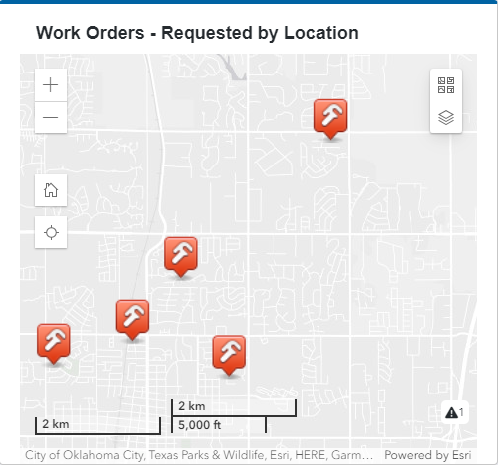
- Click an activity on the map to view its details.
2D Map
3D Map
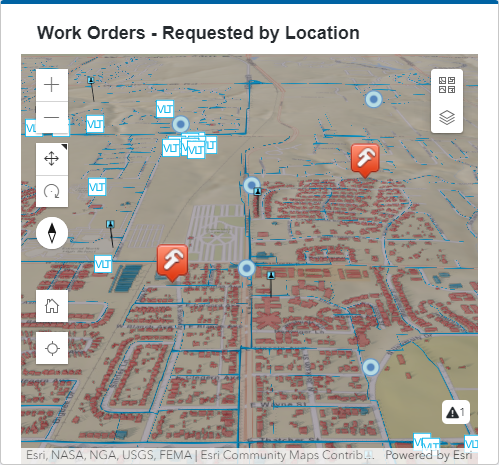
A panel opens on the map displaying details about the work activity.
 NOTE: Open appears if you have configured the widget to use actions. See Edit a Widget for more information.
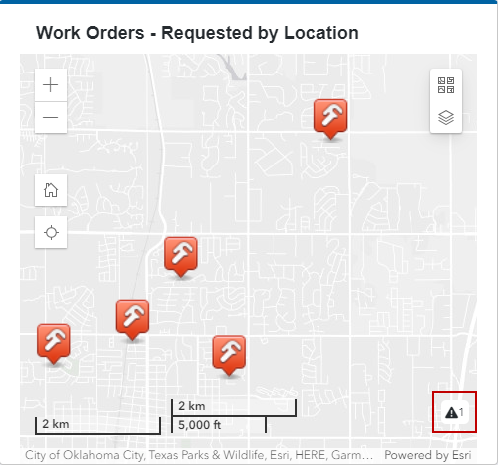
When all the work activities don't appear on the map, a triangle icon appears in the lower-right corner of the map.
- Click the triangle icon to view more activities.
2D Map
3D Map
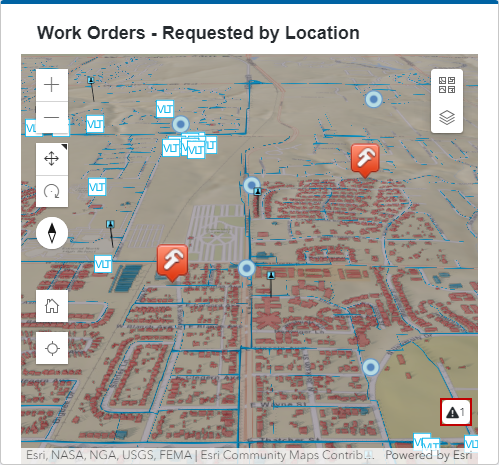
The Not Visible on Map panel opens.
- Select a work activity or activities and click Open.
NOTE: Open appears if you have configured the widget to use actions. See Edit a Widget for more information.
The work activity's page opens. See Work Order, Service Requests, Custom Inspection, Standard Inspection, or Permit, License, and Case Management for more information.
Use the Table Widget
- Open a dashboard. See View a Dashboard for more information.
- Select the work activity or activities in the table you want to view.
- Click Open.
NOTE: Open appears if you have configured the widget to use actions. See Edit a Widget for more information.
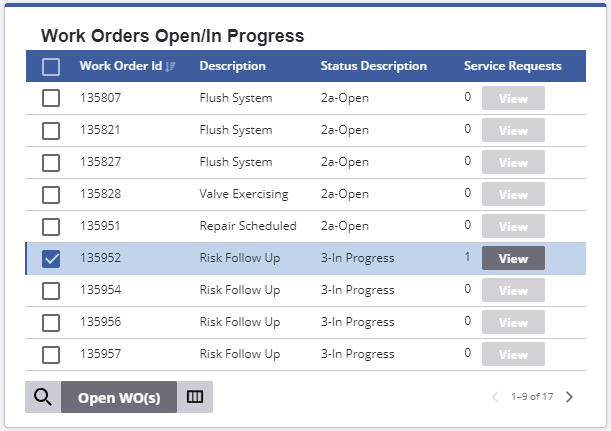
The work activity's page opens. See Work Order, Service Requests, Custom Inspection, Standard Inspection, or Permit, License, and Case Management for more information.

