Send a Notification
You can send notifications of status changes or other updates to a case for all selected licenses.
|
|
 PREREQUISITES:
- Open the License Management page. See Customize Menus for more information on customizing the menu.
- Select a status from the Select case status drop-down list.
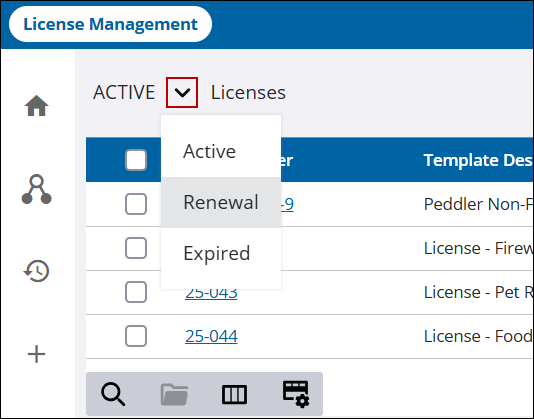
The panel refreshes and lists all licenses matching the selected case status criteria. You can filter the list by date, by query, by unpaid fees, or by entering the name of the license to narrow the results further. See Filter Licenses for more information.
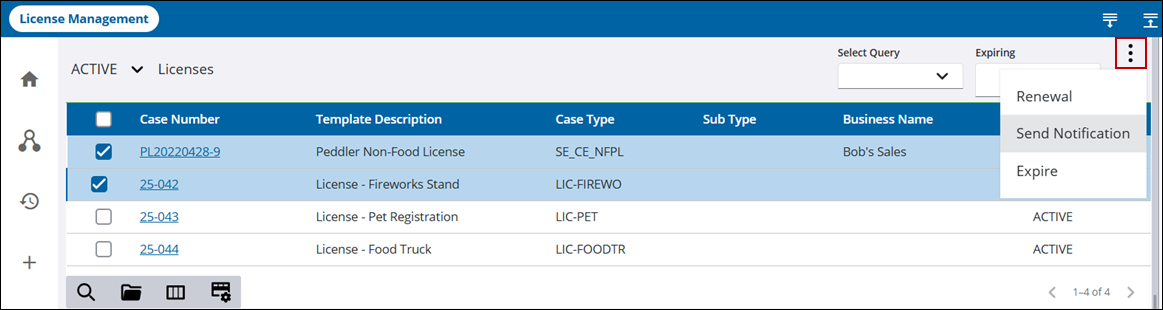
- Select one or more licenses you want to send a notification about.
 NOTE: Selecting the check box at the top of the list selects all the licenses, including any not displayed on the current screen.
- Click More actions and select Send Notification to open the Send Notification panel.
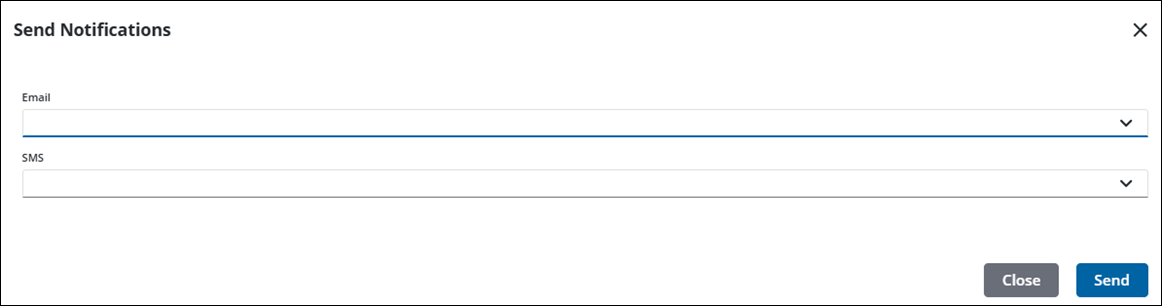
The Send Notifications panel contains two drop-down lists that allows you to choose the type of notifications you want to send.
-
Select either Email or SMS or both. The notifications listed are configured by the administrator in Admin for use in the License Management tool.
- Click Send.

