Open Assets and Events From the Map
When you select assets on the map, you can quickly view details about each asset from the map. You can also open the asset or event in the work management window. For example, you can open an asset on the Asset Details page or open the case's activity page for a case event selected on the map.
 Open Asset Details
You can view a synopsis of details about a selected asset or open the asset on the Asset Details page to view all details of the asset.
|
|
 PREREQUISITES:
- Select assets on the map. See Legend and Selection for more information.
- Click one of the selected assets.
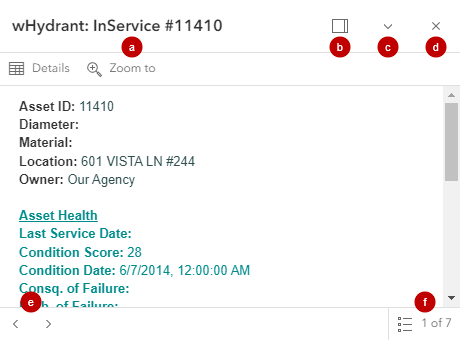
A panel opens and displays details about the selected asset.
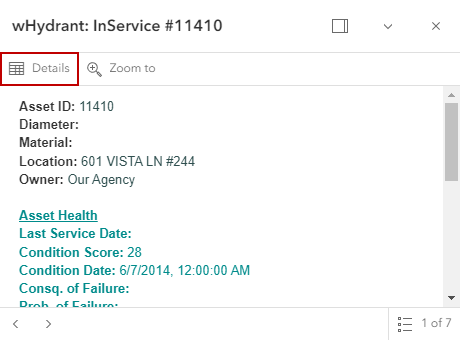
- Click Details or Open in Asset Details in the upper-left corner of the panel to open the asset on the Asset Details page. The Assets panel on the Asset Details page populates with the asset's information. See
 NOTE: Open in Asset Details appears when the layer is configured to use that option in the map details panel.
Open Event Details
You can view a synopsis of details about a selected event (also known as a work activity) or open the work activity's page in the work management window to view all details of the event.
- Click one of the events. See Enable or Disable Options for more information on enabling or disabling clusters on the map.
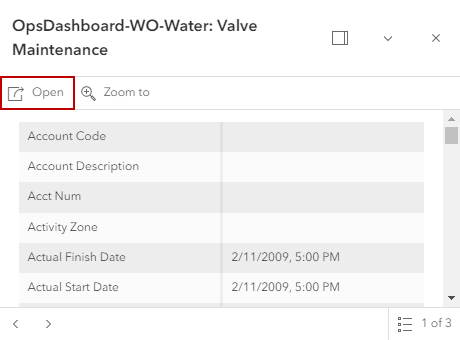
A panel opens and displays details about the selected event.
- Click Open in the upper-left corner of the panel to open the work activity's page.
From the panel, you can:
- Click Zoom to to zoom in to the selected asset or event on the map.
- Click Dock to make the panel stay on the right-hand side of the map even if you move away from the asset you selected. Click Undock to move the panel so that it stays with the selected asset even when you move away.
- Click Collapse/Expand to hide/view the details of the asset or event.
- Click Close to close the panel.
- If multiple assets or activities are selected, click the arrows to move to the next selected asset or event and view its details.
- Click Select feature to open a list of features and select the one you want to view.