Link a Work Activity
You can link a work activity to an existing work order, inspection, service request, or case.
 TIP: See Link an Existing Work Activity for a quick start guide on this subject.
 Link a Related Activity
Link an existing work order, inspection, service request, or permit to an existing work activity.
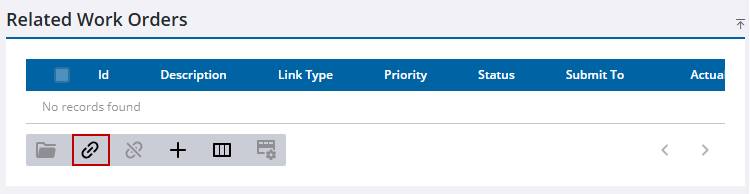
- Open the Related Activity page. See Open the Related Activities Page for more information.
- Click Link activity.
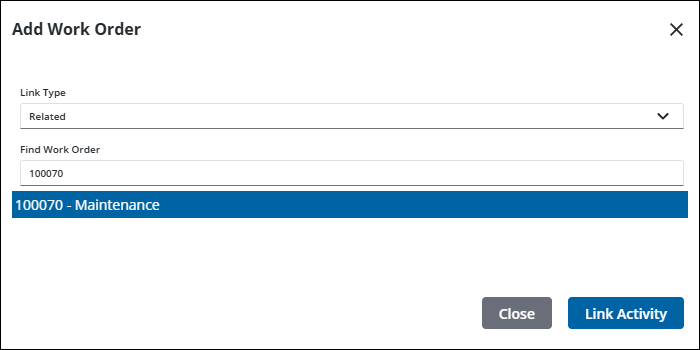
- Select Related from the Link Type drop-down list.
- Search for the work activity using the Id in the Find field. As you enter information, a list of values that matches what you have entered are suggested.
- Select the work activity from the list of results.
- Click Link Activity.
The activity appears in the corresponding Related panel.
If a work activity is linked and follows a workflow, you can progress the workflow using the Take Action button.

Link a Requires Activity
A Required activity must have an associated workflow to the template being used. The work activity cannot be completed until the Requires work activity is completed.
- Open the Related Activity page. See Open the Related Activities Page for more information.
- Click Link activity.
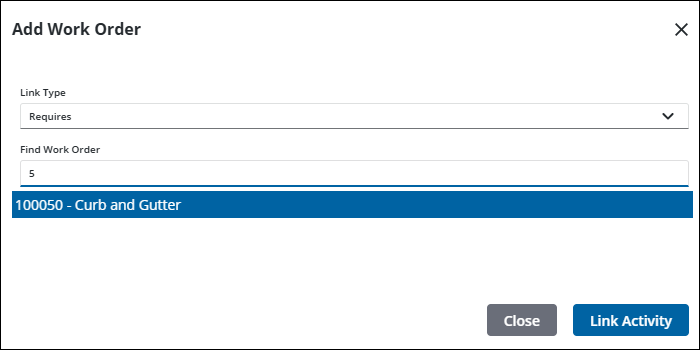
- Select Requires from the Link Type drop-down list.
- Search for the work activity using the Id in the Find field. As you enter information, a list of values that matches what you have entered are suggested.
- Select the work activity from the list of results.
- Click Link Activity.
The activity appears in the corresponding Related panel.
If a work activity is linked and follows a workflow, you can progress the workflow using the Take Action button.
Link a Required By Activity
A Required By activity must have an associated workflow to the template being used. The work activity cannot be begun until the Required By work activity is completed.
- Open the Related Activity page. See Open the Related Activities Page for more information.
- Click Link activity.
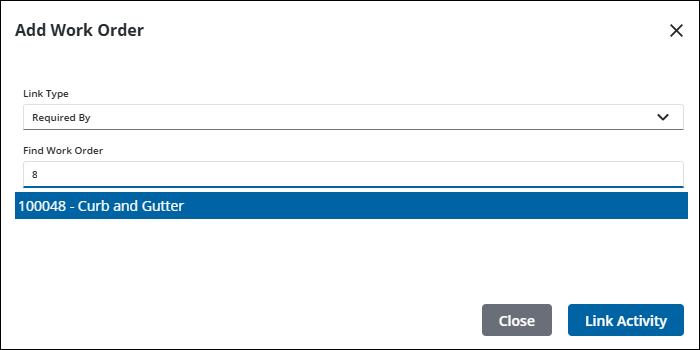
- Select Required By from the Link Type drop-down list.
- Search for the work activity using the Id in the Find field. As you enter information, a list of values that matches what you have entered are suggested.
- Select the work activity from the list of results.
- Click Link Activity.
The activity appears in the corresponding Related panel.
If a work activity is linked and follows a workflow, you can progress the workflow using the Take Action button.

