Configure Attachments for ActiveReports
To bring in attachments, start by adding a data source. Then, if needed, create a parameter. Next, create a query to retrieve the attachments you want. Finally ensure the report is configured correctly.
|
|
 PREREQUISITES:
 Add a Data Source
First, a custom data source must be added that allows access to attachments or GIS thumbnails that can be added to reports.
- Open the Report Designer.
- Click the Data tab and click Add.
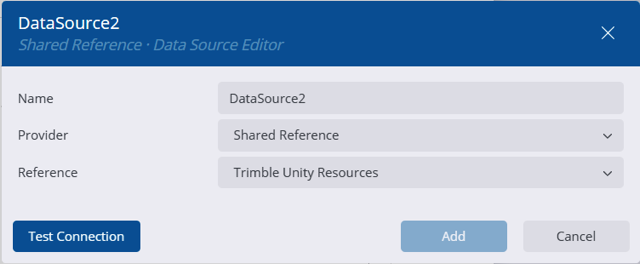
- Enter the Name of the data source.
The Provider is set to Shared Reference.
- Select Trimble Unity Resources as the Reference.
- Click Test Connection.
- Click Add.
Add a Parameter
If you are building a query that brings in attachments based on the work activity ID entered when viewing the report, a parameter must be configured first before the query is built in the data set.
 IMPORTANT: Before adding the parameter, the field must be brought in through a data set linked to the Trimble Unity SQL data source. See Add a Data Set for more information. IMPORTANT: Before adding the parameter, the field must be brought in through a data set linked to the Trimble Unity SQL data source. See Add a Data Set for more information. |
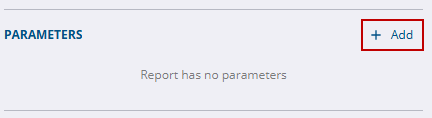
- In the Parameters section click Add.
- Select the parameter.
- Enter a Name for the parameter.
- Enter the Prompt.
- Select the applicable Data Type. See Print Parameters to see which data type should be selected.
- Under Available Values, select From Query.
- In the Data Set Name drop-down list, select the data set.
- Select the Value and Label Fields.
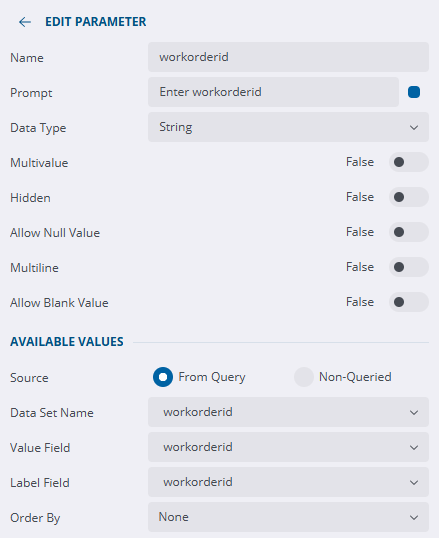
- Click the back arrow next to Edit Parameter.
Now a data set can be added.
Add a Data Set
After a custom data source is added, a data set should be added with a query pointing to where the wanted attachments are.
- Click Add Data Set next to the data source in the Data Sources section.
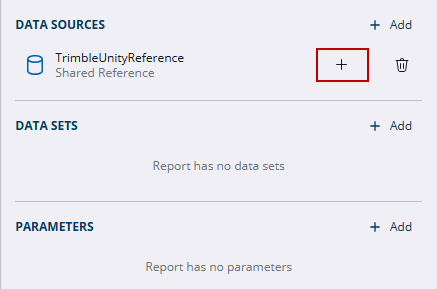
- On the New Data Set panel, confirm it says that it is based on the Trimble Unity Resources data source added above. Attachment data sets must be based on the Trimble Unity Resources data source.
- Edit the Name of the data set. Data set names cannot have spaces, but underscores or camel case can be used.
- Select Command Type. The default is Text.
- Enter something similar in the Query field to connect to the files wanted:
 TIP: You can use an asterisk (*) in a query at the end to pull in all attachments in a folder. If there are many attachments in the folder, it may attempt to pull in thousands of records, if not more, and cause a performance backlog as well as not returning the desired results.
- GIS Thumbnails
- thumbnail:workorder[WorkOrderId].png
- This query fetches all work order related map images for the work order ID entered when the report is viewed.
- thumbnail:inspection[InspectionID].png
- This query fetches all inspection related map images for the inspection ID entered when the report is viewed.
- thumbnail:request[RequestID].png
- This query fetches all service request related map images for the service request ID entered when the report is viewed.
- thumbnail:case[Case_Object_Id].png
- This query fetches all case images from the case ID entered when the report is viewed.
- Attachments
- attachment:WorkOrder/[WorkOrderID]/*
- This query fetches all attachments related to the work order ID entered when the report is viewed.
- attachment:Inspection/[InspectionId]/*
- This query fetches all attachments related to the inspection ID entered when the report is viewed.
- attachment:Request/[RequestId]/*
- This query fetches all attachments related to the service request ID entered when the report is viewed.
- attachment:reldocs/[CA_OBJECT_ID]/*
- This query fetches all attachments related to the case ID entered when the report is viewed.
- attachment:reldocs/[CA_OBJECT_ID]/payments/*
- This query fetches all payment attachments related to the case ID entered when the report is viewed.
- attachment:reldocs/[CA_OBJECT_ID]/tasks/*
- This query fetches all task attachments related to the case ID entered when the report is viewed.
- attachment:EmployeeImage/[EmployeeSID]/*
- This query fetches all employee images related to the employee SID entered when the report is viewed. The query syntax is case sensitive and must match this exactly.
IMPORTANT: A parameter must be configured if you are entering the ID of a specific work activity when viewing the report. See Create a Parameter for more information.
TIP: Instead of using a parameter and entering an ID, you could enter the specific ID number in the query to pull all attachments from that specific work activity. Additionally, instead of using the asterisk (*), you could enter the specific image file name wanted.
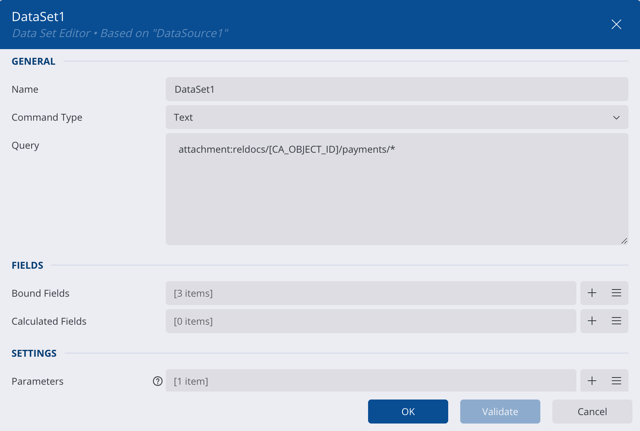
- Click Validate.
Either a success message or error message appear. If an error message appears, consult the query syntax and adjust accordingly.
- If a success message appears, click OK.
If you are setting up a data set that includes a parameter, follow the steps below.
- In the Settings section, click the plus icon next to the Parameters field.
- Change the Parameter Name to your parameter name, for example workorderid.
- Click the Data Binding icon to the right of the Value field.

- Select Expression.
- Expand Parameters.
- Double-click the parameter name you created, for example workorderid.
- Click Save.
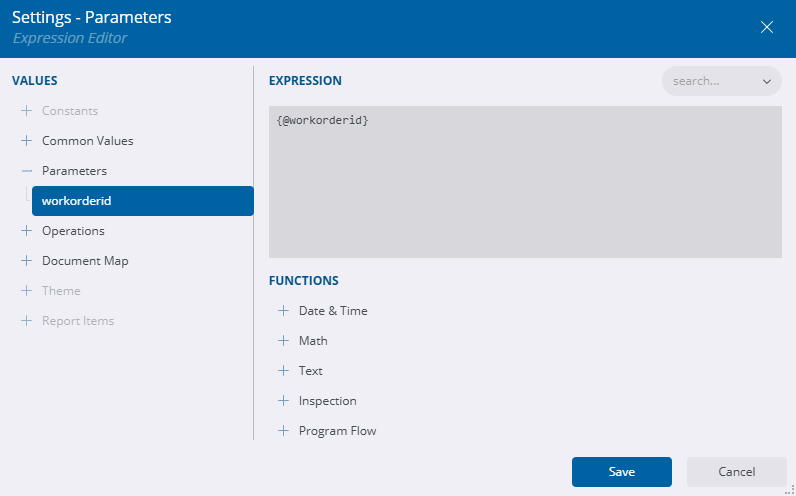
IMPORTANT: For thumbnails and attachments, a where statement is not needed to complete configuring the parameter.
- Click Validate.
- Click OK.
Configure the Report
 WORKAROUND: When a data set is updated or rebound, the data set is cleared from a banded list and a table. After updating a data set, select the banded list or table in the report to open the Banded List properties. Select the correct Data Set Name from the Data section to re-establish the link. If it's not updated, no results are returned when the report is generated.
- Drag Table in the report from the AR Web Designer toolbar and remove all the tables and columns so it leaves one cell.
- Expand the cell.
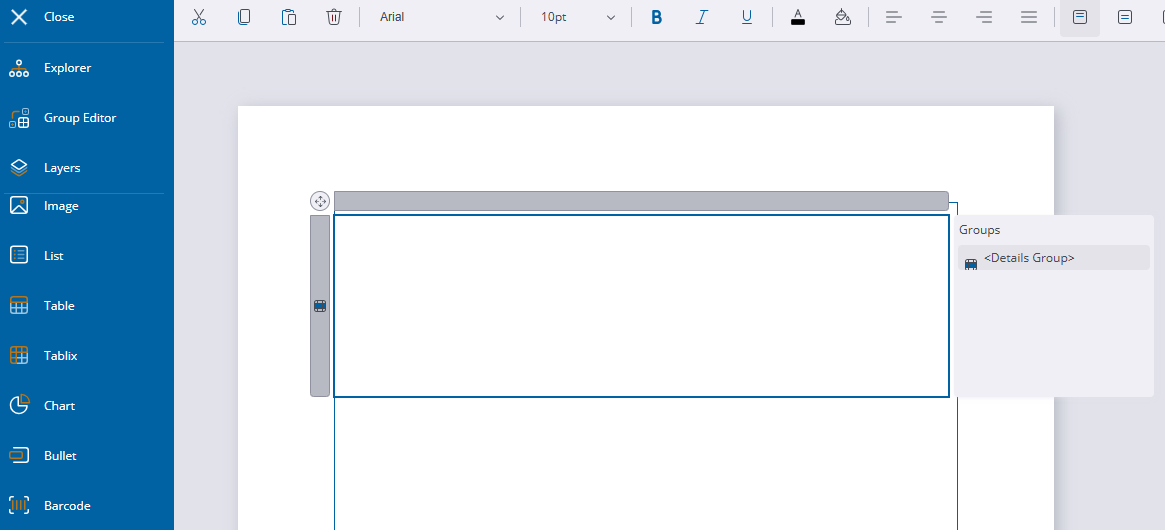
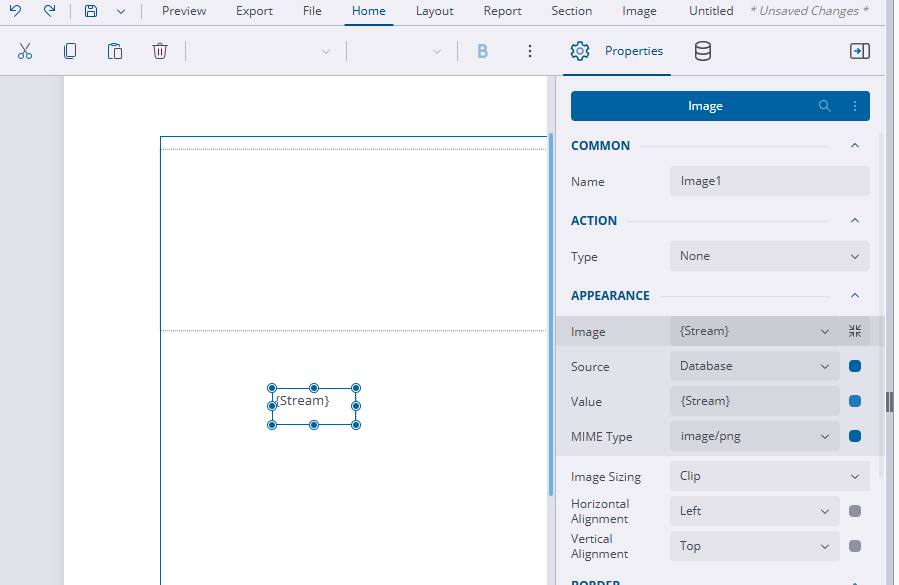
- Drag Image into the report from the AR Web Designer toolbar and select the image box.
- On the right-side under the Appearance section, and click Expand to the right of the Image field.
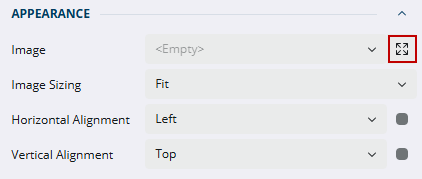
- Select Database from the Source drop-down list.
- Enter {Stream} in the Value field.
- Select image/png from the MIME Type drop-down list.
- Select Fit from the Image Sizing drop-down list.
- Drag the image control into the table.
IMPORTANT: If you add an image control and render the stream content in it outside of a table or in a container, only the first image in the series renders. No images render in a banded list.

