Add Associated Forms to a Service Request
Any forms associated to the template can be added to the service request and filled out in Respond.
|
|
 PREREQUISITES:
- Open a service request. See Open a Service Request for more information.
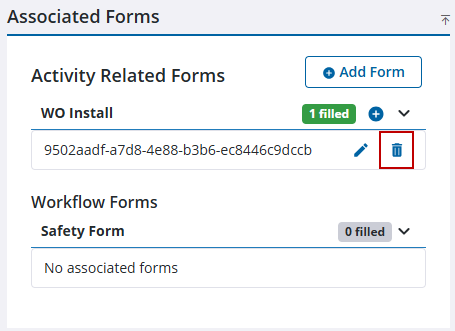
- Scroll to the Associated Forms panel.
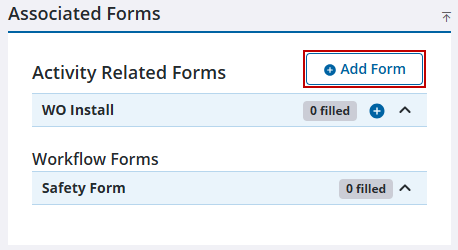
- Click Add Form to select from a list of forms associated with the template.
- Select a form from the list.
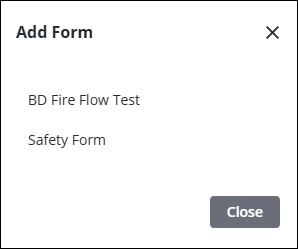
The form automatically opens and can be filled out.
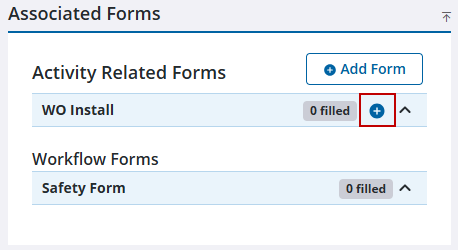
- Alternatively, to add an additional form of the same type, click the Add Form icon on the right of the desired form.
If there are multiple forms for a work activity, they are grouped by Activity Related Forms and Workflow Forms. Workflow forms can only be filled out when a certain status corresponding to the form is selected in the Workflow Summary panel.
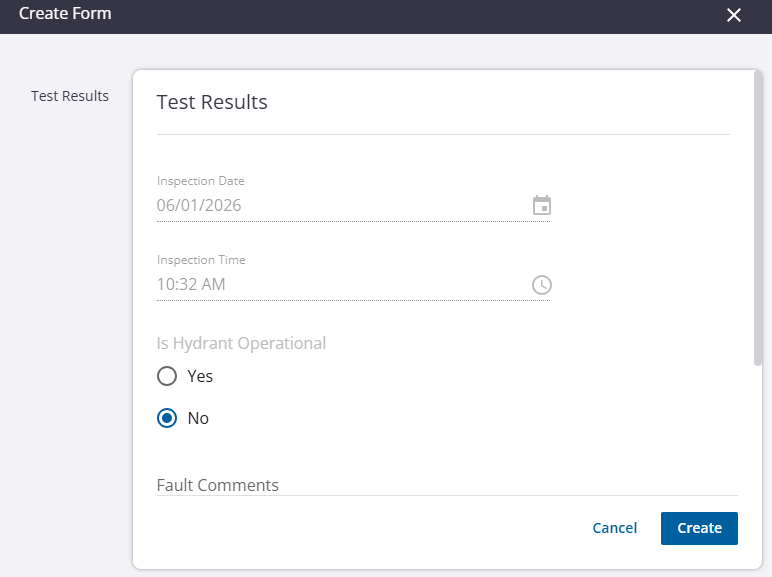
- On the Create Form panel, enter the required information into the fields.
- Click Create.
- Alternatively, click the delete icon next to the form name to remove it.
- Click Delete on the confirmation panel.

