Geocode a Service Request
A geocoded service request includes the X and Y coordinates for the address. Complete one of the following:
 While Creating a Service Request
- Start creating a service request.
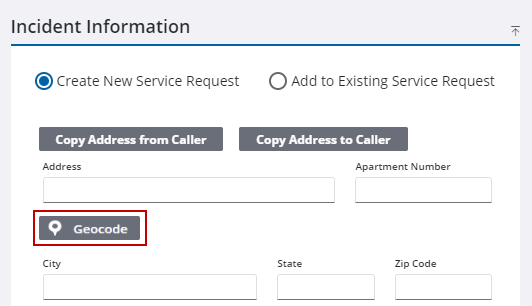
- Enter the Address on the Incident Information panel.
- Click Geocode.
 TIP: You can filter the list of records displayed. See Filter Records for more information.
- Select the address from the Geocode Results panel.
This geocodes the address to the service request without having to open the map. However, if the map is already open, the results are highlighted. When a result is selected, it centers the map on the selection.
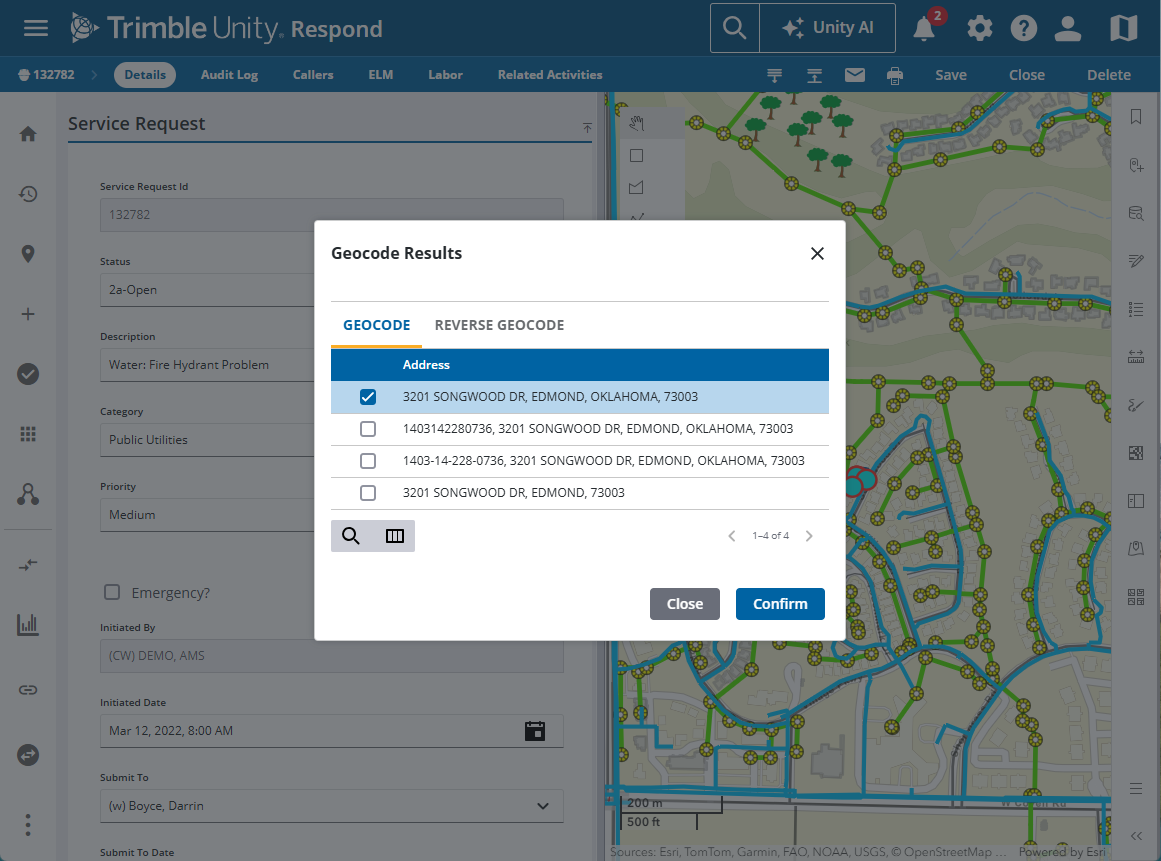
- Click Confirm to use the selected address.
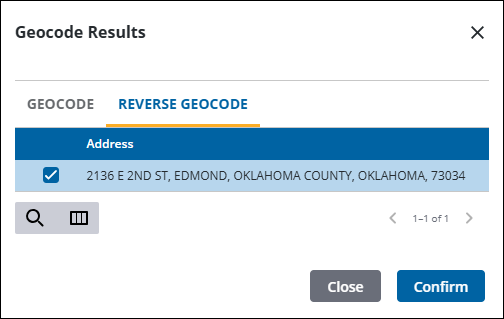
A map pin appears on the map.
From an Existing Service Request
If the service request has X and Y coordinates and no address or has an address and no X and Y coordinates, you can reverse geocode and get the information you are missing and add it to the service request.
- Open a service request.
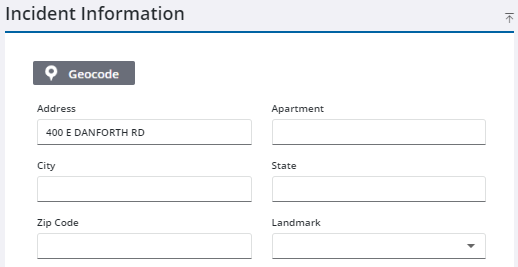
- Scroll to the Incident Information panel and check whether you have an address or X and Y coordinates.
- If you have one or the other, enter the address in the fields and click Geocode.
TIP: You can filter the list of records displayed. See Filter Records for more information.
- Select the address from the Geocode Results panel.
This geocodes the address to the service request without having to open the map. However, if the map is already open, the results are highlighted. When a result is selected, it centers the map on the selection.
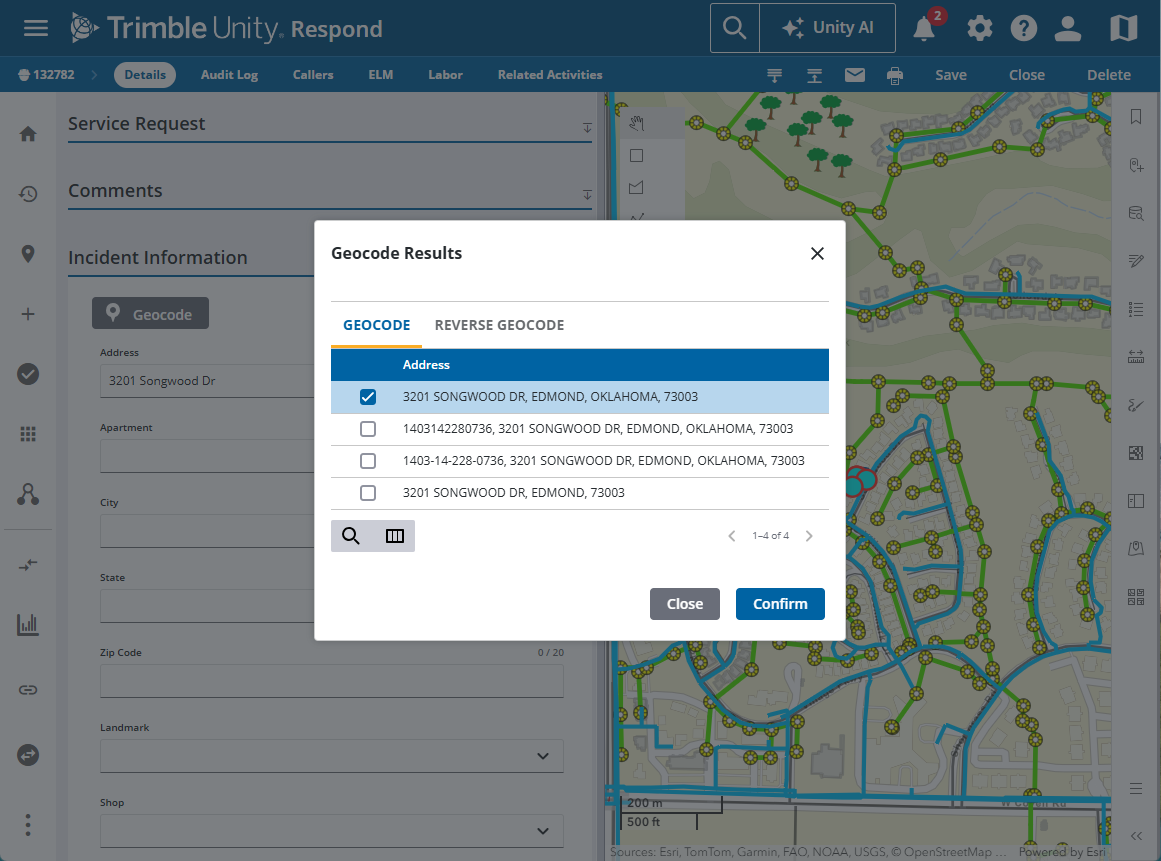
- Click Confirm to use the selected address.
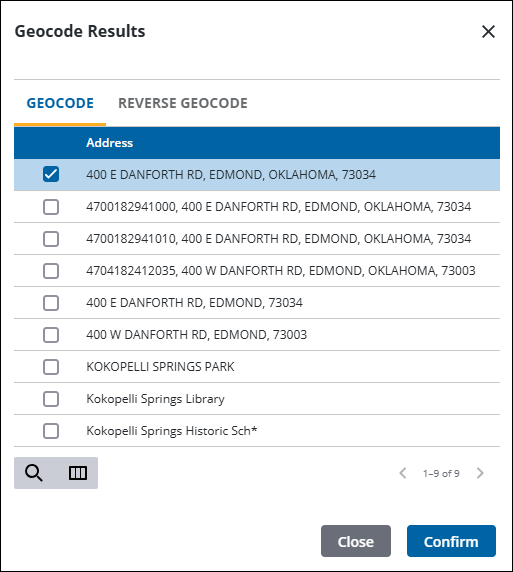
A map pin appears on the map.
- Click Save in the upper-right corner.

