Route Between Tasks
You can view a route between task locations on the map by using the routing map tool. Tasks must have an XY coordinate.
|
|
 PREREQUISITES:
- Open Task Manager and perform a search. See Search for Tasks for more information on performing a search.
- Open the map and the work activity in a split screen. Open the Routing map tool.
- Click Route Tasks from Task Manager. All tasks with an XY coordinate are automatically transferred to the Routing map tool. The resulting route displays on the map beginning at the user's current location. Turn-by-turn navigation can be accessed by clicking the right arrow located at the bottom of the Routing map tool.
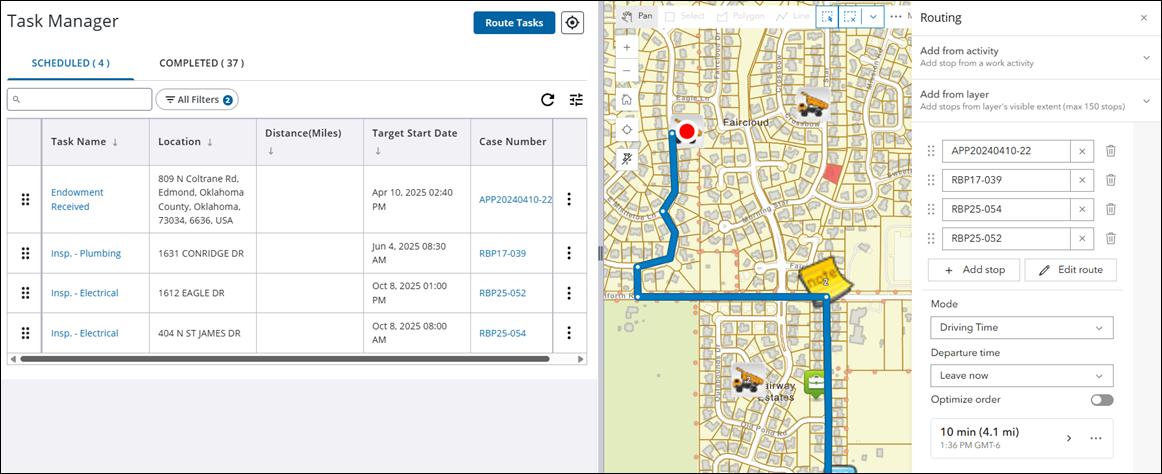
- To determine the actual driving distances from your current location to all tasks, click Calculate Distances. Be aware that using this feature may incur a cost, depending on the specific routing service configured.
- If prompted, allow the system to determine your location.

 TIP: Distances can be displayed in both kilometer and/or miles. Use the column icon to determine which fields are visible on the panel. TIP: Distances can be displayed in both kilometer and/or miles. Use the column icon to determine which fields are visible on the panel. |

