View a Route Between Tasks
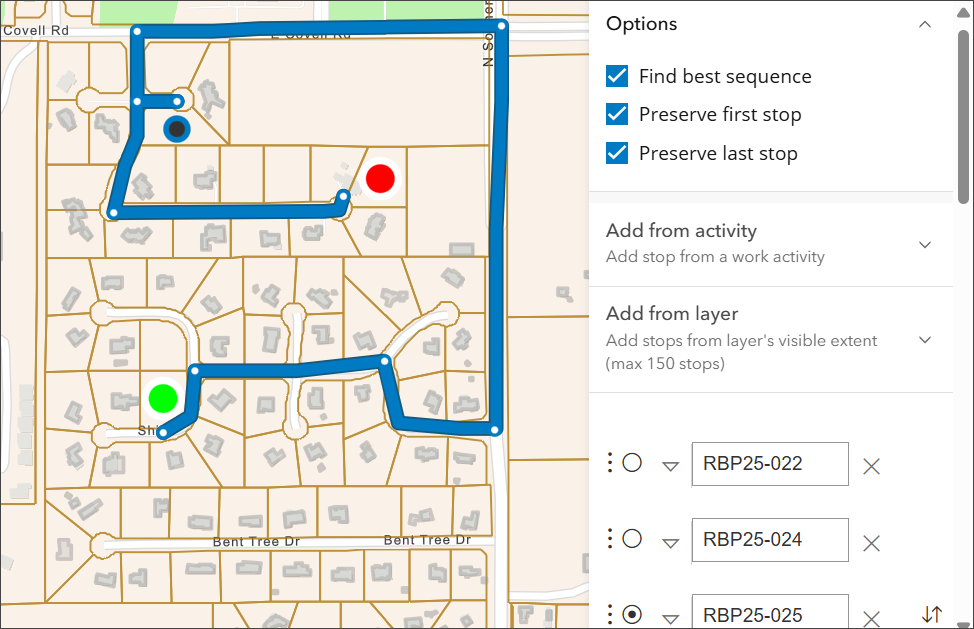
You can view a route between task locations on the map by using the routing map tool.
|
|
 PREREQUISITES:
- Open Task Manager and perform a search. See Search for Tasks for more information on performing a search.
 NOTE: Open the map to automatically update the task information such as the X and Y coordinates of the task.
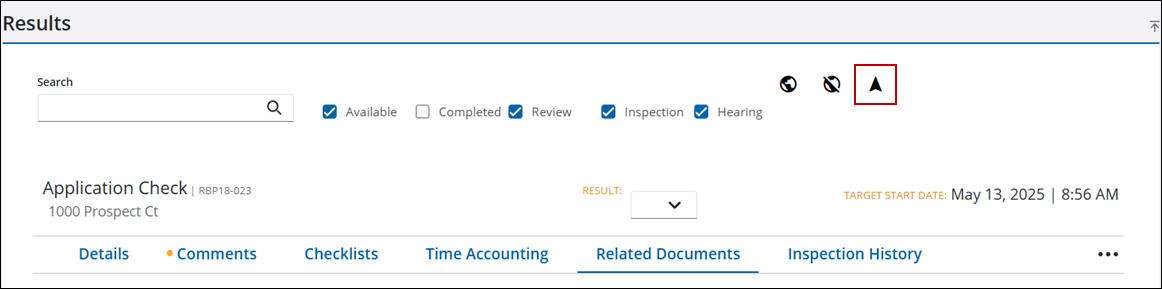
- Click the navigation arrow.
NOTE: If none of the tasks in the list have a valid X and Y coordinate, the navigation arrow does not appear.
The Routing map tool opens and routes between the task locations, starting at the user's current location.