View an Asset on a Work Order
The Assets panel lists all assets attached to a work order and has two views: one that shows all assets and one that shows a single asset type. The number of total assets is listed at the bottom of the panel.
- Open a work order.
Any assets attached to the work order displays.
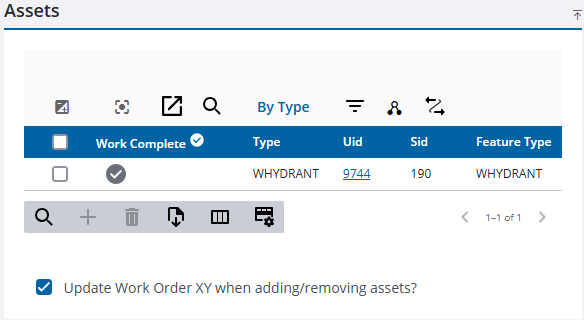
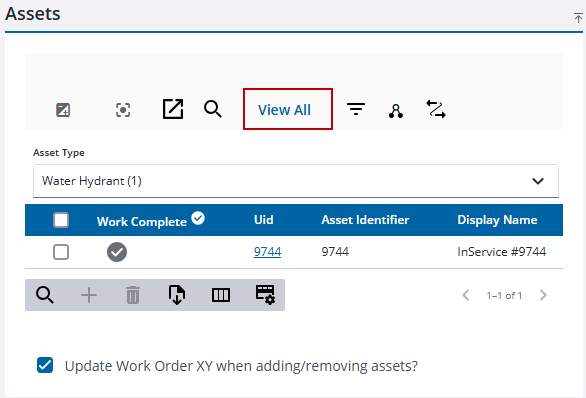
- Click View All to view all the assets attached to the work order. Click By Type to view a specific type of asset, such as a water main.
 NOTE: If you're viewing assets By Type, select the asset from the Asset Type drop-down list.
- If you want to view or edit attributes of the asset, select the check box to the left of the asset.
- Click Asset Details to open the Asset Details page. See Asset Details for more information.
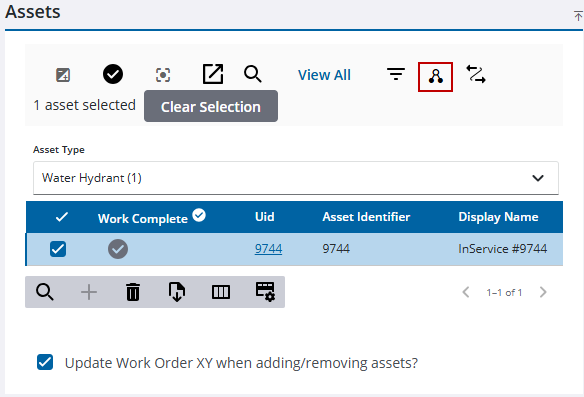
NOTE: If needed, click Invert Selection to switch between selected assets. See Highlight Selected Assets on the Map for more information.
See Work Order Fields for an explanation of the Assets panel fields.

