Edit Multiple Work Orders
You can apply edits in bulk to certain fields on work orders all at once.
- Open multiple work orders. See View Multiple Work Orders for more information.
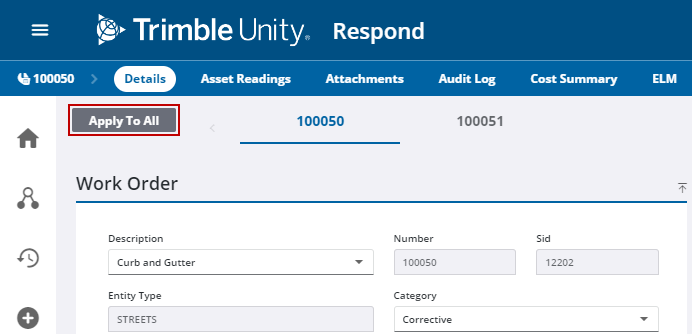
- Click Apply to All.
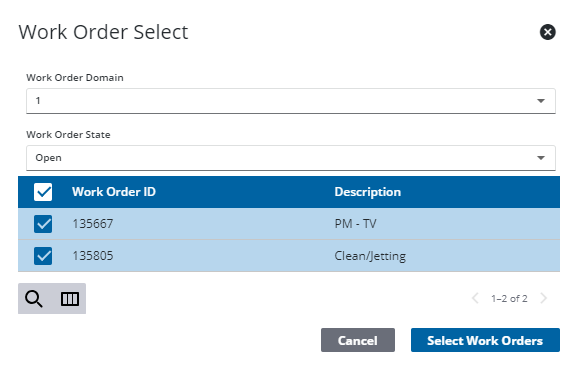
- Select a domain from the Work Order Domain drop-down list to filter the work orders.
- Select a state of Open, Canceled, or Closed from the Work Order State drop-down list to filter the work orders.
 NOTE: The Open state counts as any work order that is technically open. For example, a status of In Progress or Requested would count as open.
 TIP: You can filter the list of records displayed. See Filter Records for more information.
- Select the work orders you'd like to edit at the same time.
- Click Select Work Orders.
The Work Order page opens with the ability to now apply changes to all selected work orders at once.
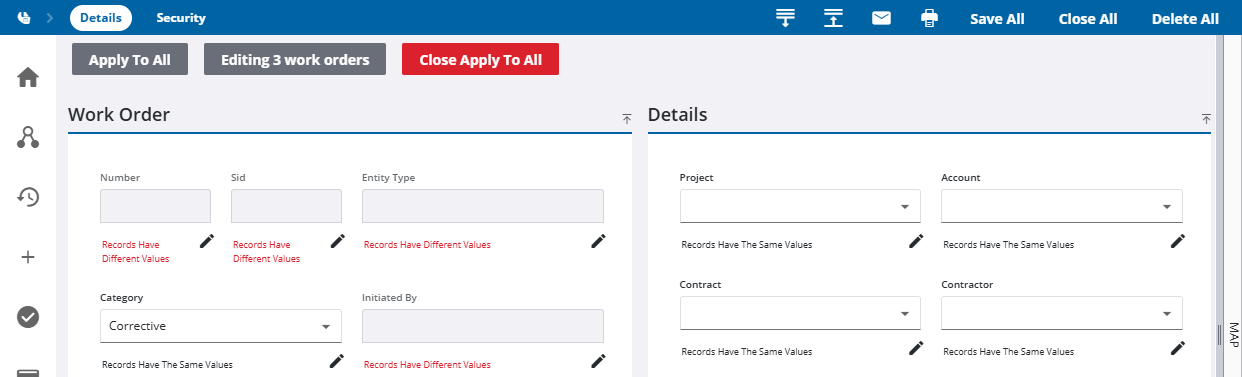
If values are the same across all the work orders, the field can be edited and it says Records have the same value. If values for a field differ between the different work orders, the field is grayed out and it says Records Have Different Values.
- If records have the same values, edit the field directly from the Apply to All page, or click the edit icon to edit the values individually for each work order.
- If records have different values, click the edit icon.
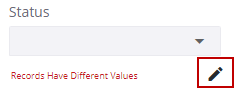
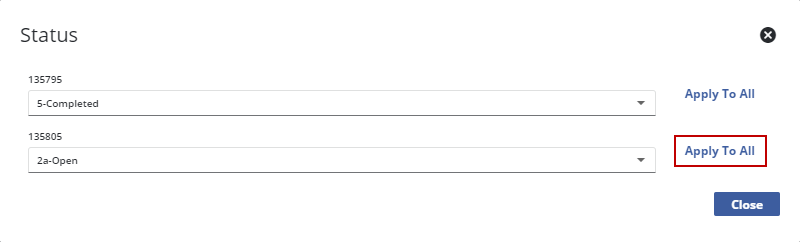
In this example, each work order displays what their status is, along with the work order ID.
- Click the drop-down list for each individual work order to edit the fields one-by-one, or click Apply to All next to a field to apply that definition to every listed work order.
- Click Close.
- Once you're done making edits in bulk, click Save All in the upper-right corner.
- To change the Status to Closed for multiple work orders, click Close All in the upper-right corner.
- To permanently remove the work orders from the records, click Delete All in the upper-right corner.
- Click Close Apply to All to stop editing multiple work orders at once.

