Log In Examples
 Trimble Unity Without Federation
- Open Trimble Unity.
- Click Trimble ID.
 NOTE: If they haven't been accepted, a link to Trimble's privacy notice and a cookie settings message appears on the log in page. You can accept all cookie settings or select which cookie settings you want enabled. Cookie settings can help enhance site navigation and analyze site usage.
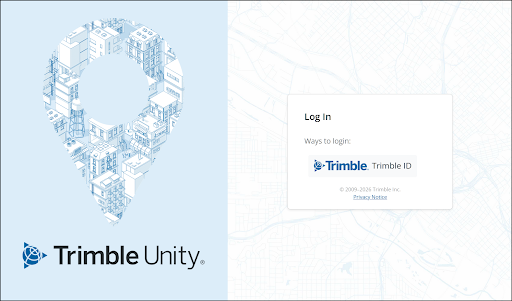
- Enter your Email or username and click Next.
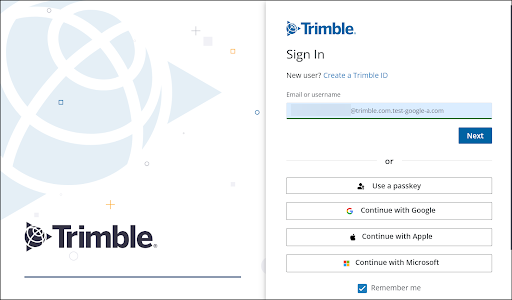
- Enter your Password and complete two-step verification in Trimble ID.
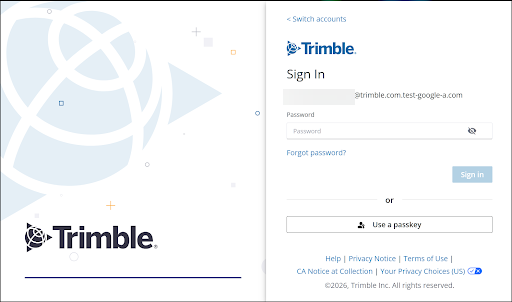
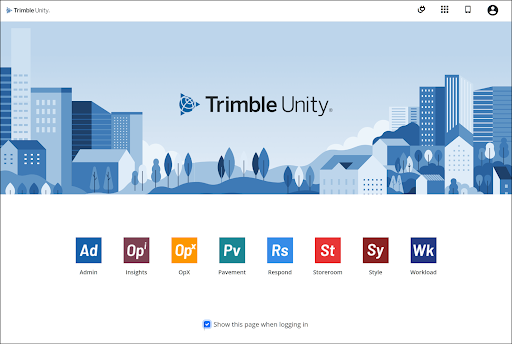
After successful authentication, the user is logged into Trimble Unity.
Trimble Unity with Federation
The identity federation in Trimble ID is set up for each email domain, such as “@trimble.com” or “@dot.abc.gov.” After federation is set up for a specific domain, the log in workflow changes for any (new or existing) Trimble ID user with that email domain. Trimble ID does not support using different identity providers (IdPs) with the same email domain.
- Open Trimble Unity.
- Click Trimble ID.
NOTE: If they haven't been accepted, a link to Trimble's privacy notice and a cookie settings message appears on the log in page. You can accept all cookie settings or select which cookie settings you want enabled. Cookie settings can help enhance site navigation and analyze site usage.
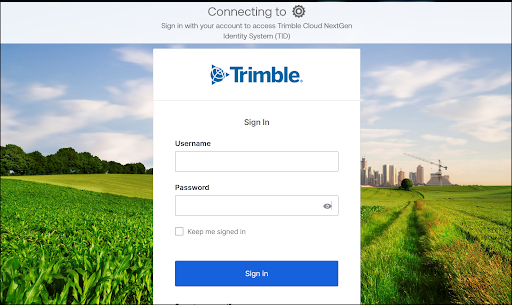
- Enter your Email or username and click Next.
The login screen redirects to the organization’s identity provider (IdP) based on the email domain, such as Microsoft Entra ID (formerly Azure AD), ADFS, Okta, Google, etc.
- Continue to log in with the organization’s identity provider (IdP), which can include entering a password and two-step verification.
NOTE: If you have previously logged into the identity provider (IdP) in the same browser session, then it passes through without this prompt.
After successful authentication, the system redirects back to Trimble ID and Trimble Unity.