Add a Widget
You can add a widget to a dashboard.
|
|
 PREREQUISITES:
- Click Dashboard.
- Click
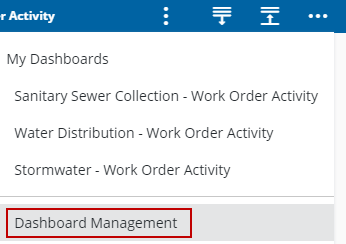
 NOTE: The most-recently-viewed dashboards display. To quickly switch between recently-viewed dashboards, see Switch Between Dashboards for more information.
The Dashboard Management page opens.
- Click the edit icon in the Dashboards panel.
- On the Dashboard - Edit page, click the add icon.
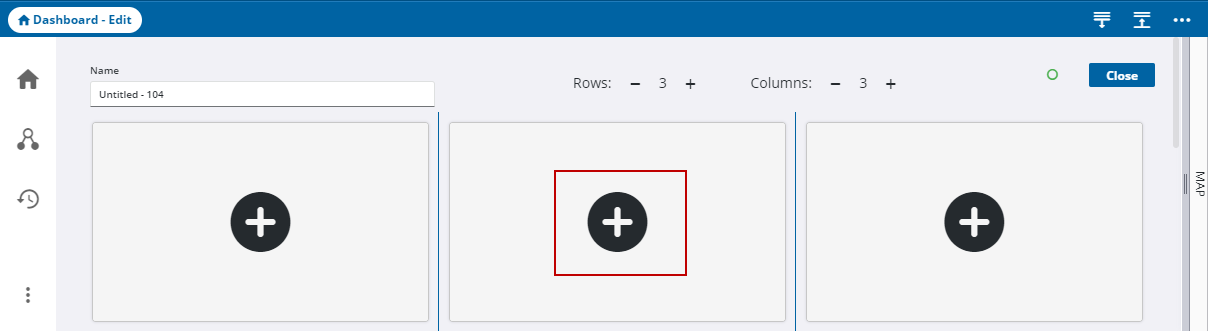
The Add Widget panel opens.
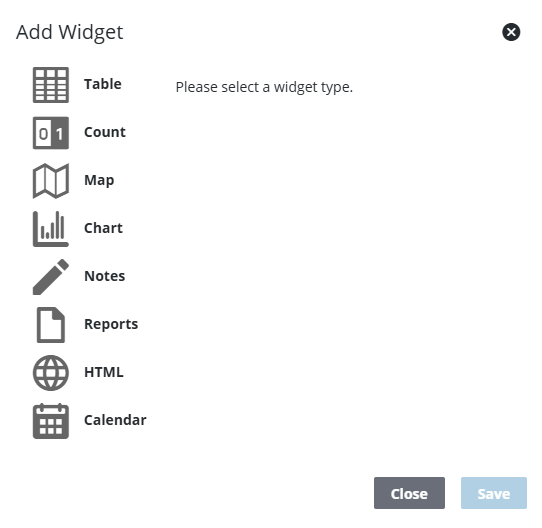
- Select a widget.
- Enter a Name for the widget.
- Select and enter any other information as desired. A preview appears to the right on the Add Widget panel that dynamically changes as you define fields for the widget. See Query Action Types for more information on adding actions to the widget based on the query.
NOTE: If the Count or Chart widget is selected, you can select Numeric, Currency, or Percent for the Numeric Type.
- Click Save.
NOTE: Changes made to the dashboard save automatically.
To edit the dashboard, see Edit a Dashboard for more information.