Edit a Widget
You can edit a widget on a dashboard.
|
|
 PREREQUISITES:
- Click Dashboard.
- Click
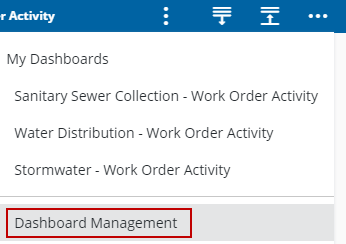
 NOTE: The most-recently-viewed dashboards display. To quickly switch between recently-viewed dashboards, see Switch Between Dashboards for more information.
The Dashboard Management page opens.
- Click the edit icon in the Dashboards panel.
- On the Dashboard - Edit page, click Edit on the widget you wish to edit.
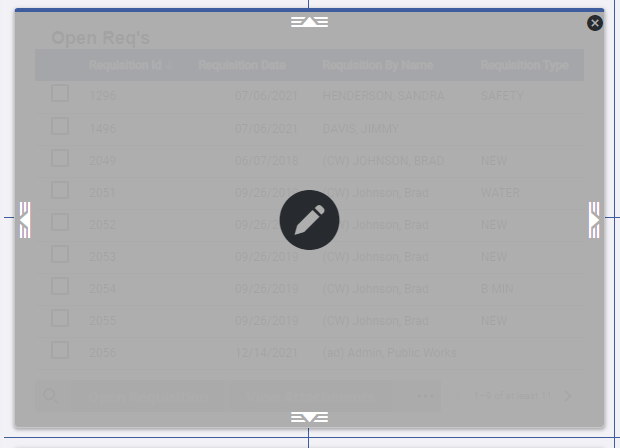
NOTE: You can resize a widget by dragging the arrow icons on the top, bottom, or sides of the widget to expand across another column and/or row.
The Edit Widget panel opens.
- Edit the widget details. See Query Action Types for more information on adding actions to the widget based on the query.
- Click Save.
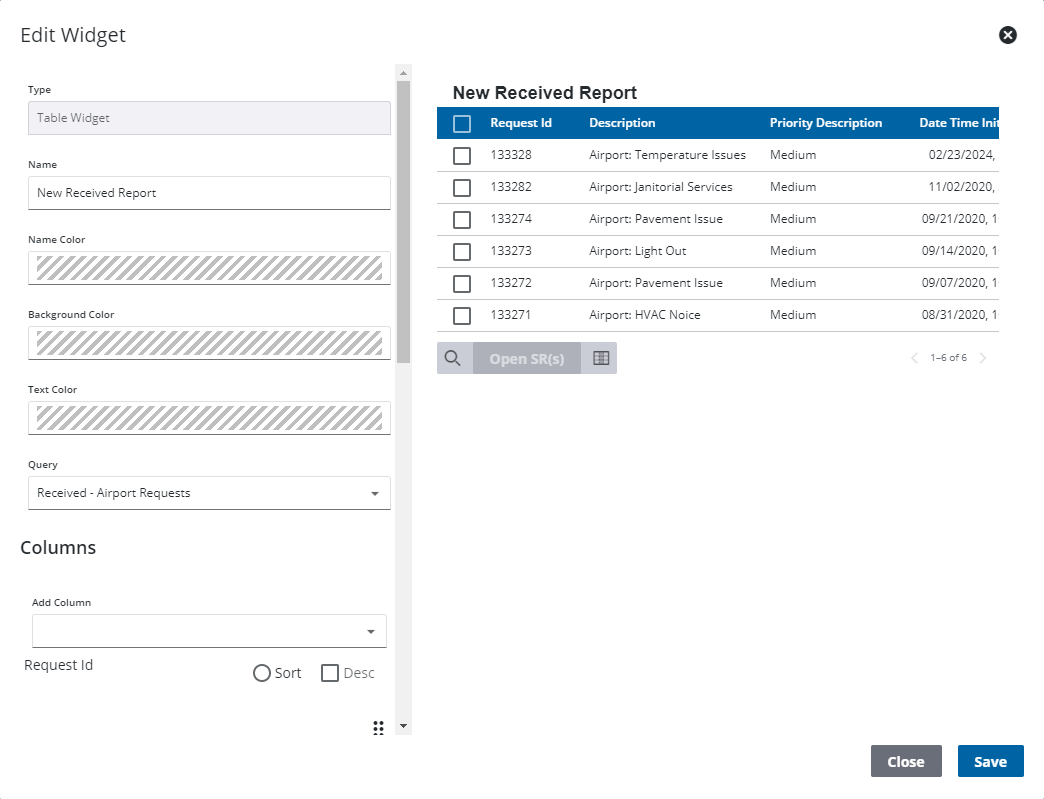
The widget is updated and a confirmation message appears.
NOTE: Changes made to the dashboard save automatically.
To edit the dashboard, see Edit a Dashboard for more information.