Change Field Label Colors
You can change the color of a field label based on the theme
|
|
 PREREQUISITES:
- Within the Controls panel, select a control.
 NOTE: The highlight fields have been enabled for some controls on various layouts. These include controls with an ID prefix of txt, cmb, date, auto, or rdo with the exception of the controls on most of the edit layouts (i.e., Inspection Edit, Hydrant Flow Test Edit, Manhole Inspection Edit, Pavement Inspection Edit, TV Inspection Edit, Service Request Edit, and Work Order Edit).
- Select the Light Theme Highlight or Dark Theme Highlight fields in the Control Details panel.

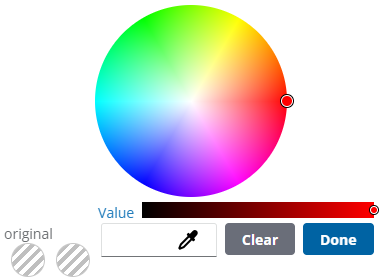
A panel opens with a color wheel.
- Select a color from the wheel or enter a HEX decimal in the field to choose a color.
- Click Done.
The fields update with the selected color. Now the field label color changes based on the custom theme being