Assign Inspections
Any inspections that need to be completed appear in the list for the dates and employees, crew members, or crews selected. Any unassigned inspections—that do not have a Submit To defined—appear at the bottom of the list.
|
|
 PREREQUISITES:
- Use the filter icon to select the filter parameters you would like to include. See Filter the Work for more information.
- Click Search.
The work populates based on the selected filters.
 NOTE: For an employee to appear in this list, they must have the Submit To permission for an Inspection selected under Employees > Permissions tab, or in Employee Relates. See Assign Permissions to Employees in the Admin Guide for Trimble Unity Maintain and Trimble Unity Permit on Trimble Unity for more information.
If you don't select a status or any employees, all statuses and employees will display.
Complete one of the following to assign an inspection to an employee:
 TIP: You can also assign a work activity to crew members or crews using the same methods described below. TIP: You can also assign a work activity to crew members or crews using the same methods described below. |
 By Dragging and Dropping
You can quickly assign inspections by dragging and dropping them to an employee. Since drag and drop does not work on mobile devices, this method is recommended for desktop devices.
- Click the reorder icon next to an inspection and drag it to an employee.
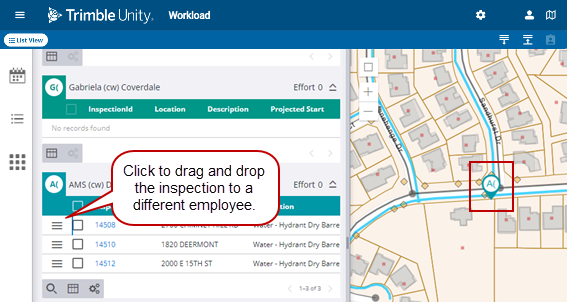
Now that the inspection has been moved, the Submit To on the inspection changes to the new employee, and the map pin changes to the new employee.
If a scheduled inspection is assigned to an employee who does not have the required skills, a message displays at the bottom of the screen that says Employee is missing required skill. See Employee Skills in the Admin Guide for Trimble Unity Maintain and Trimble Unity Permit for more information.
A triangle icon also appears next to the InspectionId once it has been reassigned. You can hover over the icon to see the same message.
By Clicking Reassign
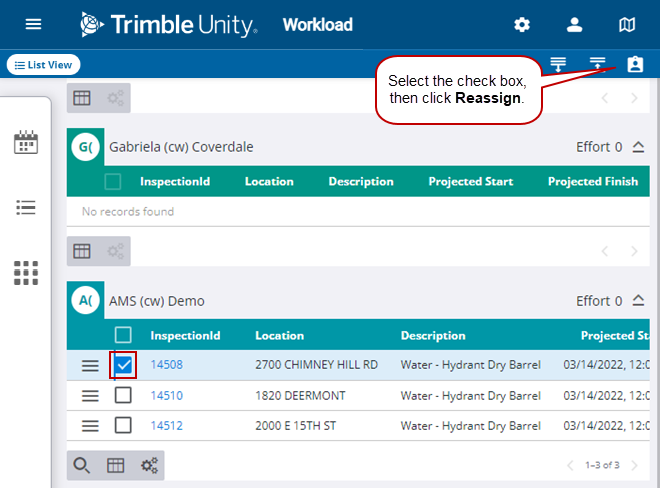
You can also assign work activities using the Reassign button. This method is recommended for mobile devices since they do not support drag and drop.
- Click an inspection check box and click Reassign. Click multiple check boxes to reassign multiple inspections at the same time.
- Select the employee from the Submit To drop-down list.
- Click Reassign.
If an employee does not have the required skills for the scheduled inspection, a triangle icon appears next to the employees name in the Submit To list. See Employee Skills in the Admin Guide for Trimble Unity Maintain and Trimble Unity Permit for more information.
Now that the inspection is assigned, the Submit To on the inspection changes to the new employee, and the map pin changes to the new employee.
From the Map
Work activities with a valid address are represented on the map with a map pin. The work activities can be assigned to an employee from the map.
|
|
- Open the Legend on the map.
- Make the Workload Activities layer selectable.
- Use a selection tool to select the inspections you want to reassign.
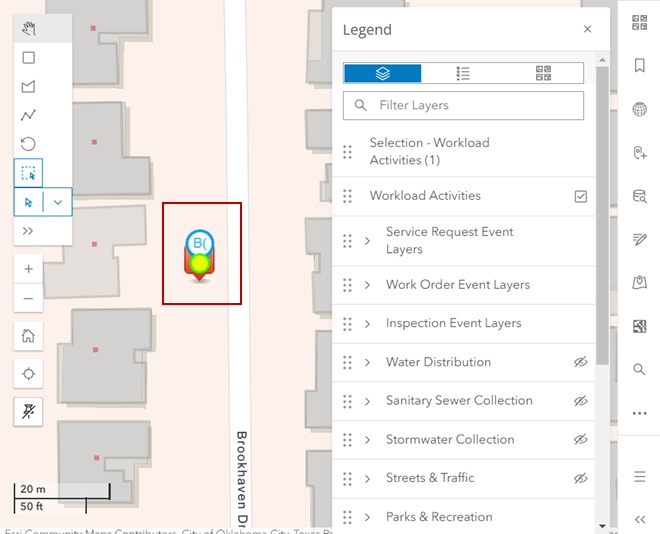
- Click Reassign.
- Select the employee from the Submit To drop-down list.
If an employee does not have the required skills for the scheduled inspection, a triangle icon appears next to the employees name in the Submit To list. See Employee Skills in the Admin Guide for Trimble Unity Maintain and Trimble Unity Permit for more information.
- Click Reassign.
Now that the inspection is assigned, the Submit To on the inspection changes to the new employee, and the map pin changes to the new employee.