View Schedules
|
|
 PREREQUISITES:
The work calendar displays schedules in Day, Week, or Month views.
While navigating the calendar, you can use the following icons to adjust your view at any time:
- Today: Click Today to jump to the current date.
- Previous: Click Previous to move to the previous day, week, or month, depending on the current view.
- Next: Click Next to move to the next day, week, or month, depending on the current view.
 Day View
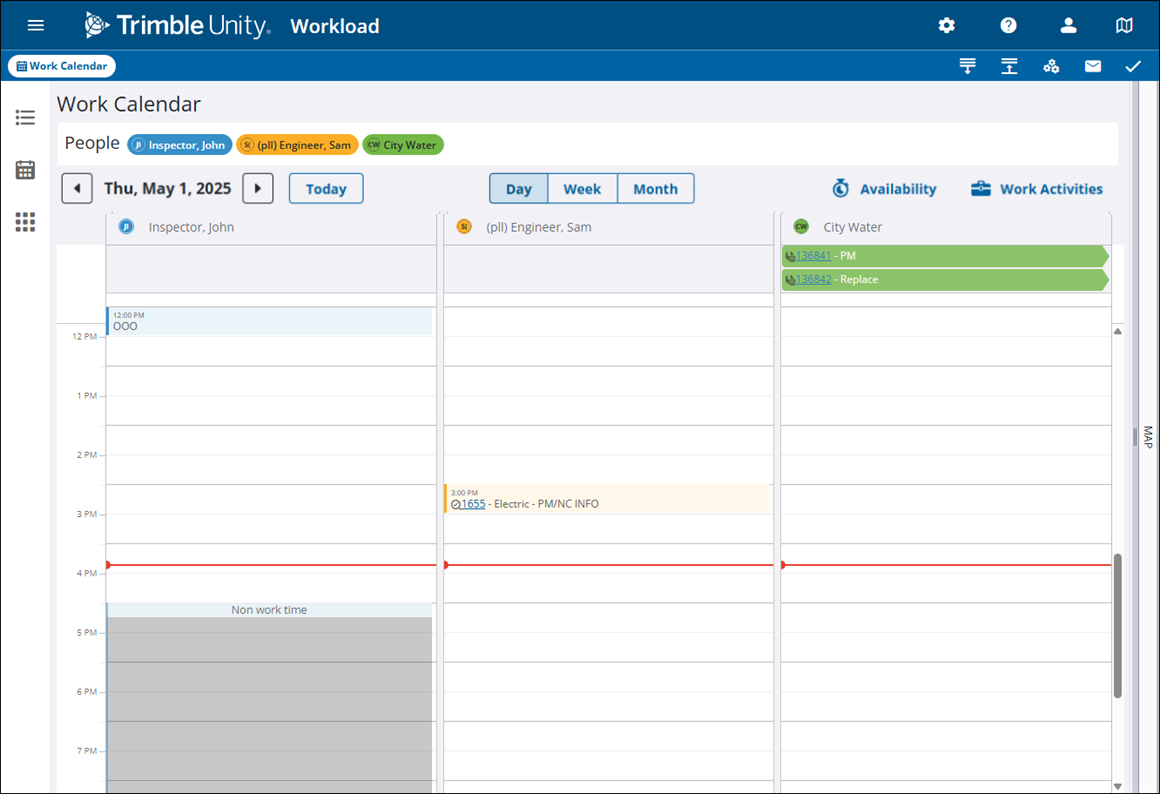
The day view displays a separate column for each selected assignee when multiple crews or people are selected in the People panel.
Non work time for the selected assignees is visible within their respective column in the day view.
Scheduled hours and days off for an employee can be configured in Admin. Those times and days are grayed out on the calendar. See Assign Workload to an Employee in Admin Guide for Trimble Unity Maintain and Trimble Unity Permit the for more information.
- Click Day to open the daily work calendar view.
- Scroll up and down within the calendar to view the entire schedule for the day.
Week View
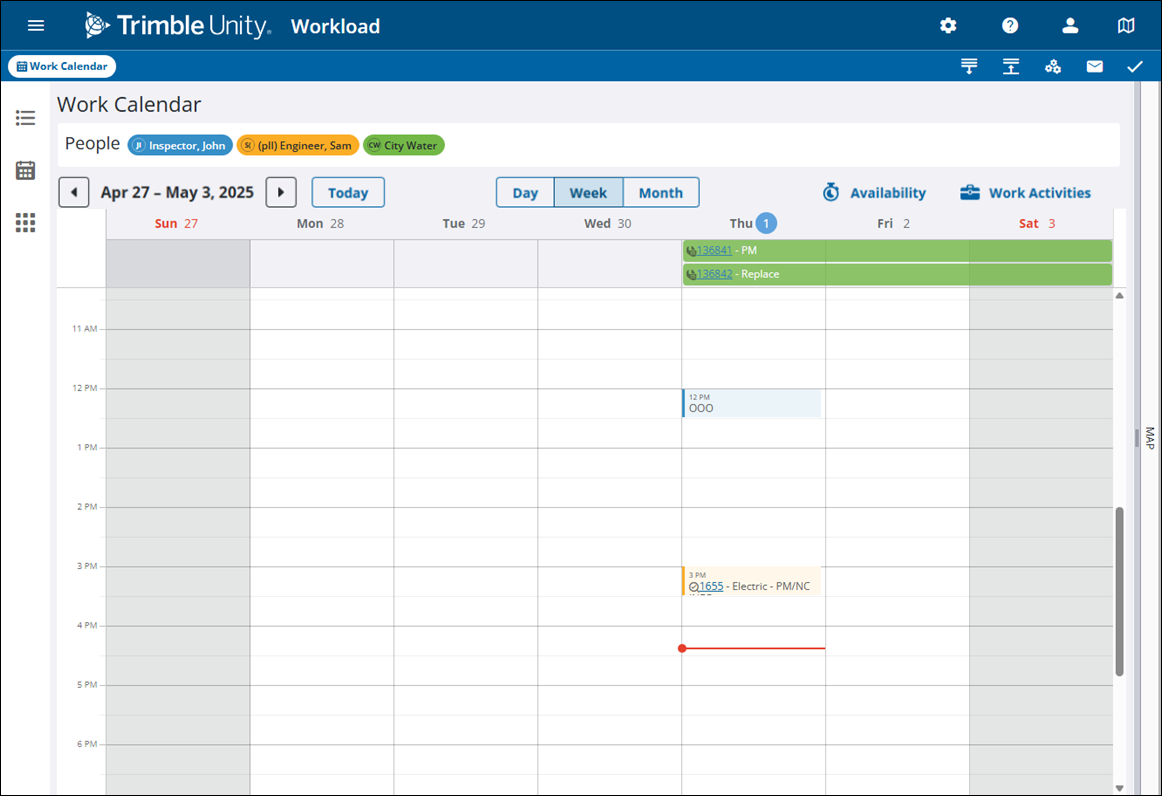
The week view displays all events for the selected assignees displayed in a single weekly calendar.
- Click Week to open the weekly work calendar view.
- Scroll up and down within the calendar to view the entire schedule for the week.
Month View
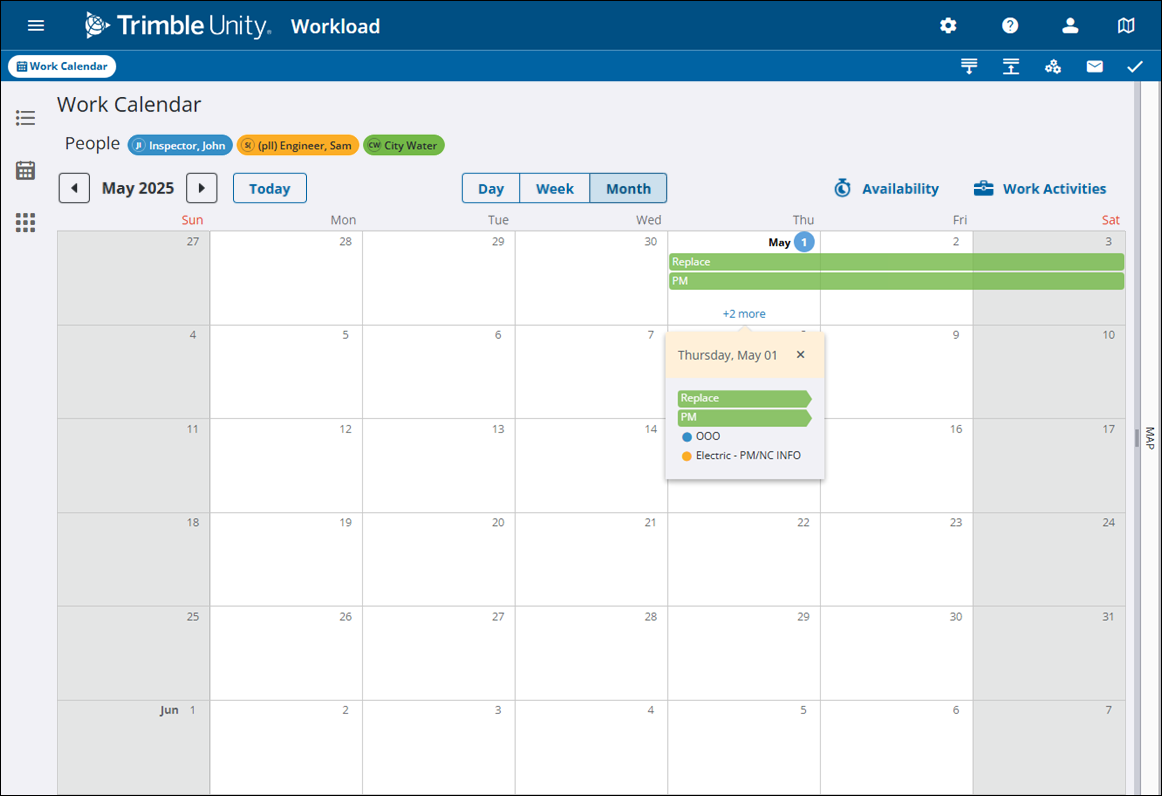
The month view displays all events for the selected assignees displayed in a single monthly calendar.
- Click Month to open the monthly work calendar view.
- Scroll up and down within the calendar to view the entire schedule for the week.
The month view displays a limited amount of events or activities per day. If a day has more events or activities scheduled, a +# more indicator is shown at the bottom of the day.
For example, +2 more indicates that there are two more events or activities scheduled for that day available for viewing.
- Click +# more to view any additional activities or events scheduled for that day.