Create Asset-Based Work Activities
An asset-based work activity is associated with specific assets on the map.
In Trimble Unity Field for Maintain, you can create work activities based on asset subtypes. When an activity is created this way, the specific asset record—including its subtype metadata—is automatically attached to the work activity and remains linked after the next configuration sync.
 NOTE: The selected work activity type determines which activities you can create or search. For example, selecting the Service Requests work activity type allows you to create new service requests and search existing ones. See View Work Activity Lists and Summary Cards for more information.
Complete one of the following to create an asset-based work activity:
 From the Map
You can create an asset-based work activity using the Add icon on the map.
- Open the Map.
- Tap the Add icon.

The Add panel opens.
- Tap the desired work activity to create.
- Select an Asset Group.
- Select an Asset Type.
- Select a work activity Template.
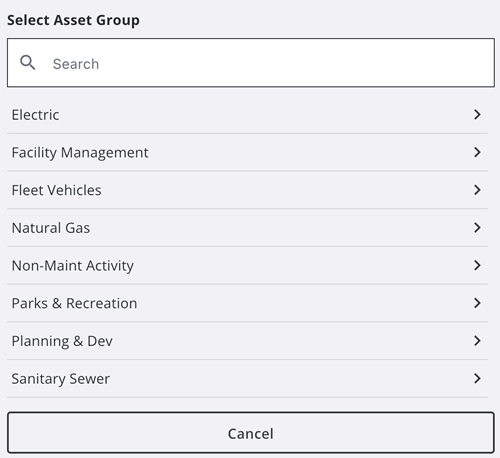
The Create Work Activity panel appears.
- Enter information into the desired fields for the work activity.
- Tap Save.
The work activity is created and appears on the map and in your activity list.
From a Selected Asset
You can create an asset-based work activity by selecting an asset on the map. Users can define their selection area with a box or by tapping on the map. See Select Assets on the Map for more information.
From One Asset
- Select one asset from the map.
The Asset Details card appears.
- Tap Create.
- Tap the desired work activity to create.
- Select the work activity template.
The Create Work Activity panel appears.
- Enter information into the desired fields for the work activity.
- Tap Save.
The work activity is created.
From Multiple Assets
- Select multiple assets from the map.
The Assets panel appears.
- Tap the check box to select multiple assets.
- Tap Create.
- Tap the desired work activity to create.
- Select the work activity template.
NOTE: If you have selected incompatible assets, a message appears asking you to remove them. Tap Remove to remove the incompatible assets and continue creating a work activity.
A message appears asking if you would like to create a work activity for each asset or all assets.
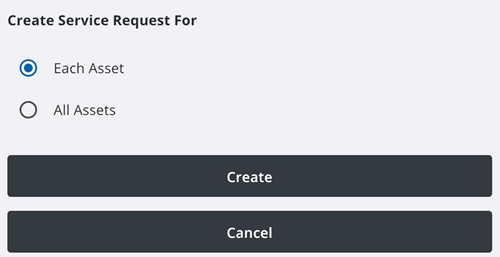
- Select an option.
- Each Asset: Tap to create separate work activities for each selected asset.
- All Assets: Tap to create a work activity for all selected assets.
- Tap Create.
The work activities are created.
From a Work Activity
You can create a related asset-based work activity from an existing work activity. A related work activity created from an existing work activity will have the same assets attached to it. This action is only available for work orders, service requests, and inspections.
- Open a work activity that has assets associated to it.
- Tap Related Cases, Related Work Orders, Related Inspections, or Related Service Requests depending on the work activity you would like to create.
- Tap the Add icon.

A message appears asking if you want to create the related work activity on the same associated asset.
- Tap Yes.
- Select a work activity template.
- Enter information into the desired fields for the work activity.
- Tap Save.
The related work activity is created and appears under its respective related work activity field.
From the Assets List
You can create an asset-based work activity from the Assets list.
- Tap the work activity type drop-down on the Top Navigation menu.

The View panel opens.
- Tap Assets.
- Tap Saved Filters.
The Saved Filters panel opens.
- Select the saved filter you would like to use.
- Tap Apply.
The Assets list updates and displays all assets associated to the selected saved filter. See Apply a Saved Filter to Assets for more information.
- Tap an asset's summary card to open the Asset Details page.
- Tap Create.
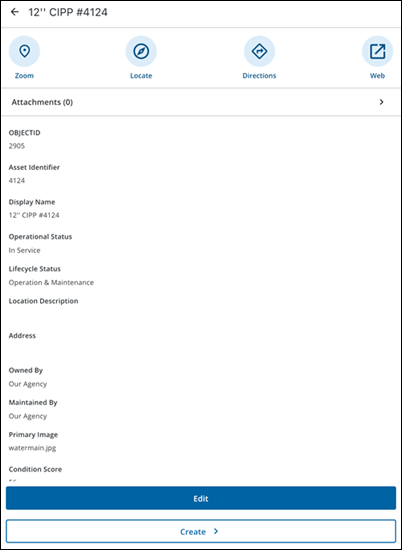
- Tap the work activity type you would like to create associated to the asset.
- Select a work activity template.
- Enter information into the desired fields for the work activity.
- Tap Save.
The work activity is successfully created.

