Add or Edit an Associated Form
You can add, edit, or delete an associated form to a work activity.
 Add a Form to a Work Activity
You can add a form to a work activity.
|
|
 PREREQUISITES:
Smart forms support various field types to optimize data collection in the field, including the following:
- Barcode: Tap the barcode field to activate the device's camera. Scan the barcode to automatically populate the field with the barcode's information.
- Signature: Tap the signature field to record the signature.
- User: Tap the user field to record the name of the user.
- Text: Tap the text field to input data via your device's keyboard. Text fields configured for large character counts display in a compact layout by default to optimize form navigation but can be expanded manually to show all content.
- Asset: Tap the Asset field to associate assets with the form. Select or search for assets on the map, zoom to highlighted assets, or remove associations as needed. See Associate an Asset to a Form for more information.
Users can also specify a Maintain user that will provide access to employee details like name, skills, and customer fields. See Create a Form in the Admin Guide for Trimble Unity Maintain and Trimble Unity Permit for more information.
- Open the desired work activity and tap Associated Forms.
The Associated Forms page opens.
- Tap the Add icon.
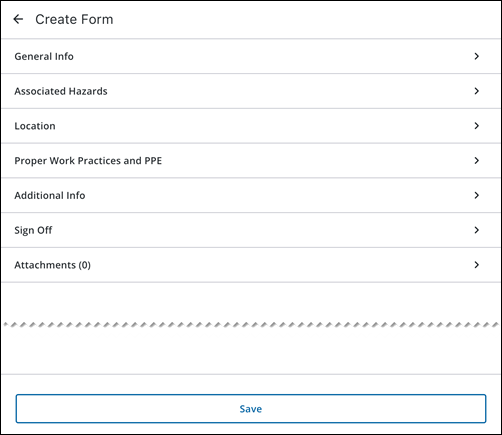
The Create Form page opens.
- Enter the required information into the fields.
 NOTE: Forms react automatically to the data you enter, meaning that fields or sections may appear or disappear instantly based on a selection you make in a certain field. For example, selecting Yes on a smart form results in different follow-up fields appearing than if you select No.
- Tap Save.
The form is saved.
Edit an Existing Form on a Work Activity
You can modify data in a form that has already been added to a work activity.
- Open the desired work activity and tap Associated Forms.
The Associated Forms page opens.
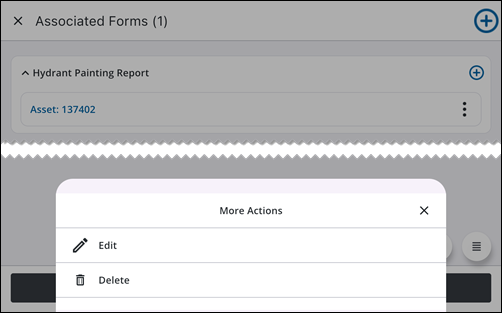
- Next to the specific associated form you wish to modify, tap the More Actions icon.
The More Actions menu opens.
- Tap Edit.
The form opens.
- Edit the fields that require updates.
- Tap Save.
The form is updated.
Delete a Form from a Work Activity
You can delete existing forms from a work activity.
- Open the desired work activity and tap Associated Forms.
The Associated Forms page opens.
- Next to the specific form you wish to delete, tap the More Actions icon.
The More Actions menu opens.
- Tap Delete.
A message appears, asking you to confirm you would like to delete the form.
- Tap Delete.
The form is permanently deleted.

