View Asset Hierarchy and Utility Network Associations
You can view the organizational structure and internal component relationships for any selected asset, ensuring the accurate visualization of asset and utility network system relationships.
When you select an asset on the map or perform a search, the Assets panel displays information in a three-row format to help you identify specific Utility Network features:
- Row 1 (Primary Identifier): Displays the Asset UID. If an Asset UID is not configured in Trimble Unity Admin, this row displays the GIS Object ID.
- Row 2 (Asset Classification): Displays the Asset Type (e.g., Gravity Main or Transformer).
- Row 3 (Secondary Details): Displays the GIS Display Field as configured in the feature service. If the Display Field value is the same as the Asset UID or Asset Type, this row will display the Layer Description instead.
 Asset Hierarchy
The asset hierarchy is the visualization of how assets are organized in parent-child relationships or contained structures. It serves as the organizational model for maintenance, work management, and asset navigation.
The hierarchy view allows you to drill down from a high-level asset type (e.g. HVAC Unit) to its individual components or asset types (e.g. Fan Motor).
Here is an example of an asset hierarchy with relationships established using traditional GIS configuration.
- Parent Asset: HVAC Unit
- Child Assets: Fan Motor, Filter Bank
Using the Hierarchy panel allows you to navigate through complex, overlapping assets in cluttered environments without needing to toggle multiple map layers.
View an Asset Hierarchy
You can view an asset hierarchy by selecting an asset.
- Select a single asset on the map via a tap or by drawing a rectangle. See View and Select Assets on the Map for more information.
- Tap on the asset to view the asset details page.
- Tap Hierarchy.
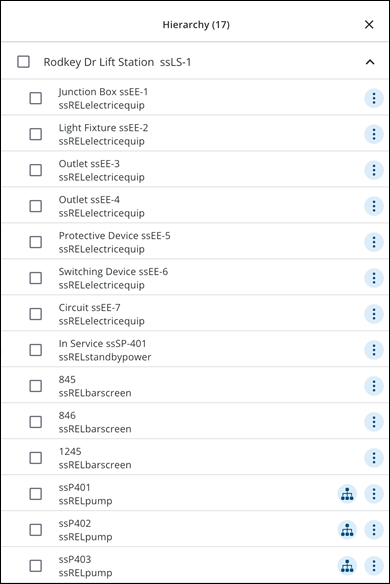
The Hierarchy panel opens and displays all assets associated to the hierarchy.
The following actions are available from the Hierarchy panel:
- Check mark icon: Tap to select one or more assets. The number of selected assets updates and the Create option is available.
- Tap on an asset to view the asset details page.
- More Actions icon: Tap to open the More Actions menu.
- Zoom to Location: Tap to zoom to the asset location on the map.
- Web: Tap to open the asset in the web application.
Navigating the Asset Hierarchy
To travel further down the hierarchy, tap the Hierarchy icon beside an asset.
The Hierarchy panel header updates to display the full pathway of the relationship (e.g. City Library > HVAC Unit AHU-1A > Fan Motor).
To return to the parent asset, tap on the asset's name in the panel header.
Utility Network Associations
Utility Network associations are the rules-based, technical method used to define and enforce relationships between assets in a Utility Network. The use of Utility Network associations reduces configuration complexity and improves performance when interacting with utility data. See What is a utility network? on Esri's website for more information.
The following prerequisites and configuration instructions must be met to use Utility Network in Trimble Unity Field:
|
|
 PREREQUISITES:
 IMPORTANT: IMPORTANT: The following limitations exist in Trimble Unity Field:
|
The Utility Network is designed to model any complex, interconnected infrastructure where the flow direction is important to understanding the system.
Here are some examples of Utility Network associations.
- Electric: Tracing the flow of power, circuit paths, locating outages, etc.
- Assets: Conductors, Transformers, Substations, Switches, Fuses, Service Points.
- Gas: Tracing gas flow direction and pressure to identify repair zones.
- Assets: Pipelines, Mains, Regulators, Service Lines, Control Valves, Compressor Stations.
- Water: Tracing the flow of water and pressure zones and locate sections for repair.
- Assets: Water Mains, Service Laterals, Hydrants, Valves, Pump Stations, Storage Tanks, Flow Meters, Pressure Sensors.
View Utility Network Associations
You can view a Utility Network association by selecting an asset that contains Utility Network associations.
- Select a single asset on the map via a tap or by drawing a rectangle that contains Utility Network associations (e.g. SanSewer Structures). See View and Select Assets on the Map for more information.
- Tap on the asset to view the asset details page.
- Tap Hierarchy.
The Hierarchy panel opens and displays all assets associated to the Utility Network.
The following actions are available from the Hierarchy panel:
- Check mark icon: Tap to select one or more assets. The number of selected assets updates and the Create option is available.
- Tap on the asset to view the asset details page. When viewing asset details, fields using coded domains (such as Asset Group and Asset Type) automatically display their descriptive names instead of numeric codes.
- More Actions icon: Tap to open the More Actions menu.
- Zoom to Location: Tap to zoom to the asset location on the map.
- Web: Tap to open the asset in the web application.
Navigating the Utility Network Hierarchy
To travel further down the Utility Network, tap the Hierarchy icon beside an asset.
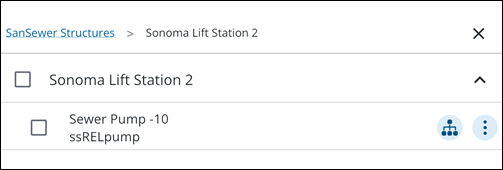
The Hierarchy panel header updates to display the full pathway of the Utility Network (e.g. SanSewer Structures > Sonoma Lift Station 2 > Sewer Pump - 10).
The pathway for Utility Network associations is unidirectional. To return to the parent asset, tap on the asset's name in the panel header.
Utility Network Saved Filters
You can view utility networks by downloading a saved filter from the Assets List.
- From the Assets List, select a saved filter with Utility Network associations. See Apply a Saved Filter to Assets for more information.
The Assets List updates with any assets returned by the selected saved filter.
- Tap on the asset to view the asset details page.
- Tap Hierarchy.
The Hierarchy panel opens and displays all assets associated to the utility network.
Edit an Asset Belonging to a Utility Network
You can edit an asset belonging to a Utility Network.
|
|
- Tap an asset that belongs to a Utility Network to view the asset details page.
- Tap Edit.
- Edit the asset details.
- Tap Save.
The asset is updated.
Create a Work Activity from an Asset Belonging to a Utility Network
You can create a work activity from an asset belonging to a Utility Network.
- Tap an asset that belongs to a Utility Network to view the asset details page.
- Tap Create.
- Tap the work activity type you would like to create associated to the asset.
- Select a work activity template.
- Enter information into the desired fields for the work activity.
- Tap Save.
The work activity is successfully created.

