Create a Work Order or Inspection
Work activities, such as work orders and inspections, can be created from within Operational Insights.
|
|
 PREREQUISITES:
 From the Calculation Search
Complete the following steps to create a work order from the Calculation Search page.
- Perform a search or open a saved search. See Perform a Calculation Search for more information.
 TIP: You can filter the list of records displayed. See Filter Records for more information.
- Select one or more calculation results in the Search Results panel that you want to create a work order for.
- Click Create Work Order.
The Create Work Order panel opens.
- Select the Template, Priority, Proj Start Date, Submit to, and Supervisor.
The number of selected assets appears in the Number of Assets field.
- Select the Group Assets check box to create one work activity for all the selected assets.
- Click Create.
A confirmation message appears at the bottom of the screen confirming the work order or work orders were created. If one work order is created, the message displays the work order ID.
From the Map
Use the following steps to create a work order or inspection from the map.
|
|
- Open and display a saved search on the map. See Display a Saved Search on the Map for more information.
- Click the map icon to open the map. The search results are displayed on the map.
- Open the Legend tool and make the asset layer selectable. See Make a Layer Selectable for more information.
TIP: If the asset name is grayed out, zoom in on the map until it is not. This ensures you are zoomed in enough to see and select the assets.
- In the work management view, click Highlight on the Search Results panel to highlight the assets on the map.
- Open the Create Activity tool on the map. All the selected assets are listed in the panel. See Create an Activity for more information.
TIP: You can also select assets by using the subset selection tool. See Make a Subset Selection for more information.
From a GIS Query
As long as the calculations are saved to the GIS, continue with the following steps in Respond.
- Perform a GIS query and filter by the respective attribute for the risk calculation score. See Add a Query in the Respond Guide for Trimble Unity Maintain and Trimble Unity Permit for more information.
- Select the asset or assets you want to create a work order or inspection for.
- Click Create WO(s) or Create Inspection(s).
TIP: You can filter the list of records displayed. See Filter Records for more information.
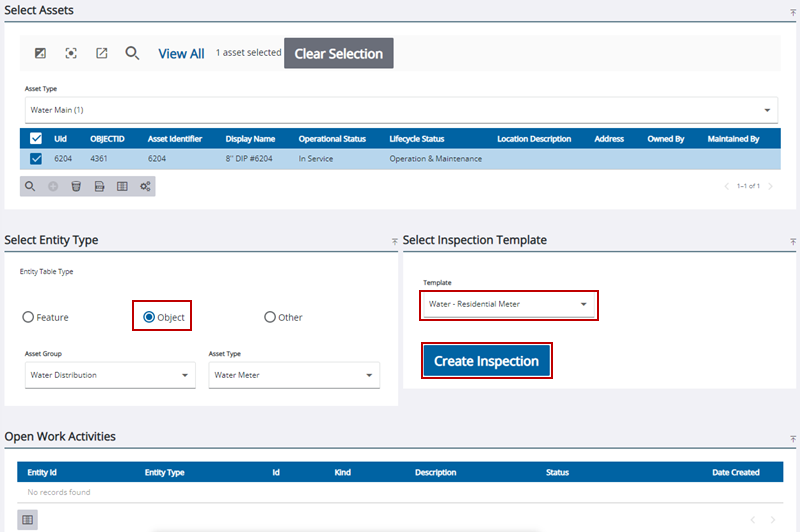
- Select the Object option in the Select Entity Type panel.
- Select the desired work order or inspection template in the Select Inspection Template panel.
- Click Create Inspection.