View Asset Details
You can view details or attributes about assets selected on the map from the Assets panel on the Asset Details page.
|
|
 PREREQUISITES:
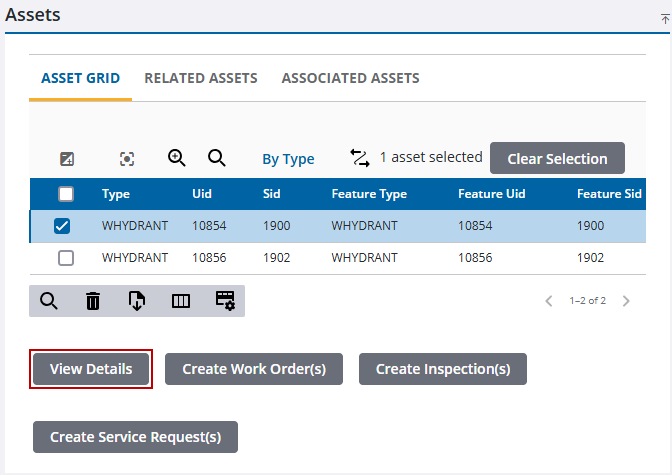
When you use the Assets panel, there are three tabs: Asset Grid, Related Assets, and Associated Assets. The Asset Grid tab displays the different assets. The number of total assets is listed at the bottom of the panel. The Related Assets tab displays assets that are related to the assets selected on the map or added using the Find Assets panel. The Associated Assets tab shows any associations to any select assets on the map that are in a utility network.
- Open the Asset Details page.
 TIP: You can filter the list of records displayed. See Filter Records for more information.
- Select an asset from the Assets panel. If needed, see Add Assets for more information.
- Click View Details.
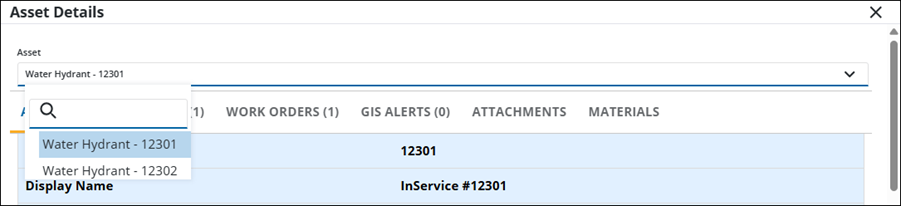
Asset attribute information and work activity details and alerts are in separate tabs.

Scroll to the bottom of the screen to see the Total Cost, Total Hours, Warranty Date, Condition Score, Condition Date, and End of Life information for the asset. Some fields need to be configured in Asset Groups, see Add an Asset Type in the Admin Guide for Trimble Unity Maintain and Trimble Unity Permit for more information.
- If more than one asset is selected, click the Asset drop-down list and select an asset to view its details.
See View Work History for more information on attribute and work activity details.

