Add Checklists
You can add one or more checklists to workflow tasks from the Edit Task panel or Task Manager.
|
|
 PREREQUISITES:
 Use Edit Task
- Open checklists. See Open the Checklists Window for more information.
- Click Add record to open the add checklists panel.
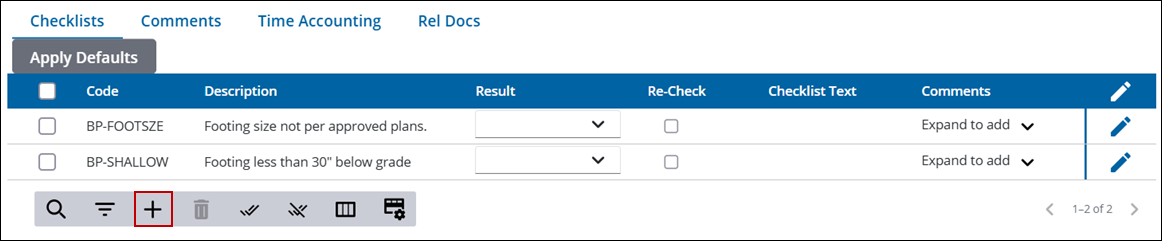
- From the Single or Group drop-down list, select the Group option to add a group of checklists, or select the Single option to add checklists individually.
 TIP: You can filter the list of records displayed. See Filter Records for more information.
- Select the group or individual checklists you want to add.
- Click Insert.
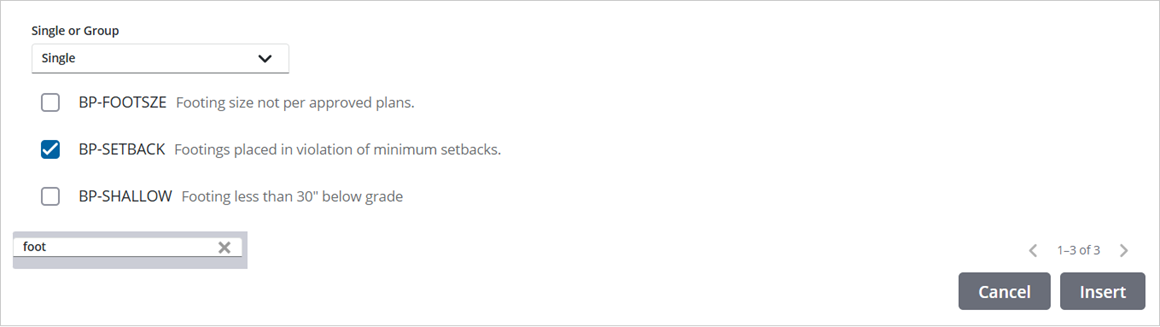
See Classic Task Manager for an explanation of the Checklists fields.
Use Task Manager
- Open the new Task Manager and perform a search. See Search for Tasks for more information on performing a search.
- Click a Task Name to open the task action panels.
 NOTE: A numerical count next to each panel header indicates the number of records associated with the task. NOTE: A numerical count next to each panel header indicates the number of records associated with the task. |
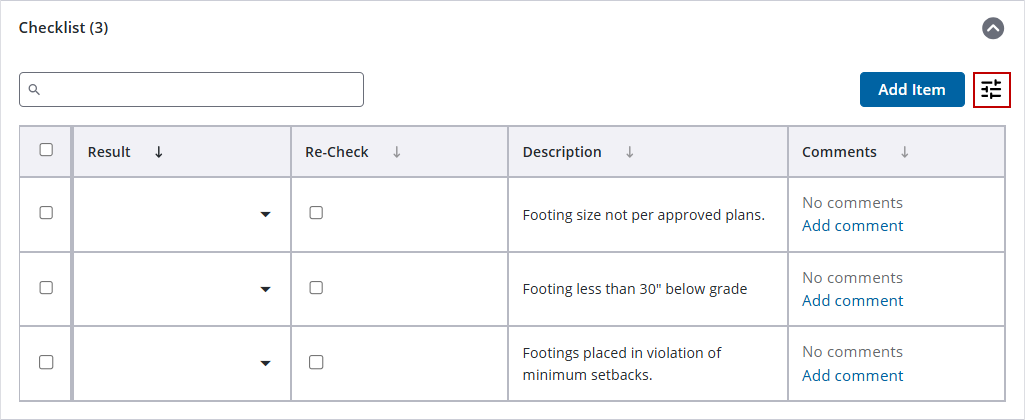
- Expand the Checklist task action panel.
- Use the search field to sort by visible columns.
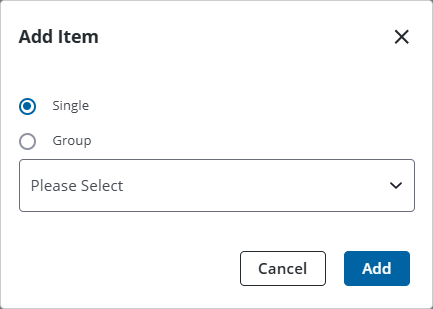
- Click Add Item to add individual or group checklists.
- Select which columns are visible using the column icon (represented by three horizontal and three vertical bars).
- Select a single or group item from the drop-down list and click Add.
|
NOTE: Groups checklists can be expanded to see associated individual checklists. |
See Task Manager for an explanation of the Checklists fields.
Use Classic Task Manager
- Open the classic Task Manager and perform a search. See Search for Tasks for more information on performing a search.
- Click Checklists by the desired task to open checklists.
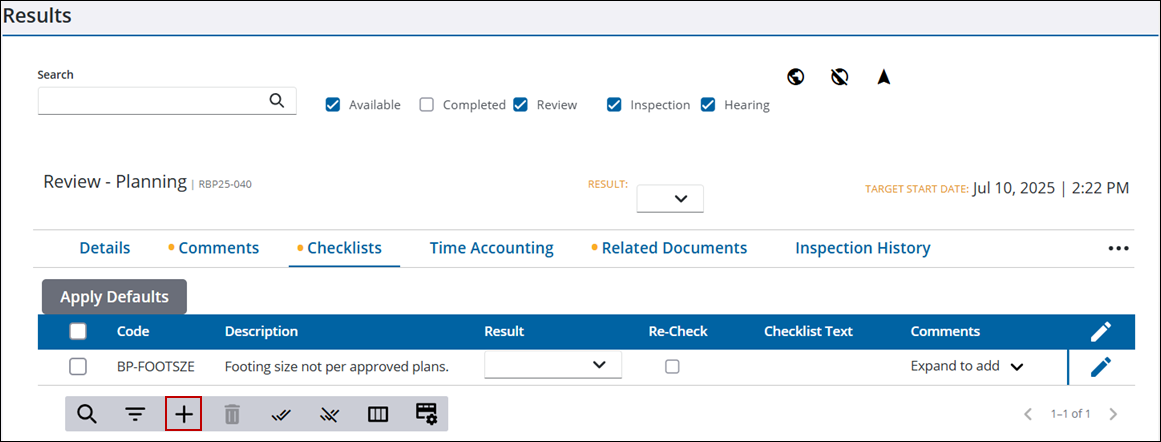
- Click Add record to open the add checklists panel.
- From the Single or Group drop-down list, select the Group option to add a group of checklists, or select the Single option to add checklists individually.
TIP: You can filter the list of records displayed. See Filter Records for more information.
- Select the group or individual checklists you want to add.
- Click Insert.
See Classic Task Manager for an explanation of the Checklists fields.

