Print a Work Order
A single work order, or multiple work orders can be printed.
|
|
 PREREQUISITES:
 Print a Single Work Order
- Open a work order.
- Click Print work order from the activity toolbar.

The report downloads automatically.
- To view the report status, click the Download Status icon on the main toolbar.
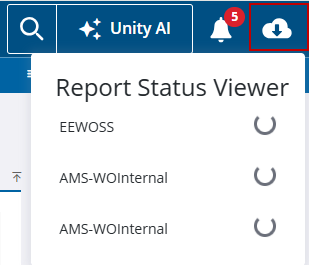
To view all reports in the queue to be generated and downloaded, see Manage the ActiveReports Download Queue for more information.
Print Multiple Work Orders
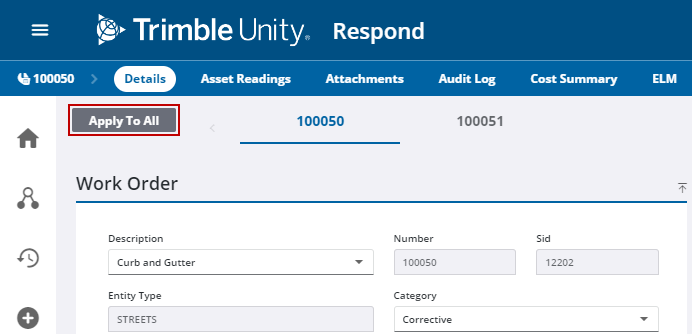
- Open multiple work orders. See View Multiple Work Orders for more information.
- Click Apply to All.
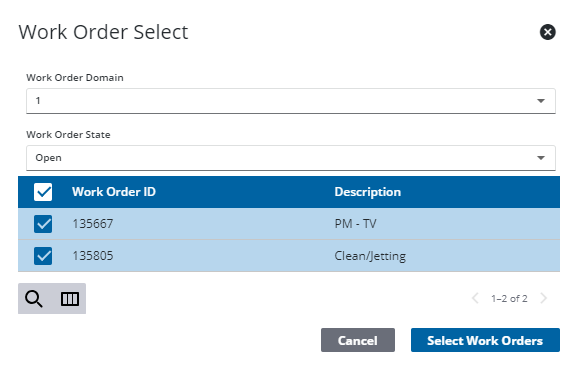
- Select a domain from the Work Order Domain drop-down list to filter the work orders.
- Select a state of Open, Canceled, or Closed from the Work Order State drop-down list to filter the work orders.
 NOTE: The Open state counts as any work order that is technically open. For example, a status of In Progress or Requested would count as open.
 TIP: You can filter the list of records displayed. See Filter Records for more information.
- Select the work orders you'd like to print at the same time.
- Click Select Work Orders.
- Click Print All Work Orders from the upper-right corner of the activity toolbar.

The reports download automatically.
- To view the report status, click the Download Status icon on the main toolbar.
To view all reports in the queue to be generated and downloaded, see Manage the ActiveReports Download Queue for more information.

