Issue Material
Issue is used to track inventory as materials are distributed for use. This also issues materials from a storeroom and assigns them to work orders (and entities), accounts, and/or employees.
|
|
 PREREQUISITES:
- Click Issue from the menu.
- On the Material panel, select a Storeroom from the drop-down list. This changes the list of materials. Materials can only be selected from one storeroom at a time.
 TIP: You can filter the list of records displayed. See Filter Records for more information.
- Select materials from the list. See Search Materials for more information on using the search tabs to find materials.

 NOTE: Assembly materials in the material list include an Add Parts check box. Selecting this check box, before adding the assembly to the Pending Issues list, enables users to edit the materials that make up the assembly once they have been added to the list.
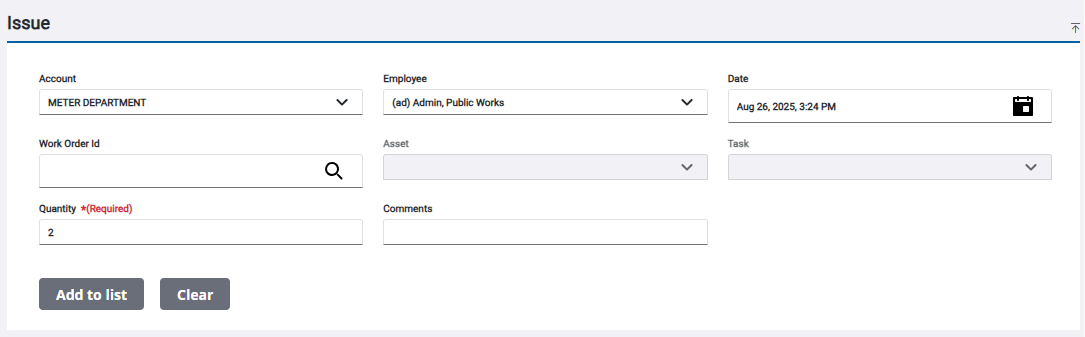
- Enter the information in the Issue panel to issue the material.
For an explanation of the fields found on the Issue panel, see Issue Transaction Fields.
NOTE: To issue material to an account, employee, or a specific work order, see Assign Material to an Account, Assign Material to an Employee, and Assign Material to a Work Order.
- Click Add to List to add the material to the Pending Issues panel.
NOTE: Serialized material can be issued. See Issue Serialized Material for more information.
The material is added to the Pending Issues panel. See Navigate the Pending Issues Panel for more information.
- Click Commit on the Pending Issues panel to process all the issues listed.

- Click Sign or Close on the Transaction Complete panel.
If you don't wish to sign the transaction now, see Capture a Signature on an Existing Issue Transaction for more information.
NOTE: When assembly materials have been issued to a work order, click Add assembly parts in ELM to individually view and add the component parts instead of the assembly item to the work order. See ELM in the Respond Guide for Trimble Unity Maintain and Trimble Unity Permit for more information.