Assign PLL Tasks
Any tasks that need to be completed appear in the list for the dates, status, task types, and inspectors selected. Any unassigned tasks—that do not have an Assigned To defined, but are scheduled for an inspection—appear at the bottom of the list.
- Use the filter icon to select the filter parameters you would like to include. See Filter the Work for more information.
- Click Search.
The work populates based on the selected filters.
 NOTE: This list is made up of users in PLL who have been designated as inspectors. See Add a User in the Admin Guide for Trimble Unity Maintain and Trimble Unity Permit on Trimble Unity for more information.
If you don't select a status, task type, or inspectors, all statuses, task types, and inspectors will display.
Complete one of the following to assign a PLL task to an employee:
 By Dragging and Dropping
You can quickly assign work activities by dragging and dropping the task to an employee. Since drag and drop does not work on mobile devices, this method is recommended for desktop devices.
- Click the reorder icon next to a work activity and drag it to an employee.
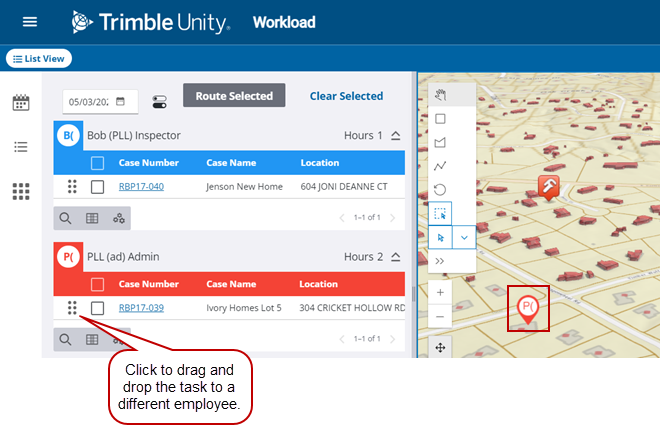
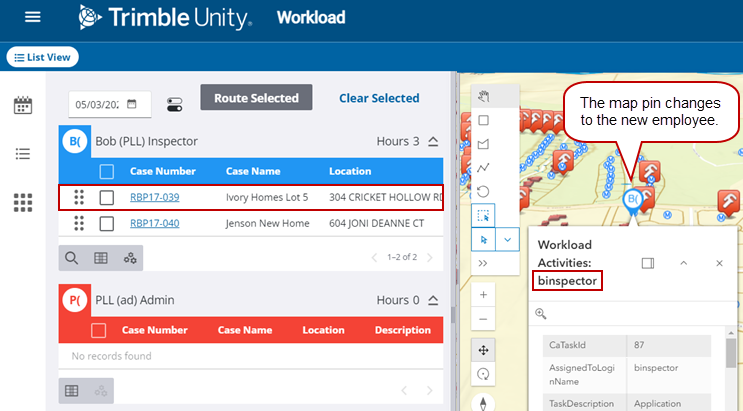
Now that the PLL task has been moved, the Assigned To on the task changes to the new employee, and the map pin changes to the new employee.
By Clicking Reassign
You can also assign work activities using the Reassign button. This method is recommended for mobile devices since they do not support drag and drop.
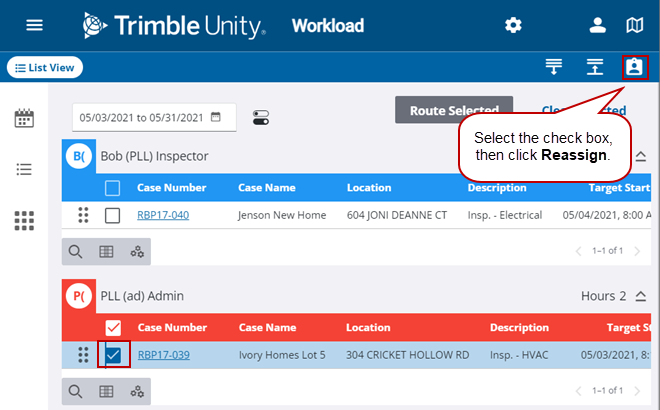
- Click a PLL task check box and click Reassign. Click multiple check boxes to reassign multiple tasks at the same time.
- Select the employee from the Inspector drop-down list.
- Click Reassign.
Now that the PLL task has been reassigned, the Assigned To on the task changes to the new employee, and the map pin changes to the new employee.
From the Map
Work activities with a valid address are represented on the map with a map pin. The work activities can be assigned to an employee from the map.
|
|
 PREREQUISITES:
- Open the Legend on the map.
- Make the Workload Activities layer selectable.
- Use a selection tool to select the tasks you want to reassign.

- Click Reassign.

- Select the employee from the Inspector drop-down list.
- Click Reassign.
Now that the PLL task is assigned, the Assigned To on the task changes to the new employee, and the map pin changes to the new employee.