Add a Notification Type
This section outlines how to add a new notification type.
|
|
 PREREQUISITES:
- From the home page, click Permitting or Configure and click Notification Types.
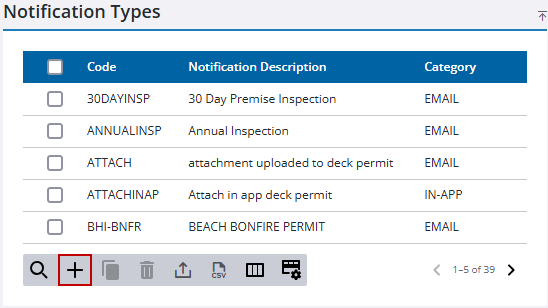
- On the Notification Types panel, click Add record.
 NOTE: Multiple records can be added or edited at the same time. See Perform a Bulk Export or Bulk Import for more information.
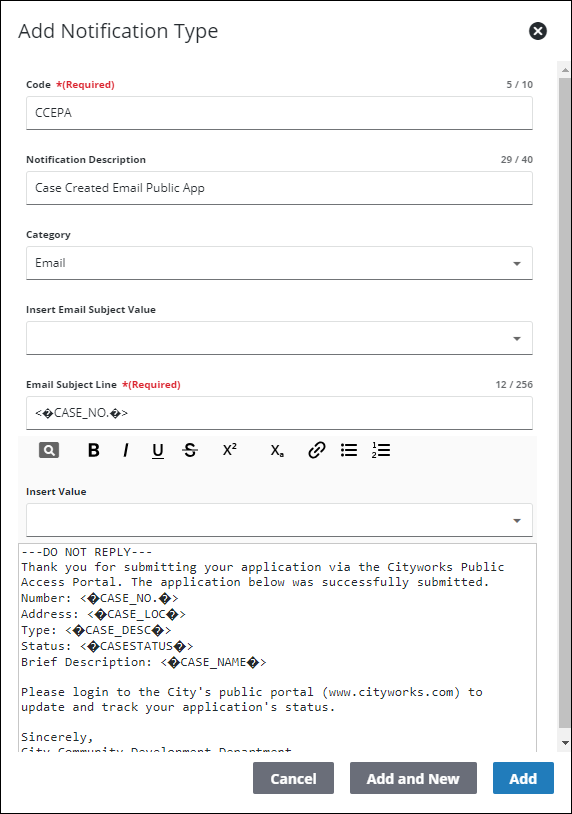
- On the Add Notification Type panel, enter a name in the Code field and a brief description in the Notification Description field.
- Select Email, SMS, In-App, or Active Report using the Category drop-down list.
For in-app notifications to work, the Turn on in-app notifications switch must be activated on the Admin Preferences page. See Configure Permitting Preferences for more information.
Adding a new in-app notification type populates the Notification Types (In-App) drop-down list on the Add Notification Setup panel. See Add a Notification Setup for more information.
See Notifications in the Respond Guide for Trimble Unity Maintain and Trimble Unity Permit for more information on what the in-app notifications look like in Respond.
- If the Email or Active Report category is selected, you must enter a subject line using the Email Subject Line field.
- Use the Insert Email Subject Value drop-down list to insert values into the subject line that dynamically populate with case-relevant data when the message is sent.
- Enter the desired text of the message in the field below the Insert Value drop-down list.
- Use the Insert Value drop-down list to insert values into the message that dynamically populate with case-relevant data when the message is sent.
- Click Add to add the record or Add And New to add the record and create another one.