Associate Forms to a Work Activity Template
You can associate a form to a work activity template.
|
|
 PREREQUISITES:
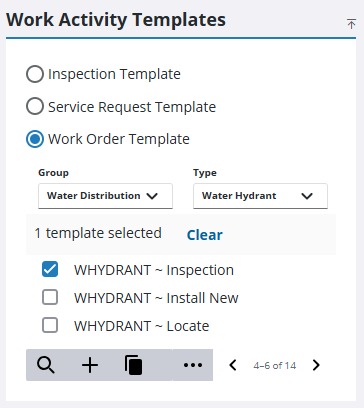
- From the home page, click Configure and click Work Activity Templates.
- Select which type of work activity template you need from the Work Activity Templates panel.
The Work Activity Templates panel lists all of the templates. Any templates that are inactive appear grayed out in the list. You can filter the list by clicking Filter records and entering the first few letters of the template.
- If you selected Work Order Template, select the Group and Type.
- Select the template from the list.
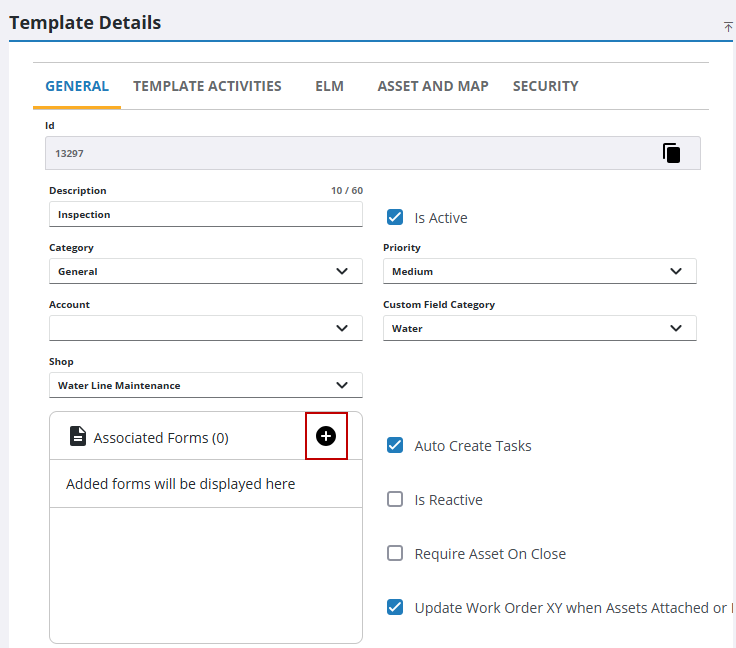
- On the General tab, click Add Form from the Associated Forms section.
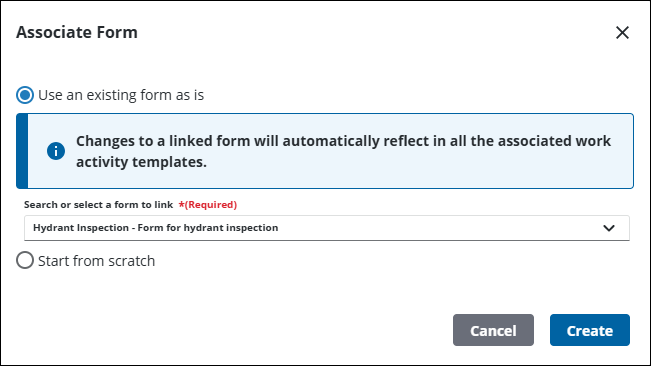
 Use an Existing Form
- Select Use an existing from as is.
- Select an existing form from the Search or select a form to link drop-down list.
From the Associated Forms section, the following can be completed:
- Click Edit to open the form in the Form Editor and make any needed changes. See Edit Forms for more information. A warning displays to let the user know which templates will be affected by the edits.
- Click Link to action to add the form to an action in a workflow. See Link a Form to a Workflow for more information.
- Click Unlink to remove the form from the template. A warning displays if an existing work activities based on the template may be affected.
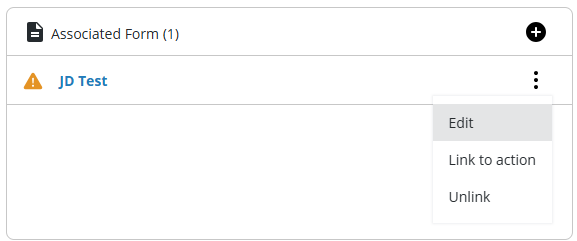
A warning icon displays next to any forms not links to a workflow action.
Link an Existing Form to a Workflow Action
|
|
- Select Link an existing form to a workflow action.
- Select the Action from the Workflow to link the form to.
- Select the Form triggered by the action.
- Select the Mark form as Required check box to make this form required.
- Select Always create a new form Instance to create a new form every time.
- Select Reuse existing form Instance to use an existing form, if one exists, that has been started on a previous action in the workflow. If none exist, a new form is created.
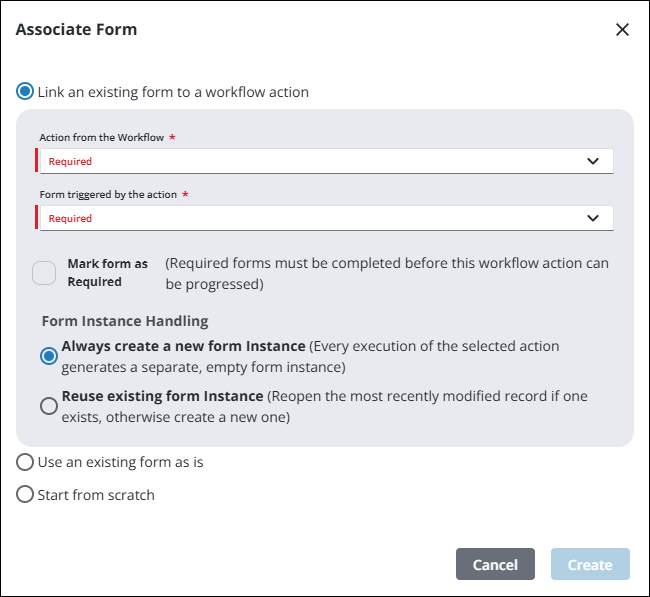
- Click Create.
From the Associated Forms section on the template, the following can be completed:
- Click Edit to open the form in the Form Editor and make any needed changes. See Edit Forms for more information. A warning displays to let the user know which templates will be affected by the edits.
- Click Unlink to remove the form from the template. A warning displays if an existing work activities based on the template may be affected.
Create a New Form
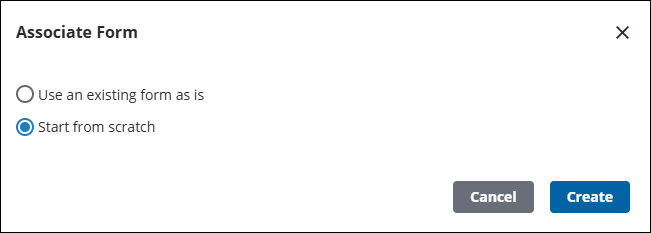
- Select Start from scratch to create a new form.
- Click Create.
- Add the form information in the Form Name and Description fields.
- Select the Geometry Type from the drop-down list.
- Select the GNSS Collection Settings for the form. See Forms in the Trimble Unity Field Guide for more information.
- Click Create Form.
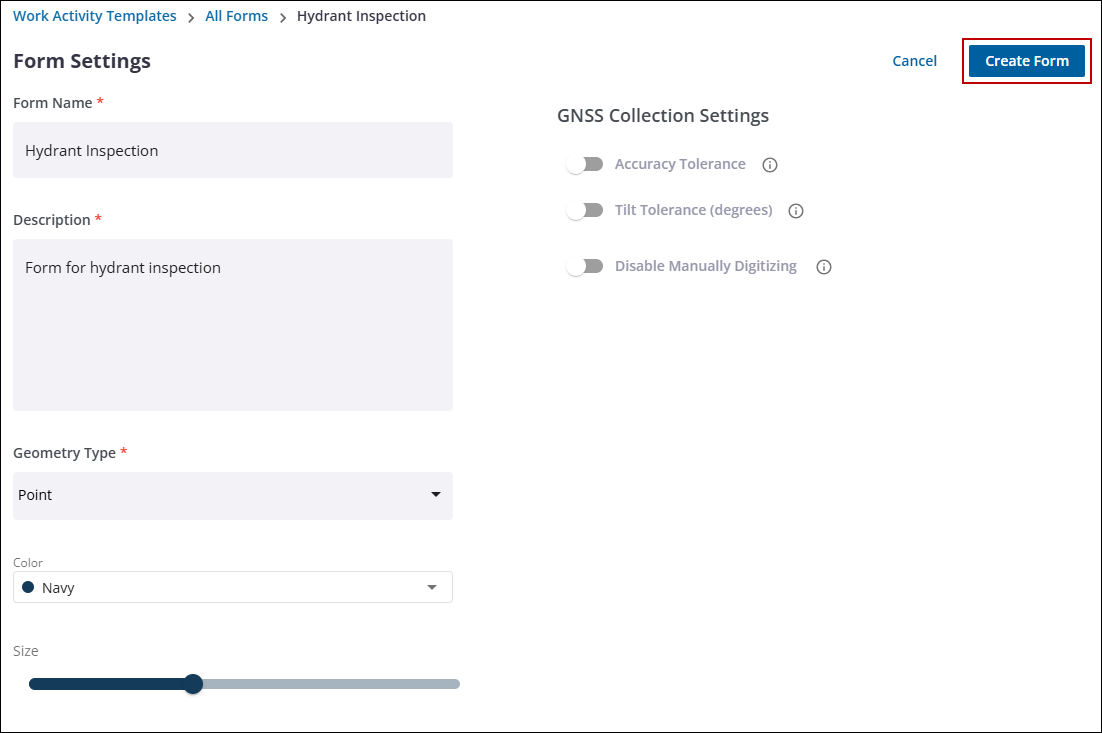
You are taken to the Form Editor to complete the form. See Create a Form for more information. After saving the form, it is associated to the template.
From the Associated Forms section on the template, the following can be completed:
- Click Edit to open the form in the Form Editor and make any needed changes. See Edit Forms for more information. A warning displays to let the user know which templates will be affected by the edits.
- Click Link to action to add the form to an action in a workflow. See Link a Form to a Workflow for more information.
- Click Unlink to remove the form from the template. A warning displays if an existing work activities based on the template may be affected.
A warning icon displays next to any forms not links to a workflow action.

