Take Action to Progress the Workflow
You can take action on
Workflows provide a guided field experience by replacing static status drop-down lists with sequence-driven action buttons, giving field users immediate visibility into all available workflow actions to eliminate inefficiencies. When your administrator associates a workflow with a work activity template, the standard Status field automatically shifts to a read-only state, safeguarding data integrity by forcing the activity to progress strictly through authorized pathways.
This seamless integration allows for one-tap execution of status changes and automatically launches necessary data collection forms directly within the active workflow, reducing manual errors, streamlining field operations, and significantly boosting overall productivity
Workflow Action Confirmations
Administrators can configure action confirmation prompts on critical workflow steps. These prompts act as an intentional "pause and verify" step before completing an action, reminding you to double-check safety protocols, required attachments, or entered line items before advancing the activity.
- Dismiss: Tap to close the prompt and return to the work activity details page. The workflow status remains unchanged and no updates are saved.
- Confirm: Tap to approve the prompt and proceed with the workflow transition.
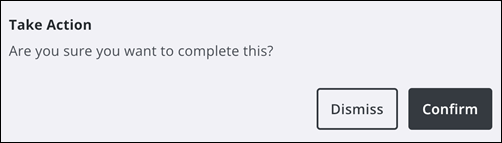
Confirmation prompts are configured in Admin. See Create a Workflow in the Admin Guide for Trimble Unity Maintain and Trimble Unity Permit for more information.
 Take Action on an Associated Asset
- Tap a work activity.
- Tap Associated Assets.
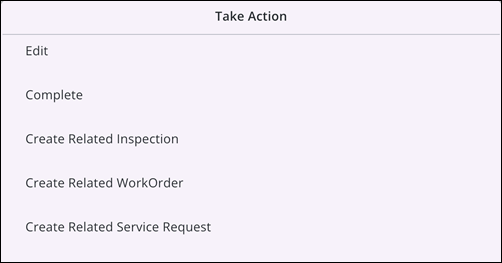
- Tap Take Action.
|
|
- Tap the desired action to take it.
- Edit: Tap to edit the associated asset.
- Complete: Tap to complete the work activity.
- Create Related Inspection: Tap to create a related inspection.
- Create Related WorkOrder: Tap to create a related work order.
- Create Related Service Request: Tap to create a related service request.
 NOTE: Related work activities can only be created for work orders, service requests, and inspections.
- If an action confirmation is configured for the selected workflow step, a confirmation message panel appears.
- Read the prompt and tap Confirm to proceed with the action.
- Complete any required associated forms or fields as prompted.
- Tap Save.
The workflow updates automatically upon confirmation.
View and Perform Workflow Actions on a Work Activity
When a field workflow is active on an assigned work order, inspection, or service request, use the contextual action buttons within the bottom panel to change statuses or launch required data collection forms.
To progress an active activity workflow in the field, complete the following steps:
- Open a work activity associated with a field workflow.
- View the active action buttons available in the bottom panel header.
- Tap the appropriate action button to progress the workflow. Depending on how the administrator configured the workflow orchestration, taking action will execute one of the following scenarios:
- Status Progression: The status badge changes automatically to reflect the new workflow stage.
- Associated Form Launch: A linked data collection form automatically opens on your screen for immediate editing. Complete the form fields and tap Save to return to the main work activity details page.
- Confirmation Prompt: If your administrator configured a confirmation message for this workflow step in Admin, a pop-up prompt displays on the screen. Review the instructions or warning text and tap the confirmation button to complete the transition.
NOTE: When there are workflow actions available for the current work activity template, the Status field is read-only.
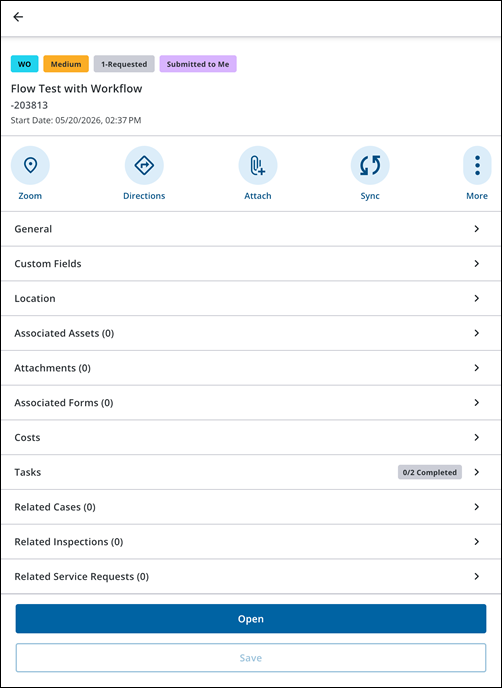
The status badge changes automatically to reflect the new workflow stage.
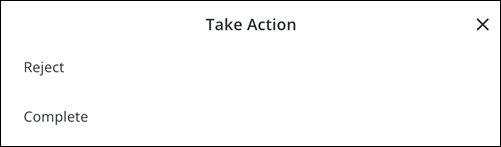
- If multiple workflow choices or split progression paths are available, tap Take Action to open the menu options, evaluate the choices, and tap the correct action button (for example, tap Complete to finalize a work order).
- Perform a manual sync to immediately upload your status changes and completed forms to Respond.
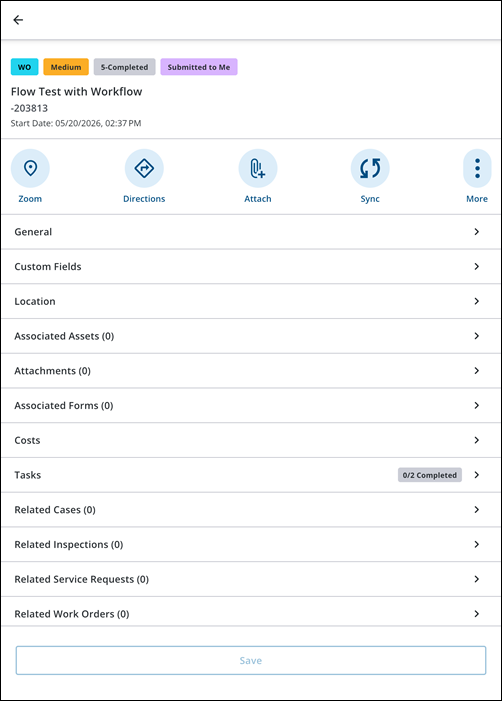
 TIP: When multiple related or child work activities share the same available workflow action (such as Mark as Completed) and that action does not require a mandatory smart form, you can update them simultaneously. See Manage Linked Activities for more information.
Parent Work Order Completion Requirements
When managing parent work orders with linked child or related work items, parent completion behavior depends on the relationship link type assigned to the activities:
- Standard Child or Related Work Activities: Linking a child or related work activity directly within the mobile app creates an organizational relationship for tracking.
- Requires or Required By Work Activities:
- If a linked activity is designated as a Requires relationship in Respond, it creates a strict relationship dependency, meaning that the parent work order can only be completed if the Requires activity is completed.
- If a linked activity is designated as a Required By relationship in Respond, it creates a strict relationship dependency, meaning that work on the parent work order can only be started if the Required By work activity is completed.
 IMPORTANT: The Requires and Required By relationship types can only be set in Respond, they cannot be applied when creating new related or child activities directly in the app. See Link a Work Activity in the Respond Guide for Trimble Unity Maintain and Trimble Unity Permit for more information.
How Dependencies Block Parent Completion
If a parent work order has one or more incomplete Requires or Required By work activities:
- Completion Check: When you attempt to progress the parent activity to a status in the Completed status group (e.g., Complete, Closed, Finished), the app validates the status of all linked dependencies.
- Blocked Status Update: If any linked dependent activity remains in an open or incomplete state, the app prevents the parent activity from advancing to the completed status.
- Incomplete Activity Highlighting: An alert appears on your screen, and the required incomplete activities are highlighted in the linked items list so you can easily identify which activities must be finalized first. The work activity details page also displays a red indicator on the relevant required work activity field.
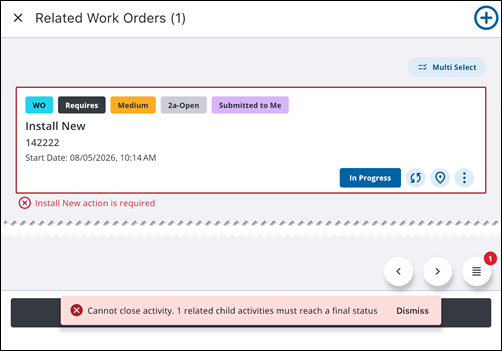
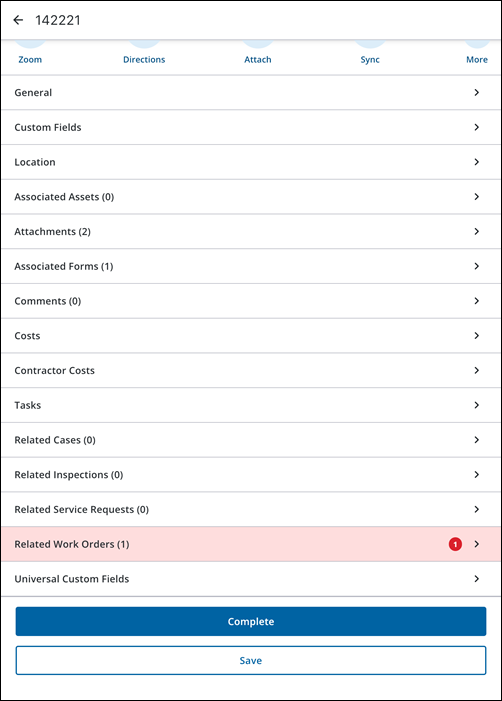
To resolve the block, complete all highlighted required activities (or perform their required workflow actions) before completing the parent activity.

