Modify a Control
Select a control to change labels for buttons, check boxes, fields, and messages (e.g. error or confirmation messages). You can modify the panel and field visibility and whether or not a panel is collapsed upon viewing by using the Control Details section. Use one of the following options to modify or customize controls on a layout.
 NOTE: You can only update the text or labels of the controls, such as the name of a field or button, from the Layout Strings panel. If you want to hide a control or automatically collapse a panel, you need to select it from the Controls panel.
- On the side menu, click Admin.
- Click the Layout tab.
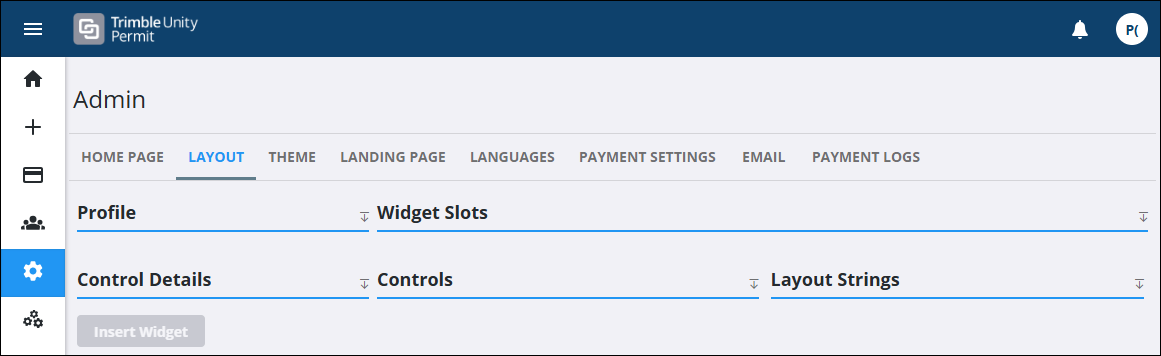
- Select a page or panel using the Layout drop-down list.
 Use the Controls Panel
The Controls panel will vary depending on the layout (also known as a page) selected. This panel shows the controls that are nested within the panels that appear on that page. For example, if
Controls are nested under each panel. Select a control to change the labels for buttons, check boxes, fields, and messages (e.g., when you receive an error or a confirmation message).
- Select a control from the list.
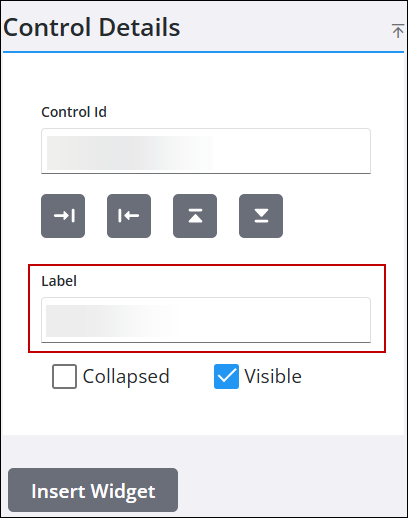
The Control Details panel populates with options that correspond to the control.
|
If you select a panel control, you can change the name of the panel, make it visible to the user, or automatically collapse panels when the page is viewed in the app. See |
 EXAMPLE
- Enter the new text for the control you want to customize, such as the Label (also known as the field name) or page title.
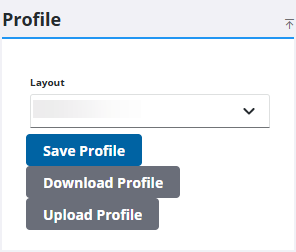
- Click Save Profile to save your customization(s) to the profile.
Use the Layout Strings Panel
The Layout Strings panel shows a list of controls on the selected Layout rather than breaking them up into panels like in the Controls panel.
- Click in the field and enter the new text for the control you want to customize, such as the label (also known as the field name) or page title.
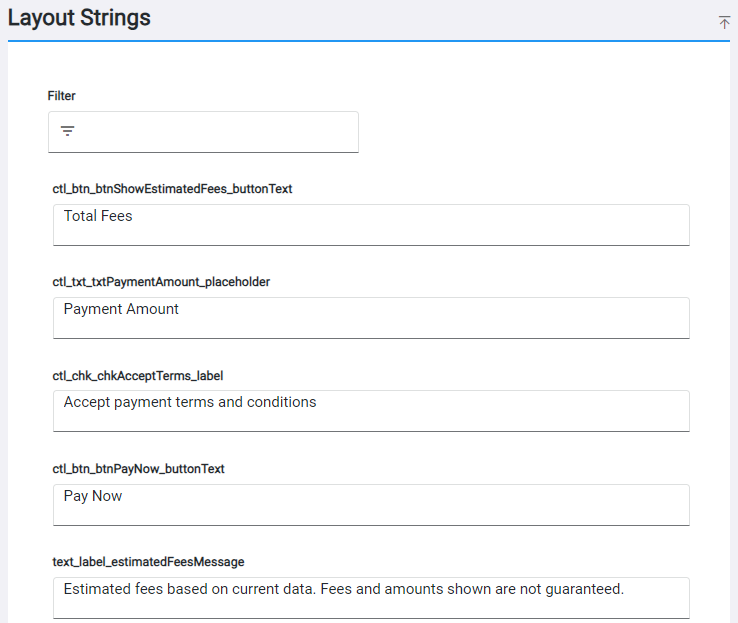
NOTE: Use the Filter field at the top of the panel to filter the Layout Strings panel and find the control you want to customize.
- Click Save Profile to save your customization(s) to the profile.
If you change one string and want to revert back to the original text, see