Add a Fee
You can add a fee from the Fees panel on the case summary page or from the Case Fees page. If your administrator has configured case data, a fee may automatically be added to the case when a specific value is selected or a certain case status reached.
 NOTE: Custom forms can be configured by the administrator and applied to specific areas in the UI, such as based on a specific template, fees, comments, and more. See Custom Form in the Admin Guide for Trimble Unity Maintain and Trimble Unity Permit for more information. When a case is cloned, custom form values are copied to the child case. If the administrator added encrypted custom forms, you will see dots when typing in the field. A view icon allows you to view the encrypted text in the field.
 From the Fees Panel
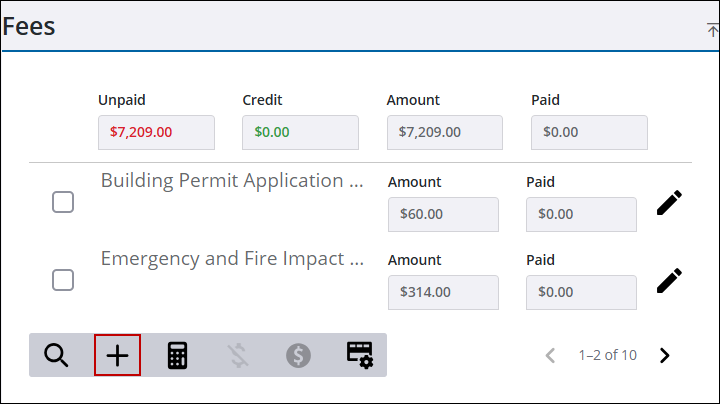
- Open a case and navigate to the Fees panel.
- Click Add record to open the Add Fee panel.
 TIP: You can filter the list of records displayed. See Filter Records for more information.
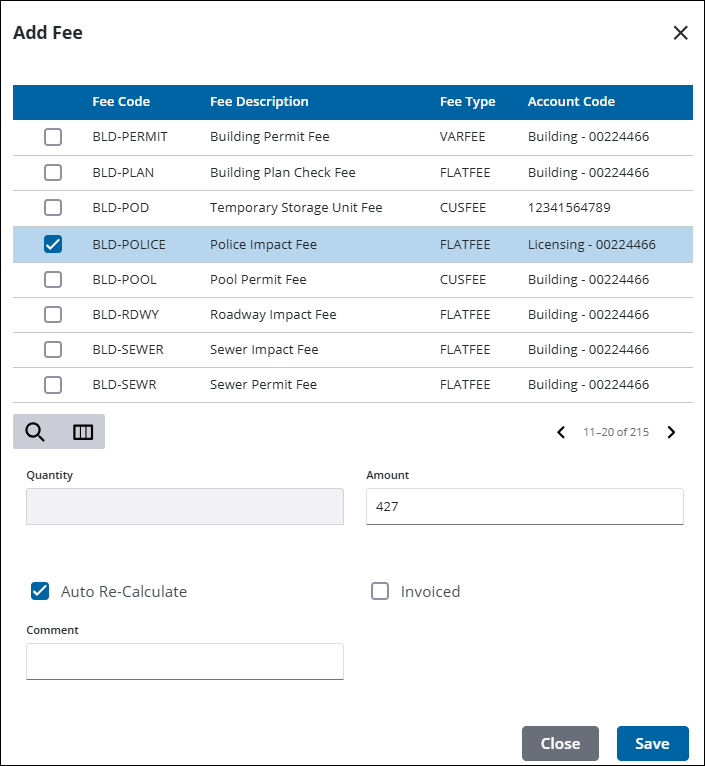
- Select a fee to open additional fields. The Amount automatically populates, but can be changed.
- Select the Auto Re-Calculate check box to recalculate fees to their default rates when the Re-Calculate Fees icon on the Fees panel is clicked. See Recalculate Fees on a Case for more information.
- Select the Invoiced check box to indicate the fee has been invoiced. This prevents any refunds from being issued on the fee.
- Enter any comments in the Comment field.
- Click Save.
See Fees Panel Fields for an explanation of the fees panel fields.
From the Case Fees Page
- Open a case.
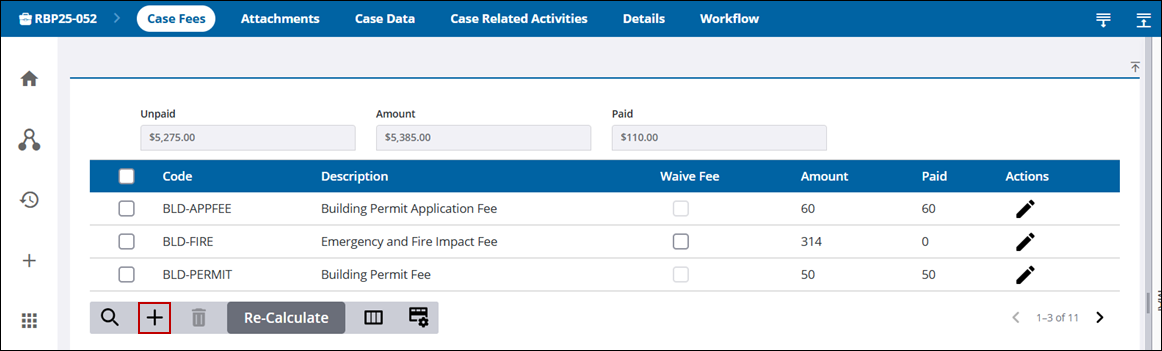
- From the activity toolbar, click Case Fees to open the Case Fees page.

Any fees associated to the case are listed.
- At the bottom of the page, click Add record.
TIP: You can filter the list of records displayed. See Filter Records for more information.
- Select a fee to open additional fields. The Amount automatically populates, but can be changed.
- Select the Auto Re-Calculate check box to recalculate fees to their default rates when the Re-Calculate Fees icon on the Fees panel is clicked. See Recalculate Fees on a Case for more information.
- Select the Invoiced check box to indicate the fee has been invoiced. This prevents any refunds from being issued on the fee.
- Enter any comments in the Comment field.
- Click Save.
See Fees Panel Fields for an explanation of the fees panel fields.

