Apply Deposits
Use Payment Manager to pay selected fees using deposits associated to the case.
|
|
 PREREQUISITES:
- Open Payment Manager. See Add Menu Items for more information on customizing the menu.
- Click Apply Deposits.
 NOTE: Click Clear at any time to remove all search criteria.
 Search by Query
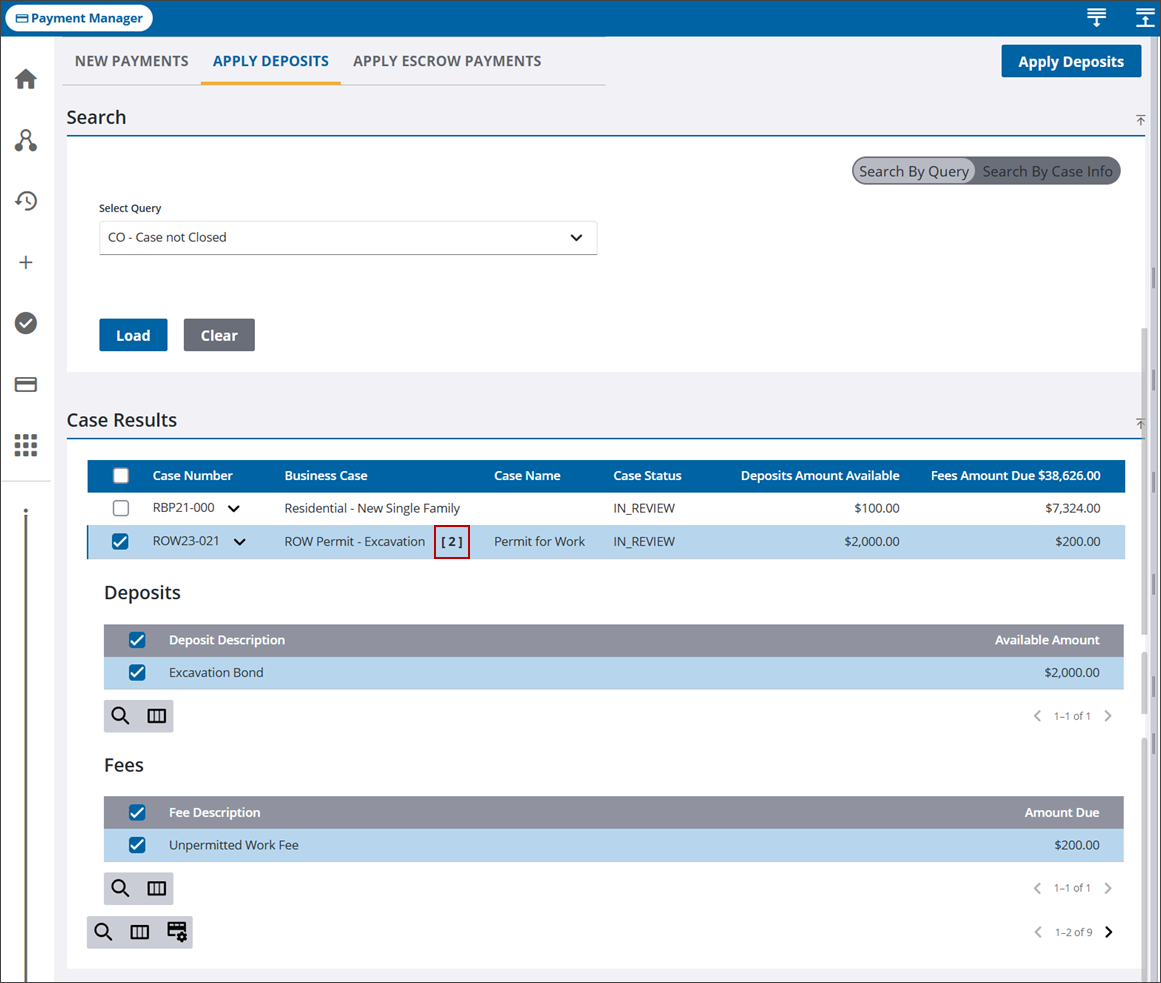
You can search for cases using predefined queries.
- Select Search by Query.
- Select a query using the Select Query drop-down list. See Add a Query for more information on how to create a query if needed.
- Once a query is selected, click Load.
The Case Results panel lists cases that match the search criteria with unpaid fees and paid deposit amounts.
 TIP: You can filter the list of records displayed. See Filter Records for more information.
- Select the check box for one or more cases to apply any paid deposits to unpaid fees. You can also click the arrow to expand each case and select individual fees and deposits in the Deposits and Fees sections.
- A number next to the case description indicates the number of individual fees and deposits selected for the case.
- Click Apply Deposits in the upper-right corner.
The page refreshes and shows the remaining amounts owed under Fees Amount Due, if any. The Fees, Deposit, and Payment panels on each case reflect the payment made.
- Repeat for each selected case.
Search By Case Info
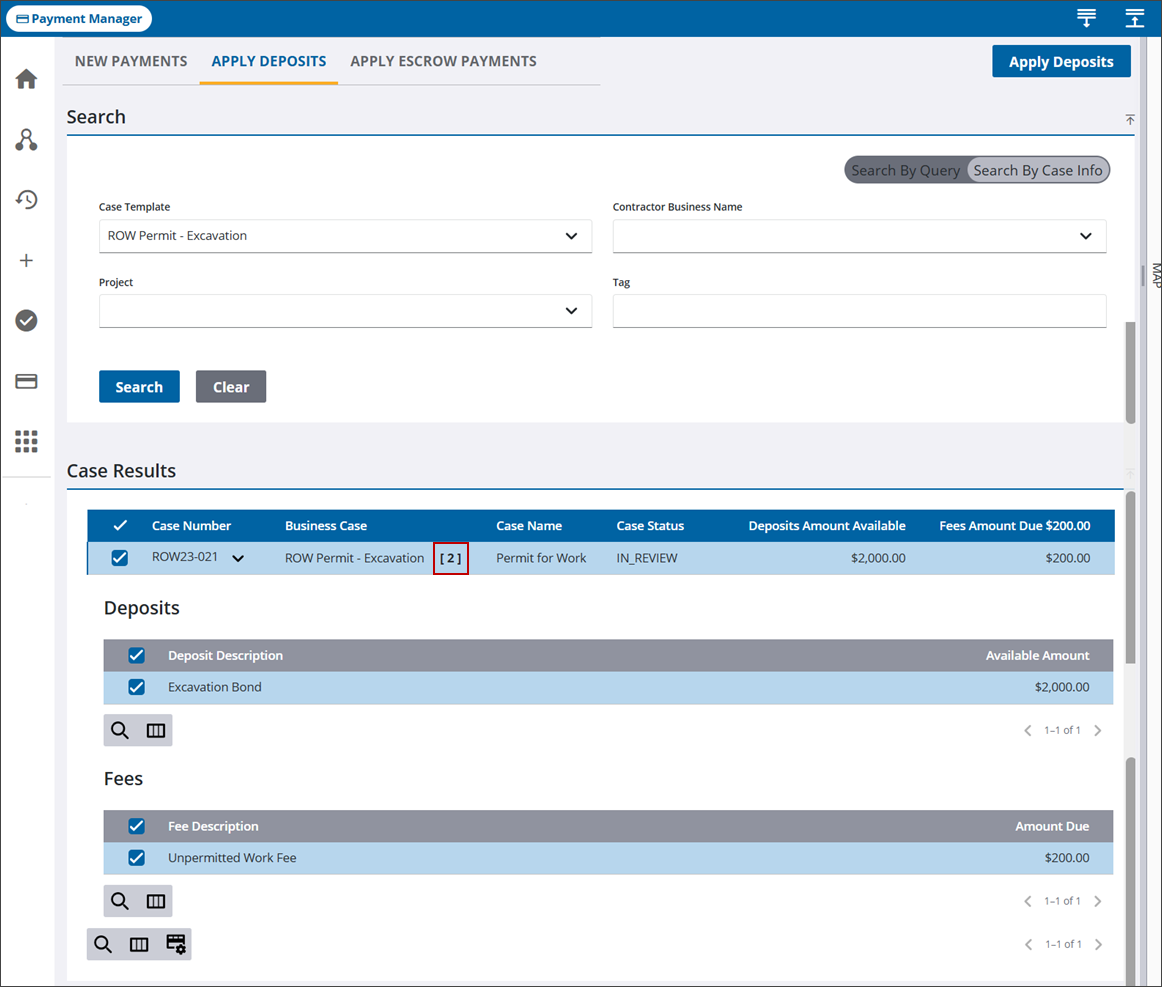
You can search cases by certain case information, such as the case template or a project associated to a case.
- Select Search By Case Info.
- Select search criteria from the various drop-down lists. For example, if you want to search for a specific case template, select it from the Case Template drop-down list.
- Once the search criteria is selected, click Search.
The Case Results panel lists cases that match the search criteria with unpaid fees and paid deposit amounts.
TIP: You can filter the list of records displayed. See Filter Records for more information.
- Select the check box for one or more cases to apply any paid deposits to unpaid fees. You can also click the arrow to expand each case and select individual fees and deposits in the Deposits and Fees sections.
- A number next to the case description indicates the number of individual fees and deposits selected for the case.
- Click Apply Deposits in the upper-right corner.
The page refreshes and shows the remaining amounts owed under Fees Amount Due, if any. The Fees, Deposit, and Payment panels on each case reflect the payment made.
- Repeat for each selected case.

