Add Work Order Costs to a Report
- Open the Report Designer.
- Create a new report. See Create a Report for more information.
- Click Add under the Parameters section.
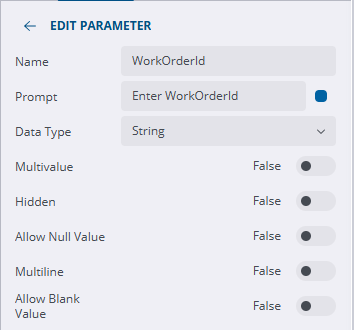
- Select the new parameter and add the WorkOrderId parameter.
- Enter WorkOrderId for the Name.
- For the Prompt, type Enter WorkOrderId. This is what the user sees when previewing the report here or in the Dashboard.
- Add a new data set. See Add a Data Set for more information.
- Click Edit Data Set and enter the query shown in the image below.
This query brings in the WOCOST field, which is all of the ELM costs totaled together for a particular work order, and the other costs fields, which are the individual costs for labor, material, and equipment.
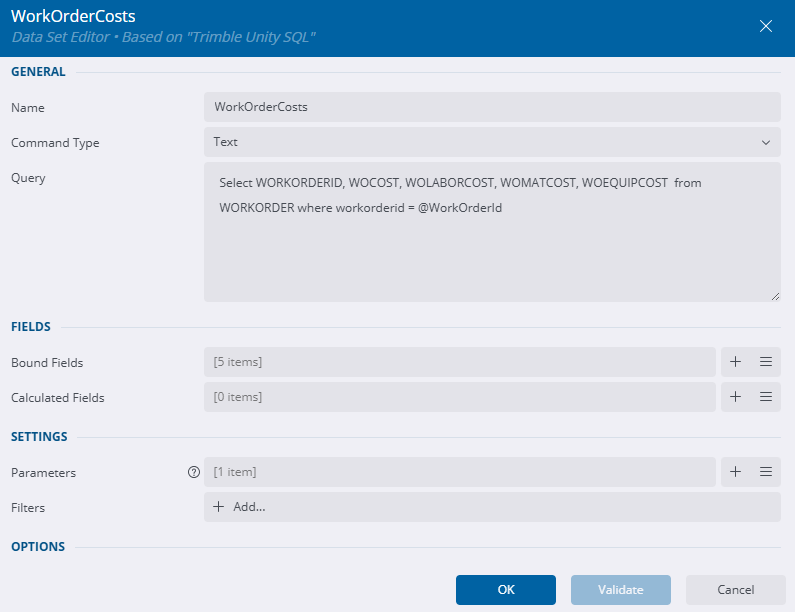
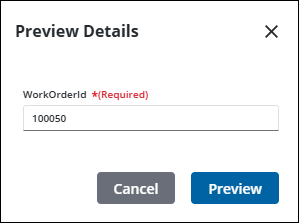
The where statement is necessary to narrow the query results to one work order and tie it to the WorkOrderId parameter. When a report is previewed, viewed from the dashboard, or printed, it will ask you to enter the work order ID that you want to view the costs of.
- Click Add Item to the right of the Parameters field.
- Enter WorkOrderId for the Parameter Name.
- Select the Data Binding icon to the right of the Value field and click Expression.
- Expand Parameters and double-click WorkOrderId to add to the expression.
- Click Save.
Now the parameter has been added to the data set.

- Click Validate.
- Click OK.
- Next, insert a banded list. See Create a Banded List for more information.
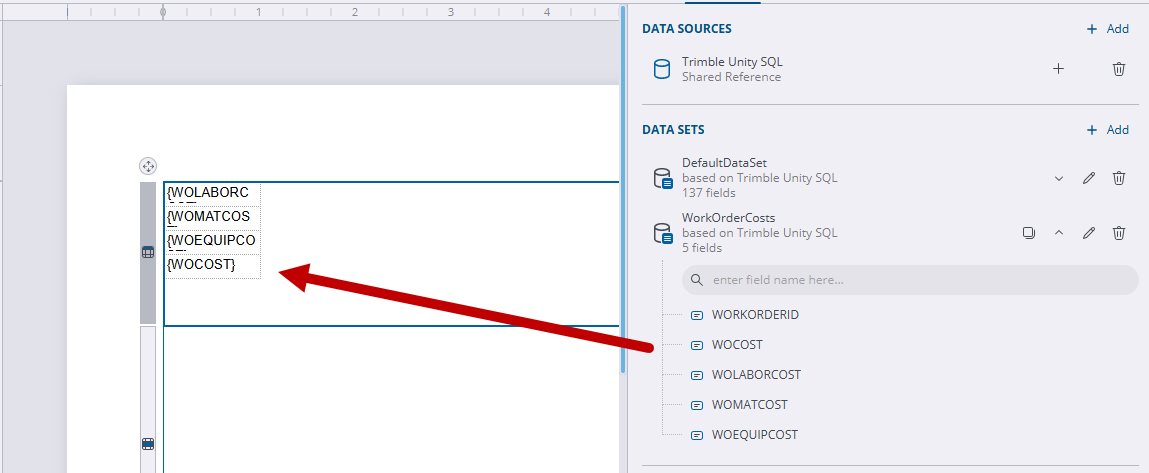
Fields that you only want one result returned for can be added to the header. If more results are wanted, add fields to the body of the banded list.
- Drag the work order cost fields into the header of the banded list. See Add Fields to a Report for more information.
The body and footer of the banded list should be hidden if nothing is entered in those sections.
- Select the body and click Properties.
- Switch the toggle to True in the Visibility section.
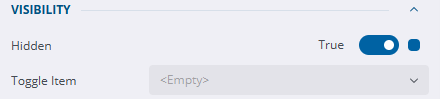
- Repeat these steps for the footer.
- Click Preview. See Preview a Report for more information.
- Enter the WorkOrderId and click Preview.
The costs are pulled into the report from the specified work order.
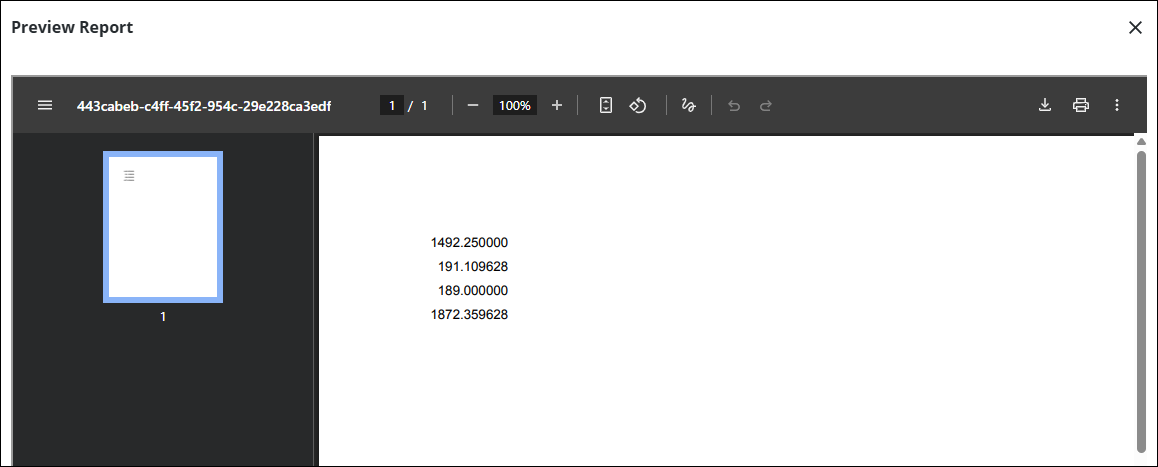
Now formatting can be applied to the costs.
- Click the Properties tab on the right side.
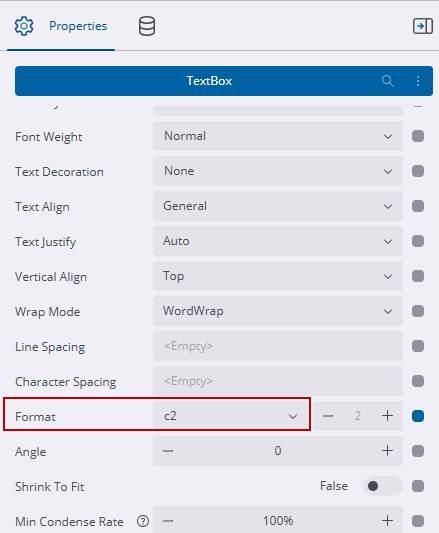
- Select each cost and change the Format to Currency in the TextBox section.
 TIP: Alternatively, a currency symbol could be manually inserted outside of the curly brackets {} of each cost field as follows, ${WOCOST}. However, actually changing the format to currency also rounds the number as well, which would be preferable.
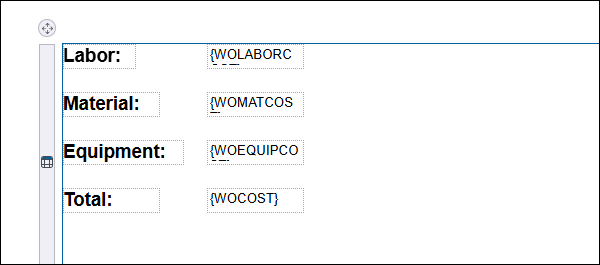
- Add text boxes for context for each cost and format the report as desired.
- Click Save and Preview. See Preview a Report for more information.
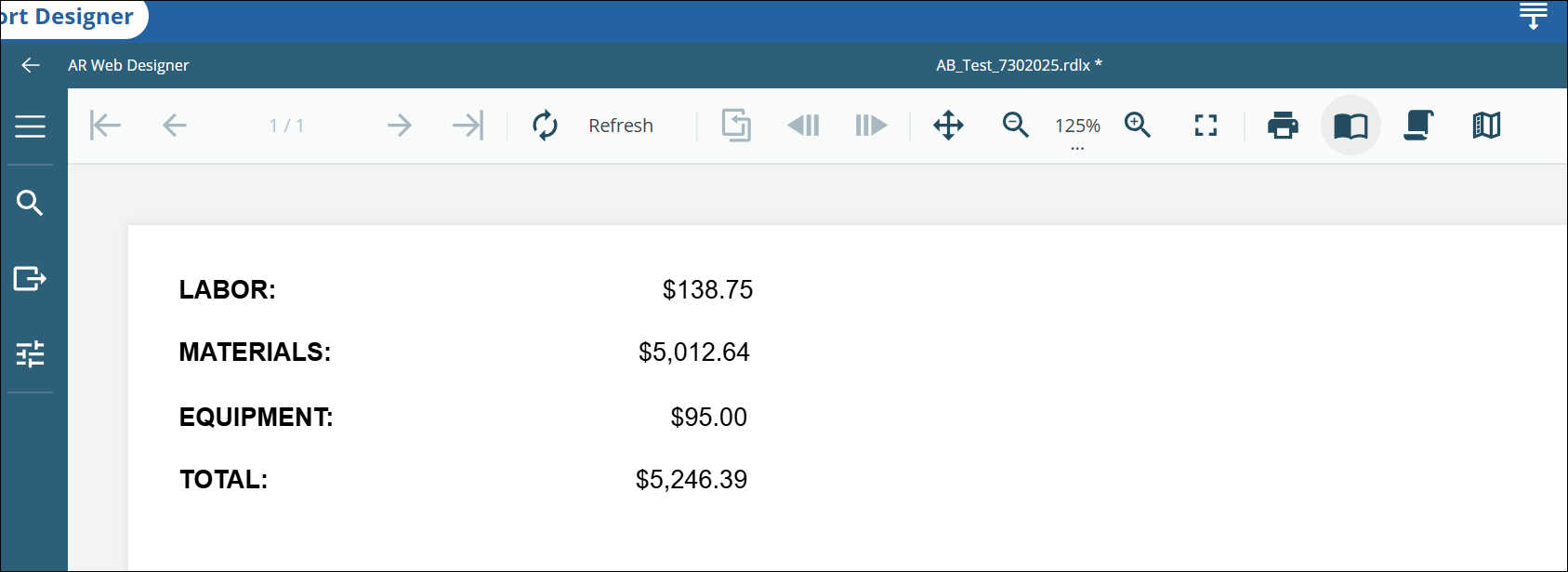
This report could be used on it's own, be printed from a work order, or viewed through the report widget in Dashboard.
|
If a date range was wanted instead, add Where initiatedate Between @StartDate and @EndDate to the end of the query.
|
 EXAMPLE

