Workflow Summary
The summary panel at the top of the service request edit page provides a high-level view of service request details, including access to the workflow diagram set for the activity and a way to progress the service request forward if a workflow is associated with the template in Admin.
When a service request template is tied to an active workflow, manual status updates are locked down to maintain a guided path all the way to the end of the service request. The status can only be changed through the summary panel which displays only the actions and statuses available based on the current stage of the activity.
|
|
 PREREQUISITES:
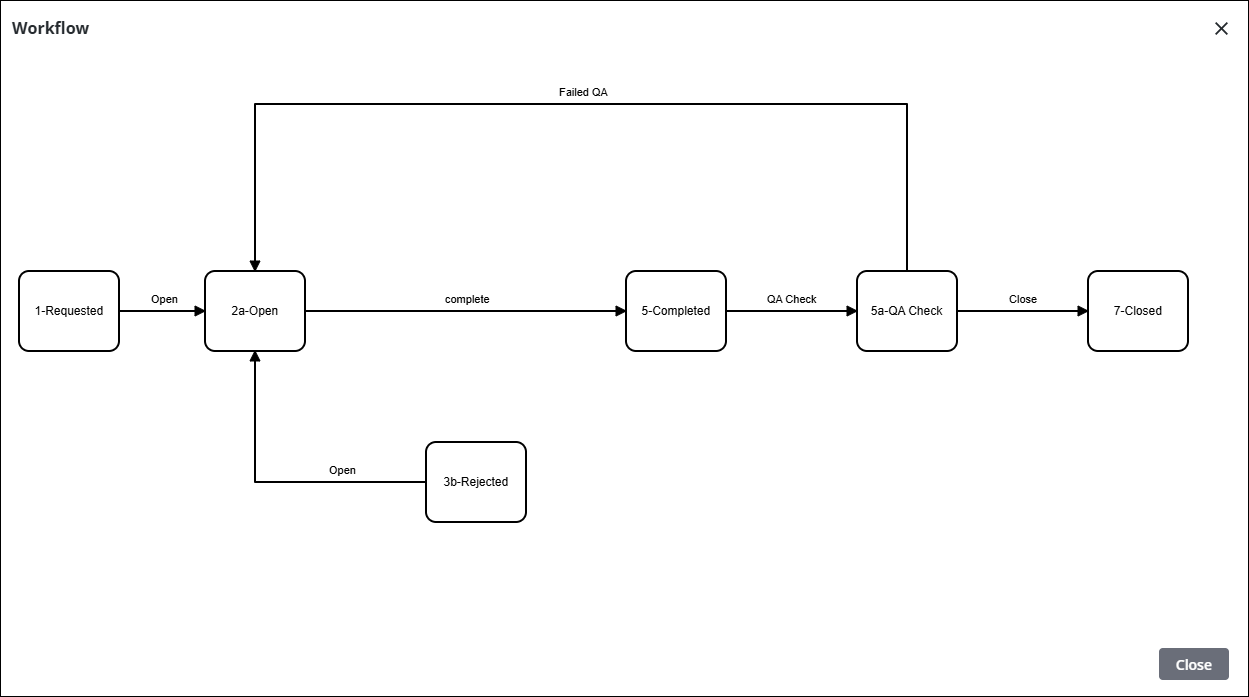
- If the template has an associated workflow, click Workflow to open a read-only visual diagram of the entire workflow path of the service request.

This helps you see where the service request currently is and what steps are required to complete it.
Instead of using changing the Status field to move the service request through, you advance the service request using the Take Action button.
- Click Take Action from the summary panel and select the new status.
 NOTE: The workflow can also be progressed from a linked work activity on the Related Activities page. See Link a Work Activity for more information.
Depending on the workflow, there may only be one option in the workflow to choose.

- Click Confirm on the Take Action panel.
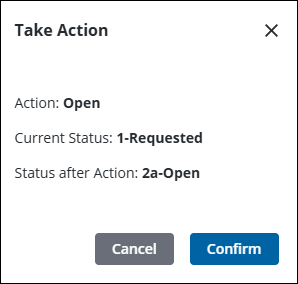
If the Take Action button is grayed out, you can hover over it to see the Only Actionable to Field tooltip. This indicates this action must be completed in Field and cannot be completed in Respond.
If a form is associated with the new status, then the form automatically opens to be filled out. If multiple forms are associated with the status, then all forms that need to be completed appear in the Select Form panel. See Link a Form to a Workflow in the Admin Guide for Trimble Unity Maintain and Trimble Unity Permit for more information.
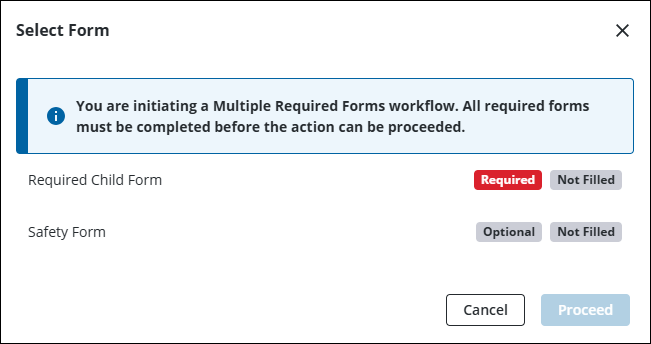
- Select a form to fill out first. If a form is marked as Required, it must be completed at this action.
NOTE: Depending on how the forms are configured in Admin, the form might be new or existing. When an existing form is used, the form can be edited rather than filled out from the beginning. See Associate Workflows to a Work Activity Template in the Admin Guide for Trimble Unity Maintain and Trimble Unity Permit for more information.
- Fill it out and click Create.
- Either click Proceed, or select another form to complete.

