Add Task Information
Users can manage task details and requirements by updating available fields, completing mandatory checklists, managing comments and attachments, and tracking labor hours through time accounting.
|
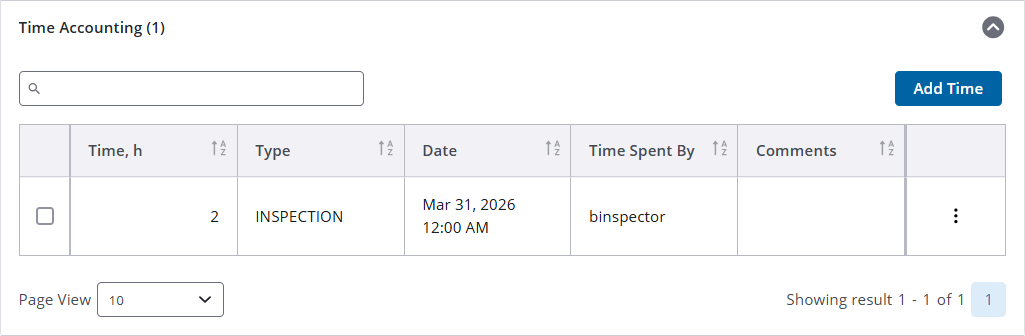
- Open the new Task Manager and perform a search. See Search for Tasks for more information on performing a search.
- Click a Task Name to open the task action panels.
 NOTE: A numerical count next to each panel header indicates the number of records associated with the task. NOTE: A numerical count next to each panel header indicates the number of records associated with the task. |
- Click Task Manager to return to the main task manager panel.
- Click Complete Task and select a result. The result codes available vary depending on the case type. See Complete a Task for more information.
- A red flag indicates the task has been marked as important. See Mark as Important and Reorder Tasks for more information.
- Click the cancel icon (represented by an 'X' inside a black circle) to cancel an inspection task. Confirm the cancellation. See Cancel an Inspection Task for more information.
- Click the case number to open the case.
 Details
The details table contains additional information about a task. All updates are saved automatically.
- Expand the Details task action panel.
From the table, users can:
- Update the assigned to and completed by fields.
- Update available date/time fields by either double-clicking in each field to insert today's date and time, or selecting a date/time using the field's calendar.
- Specify a location by unit number.
- Add notes about the exact location of the task.
Checklist
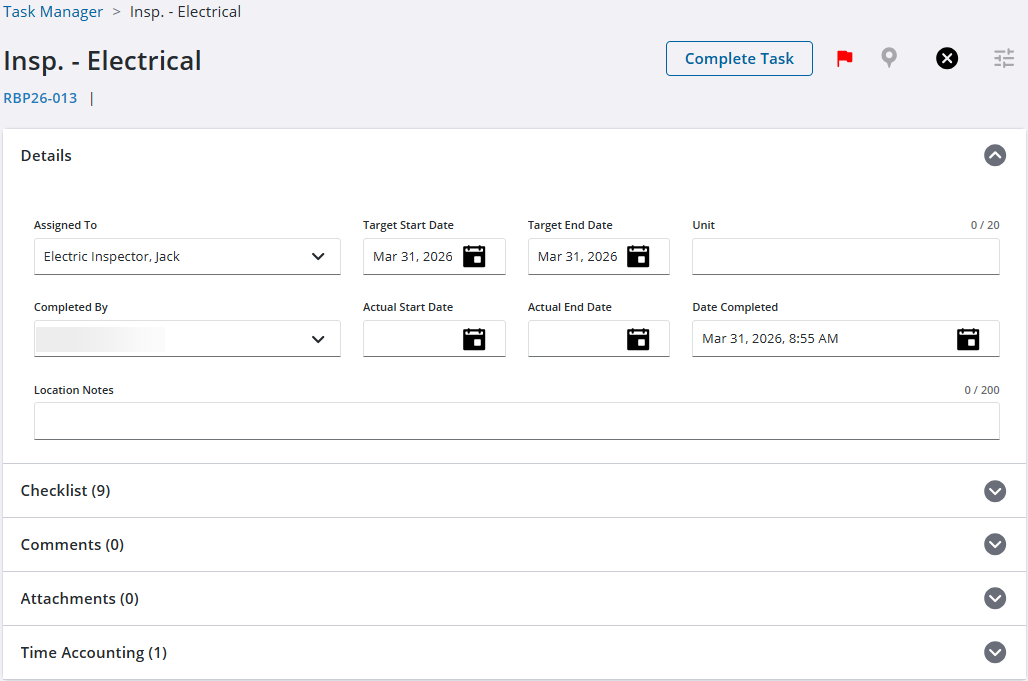
Some tasks may include associated checklists that include required items, necessary steps, or further consideration. If it is configured by the administrator, a checklist must be completed before the task can be completed in the workflow. See Checklists for more information.
- Expand the Checklist task action panel.
From the table, users can:
- Add individual or group checklists.
- Manage visible columns using the column icon (represented by three horizontal and three vertical bars).
- Use the search field to sort by visible columns.
- Sort columns in ascending or descending order.
- Select the checklist result, such as if it passes, fails, is approved, should be resubmitted, and more. The result codes available in the drop-down list vary depending on the checklist.
- Select the re-check option to mark the checklist as incomplete, indicating further work or a subsequent inspection is necessary.
- Add new comments to the checklist or view/edit existing comments.
- Select one or more checklists to apply default results, clear results, or remove the checklist(s).
Comments
Comments allow users to provide context, updates, or feedback directly within the task record. See Comments for more information on adding, editing, deleting, or formatting comments.
- Expand the Comments task action panel.
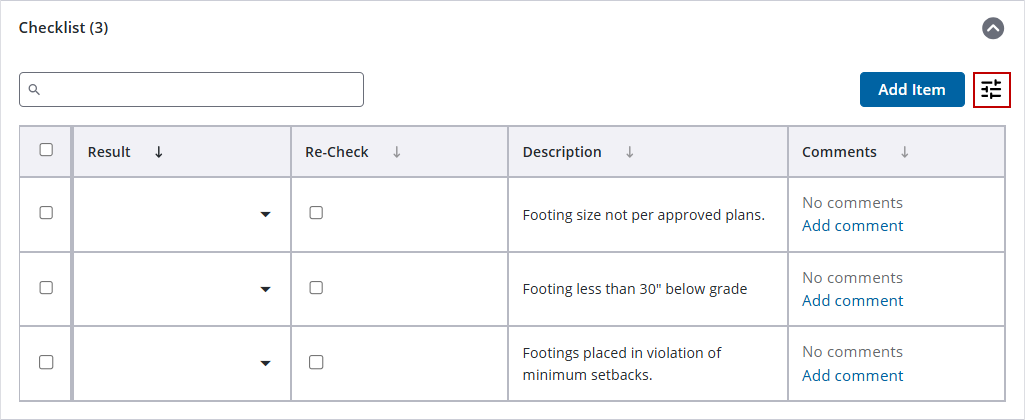
From the table, users can:
- Sort task comments by creation date in ascending or descending order.
- View Case Comments. A numerical value indicates the number of comments associated with the case. Any comments added as replies appear as new entries rather than nested replies.
|
NOTE: Case Comments are view-only. All case comments are visible to Respond users. Only case comments with the Show in PA check box selected are visible to Public Access users. |
- Add a new comment to the task.
- View the author, date/time, and if the comment was edited.
- Edit or remove an existing comment by clicking the three dots icon to the right of the comment.
Attachments
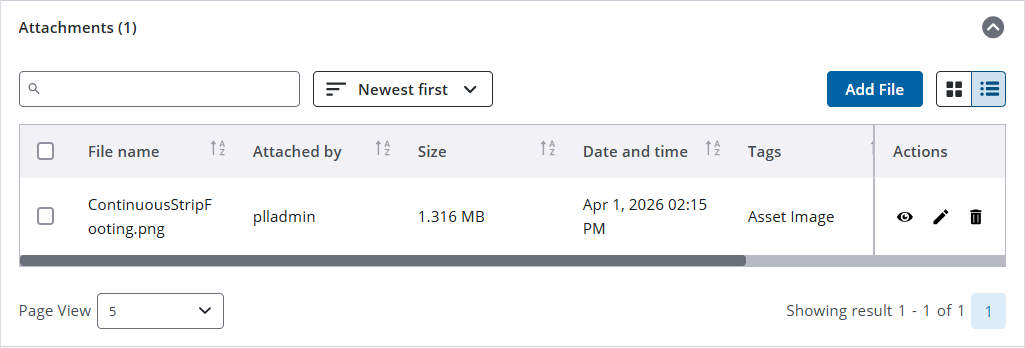
Attachments are any additional information related to the task, such as images and diagrams. See Attachments for more information.
- Expand the Attachments task action panel.
From the table, users can:
- Use the search field to search for attachments.
- Sort task attachments by creation date in ascending or descending order.
- Add a new attachment using the Add File icon.
- Switch between grid view (icon represented by four small squares arranged in a larger square) or list view (icon represented by three horizontal lines with dots to their left).
- To preview more information about an image while in grid view:
- Click the image.
- Click More Actions (icon represented by three horizontal dots) in the upper-right corner.
- Click Details.
- Sort columns by ascending or descending order.
- In the Actions column:
- View the attachment (icon represented by an eye).
- Edit the attachment (icon represented by a pencil). You can also select one or more attachments to activate Edit above the table to bulk edit the Description, Add Tag, and Create Tag fields. Click Save.
- Use the Title field to replace the file name of the attachment.
- Use the Description field to provide a more complete explanation of the attachment's contents.
- Assign a tag to the attachment to provide specific, identifying information.
- Use the Create Tag field to add a new tag to the Add Tag drop-down list
- Select the Show in PA check box to make the attachment visible in Public Access.
- Remove the attachment (icon represented by a trash can). You can also select one or more attachments to activate Delete above the table and remove all selected attachments. Confirm the deletion.
Time Accounting
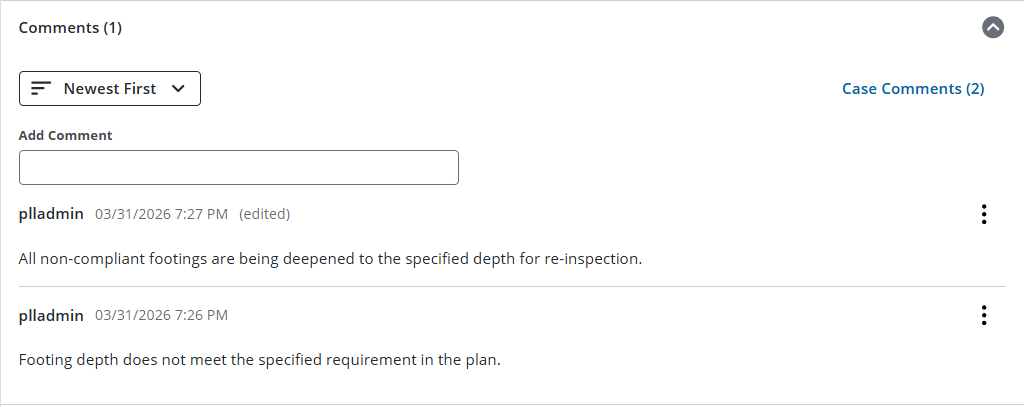
Time accounting allows you to track the time spent on specific tasks. See Time Accounting for more information.
- Expand the Time Accounting task action panel.
From the table, users can:
- Use the search field to search for time accounting.
- Add new time accounting using the Add Time icon.
- Sort columns by ascending or descending order.
- Edit or remove an existing time accounting by clicking the three dots icon to the right of the time.