Schedule an Inspection
Inspections may only be scheduled when the corresponding task becomes available in the workflow and when the case status for the case is configured to allow inspections to be scheduled.
 NOTE: Inspections can only be scheduled on the Workflow panel on the case summary page.
|
|
 PREREQUISITES:
 TIP: See Schedule an Inspection on Trimble Unity for a quick start guide on this subject.
- Open a case and navigate to the Workflow panel.
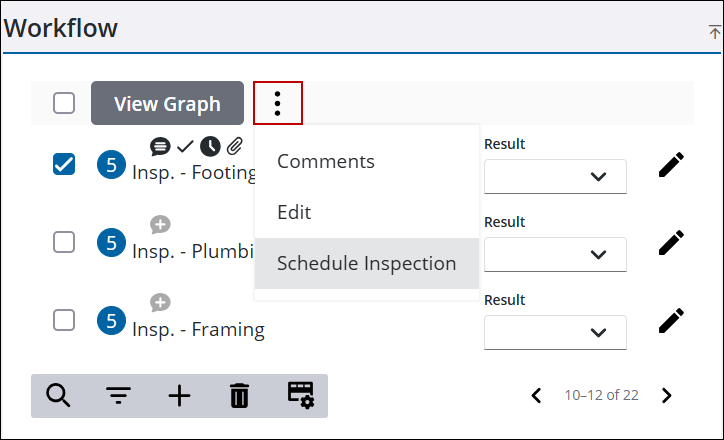
- Select the task to schedule an inspection.
TIP: You can filter the list of records displayed. See Filter Records for more information.
- Click the Workflow sub menu and click Schedule Inspection to open the Inspection Scheduling panel.
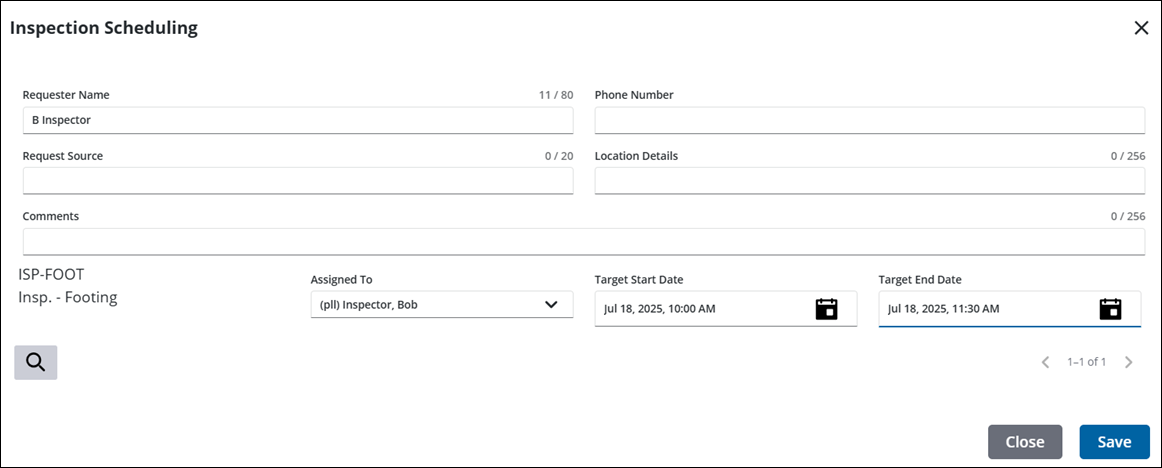
- Enter information about the person requesting the inspection, such as their name, phone number, and details about the location where the inspection takes place.
- The Assigned To field automatically populates with the default inspector for the task or discipline selected. You can add or change the inspector from the Assigned To drop-down list if needed.
- The date/time fields automatically populate, but can be changed by either entering another date/time manually, double-clicking to insert today's date/time, or selecting a new date/time from the calendar.
- Click Save.
A notification appears stating the inspection is scheduled. A clock icon appears beside the selected tasks and the inspection appears in the Inspection Request panel. See Inspection Request for more information.

