Pay Fees
After you have submitted your application, and depending on the requirements on the case template, you may need to pay all fees before your permit can be issued. Fees can be paid at the time you submit your application (see Begin a New Application for more information), or at any time after your application is submitted. See Make Bulk Payments for instructions on making multiple payments at the same time.
|
|
 PREREQUISITES:
 NOTE: The administrator can configure fees to be visible based on a case status change. See Configure Required Items on a Case Template in the Admin Guide for Trimble Unity Maintain and Trimble Unity Permit for more information. The Group Sum and Grand Sum fields are hidden in Public Access, but the individual fees calculated from those values are displayed in the Estimated Future Fees or Current Fees sections of the Total Fees panel, depending on a case's status.
- Make sure the home page is displaying submitted applications. Tabs for the home page can be configured by the administrator by selecting Admin from the side menu and then the Home Page tab. See Configure Tabs for more information.
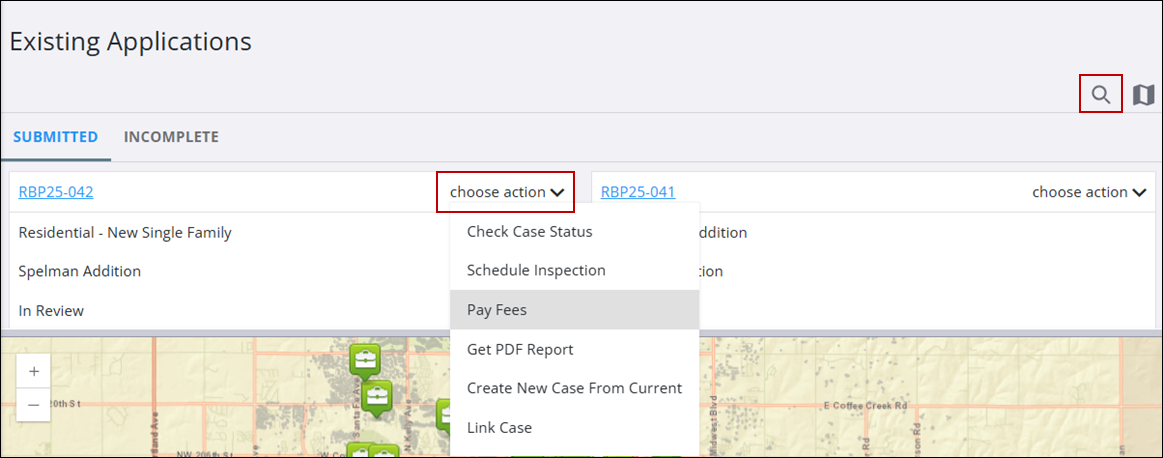
- Scroll through the list of submitted applications or click Search applications in the upper-right and enter the case number. A list of matching cases appear as you begin typing the case number.
- Click the choose action drop-down list and select Pay Fees.
This takes you to the Application Payments page. This lists any deposits and fees for the case.
- After reviewing the fees applied to your application, enter the amount you wish to pay in the Payment Amount field.
- Carefully review the Payment Terms and Conditions before selecting the check box to enable Pay Now.
- Click Pay Now to submit your payment. The record of your payment is reflected on the Payments panel of the Application Overview page.
By default, the payment amount cannot be larger than the amount due. However, the administrator may choose to allow overpayments. See Add a Tender Type in the Admin Guide for Trimble Unity Maintain and Trimble Unity Permit for more information.
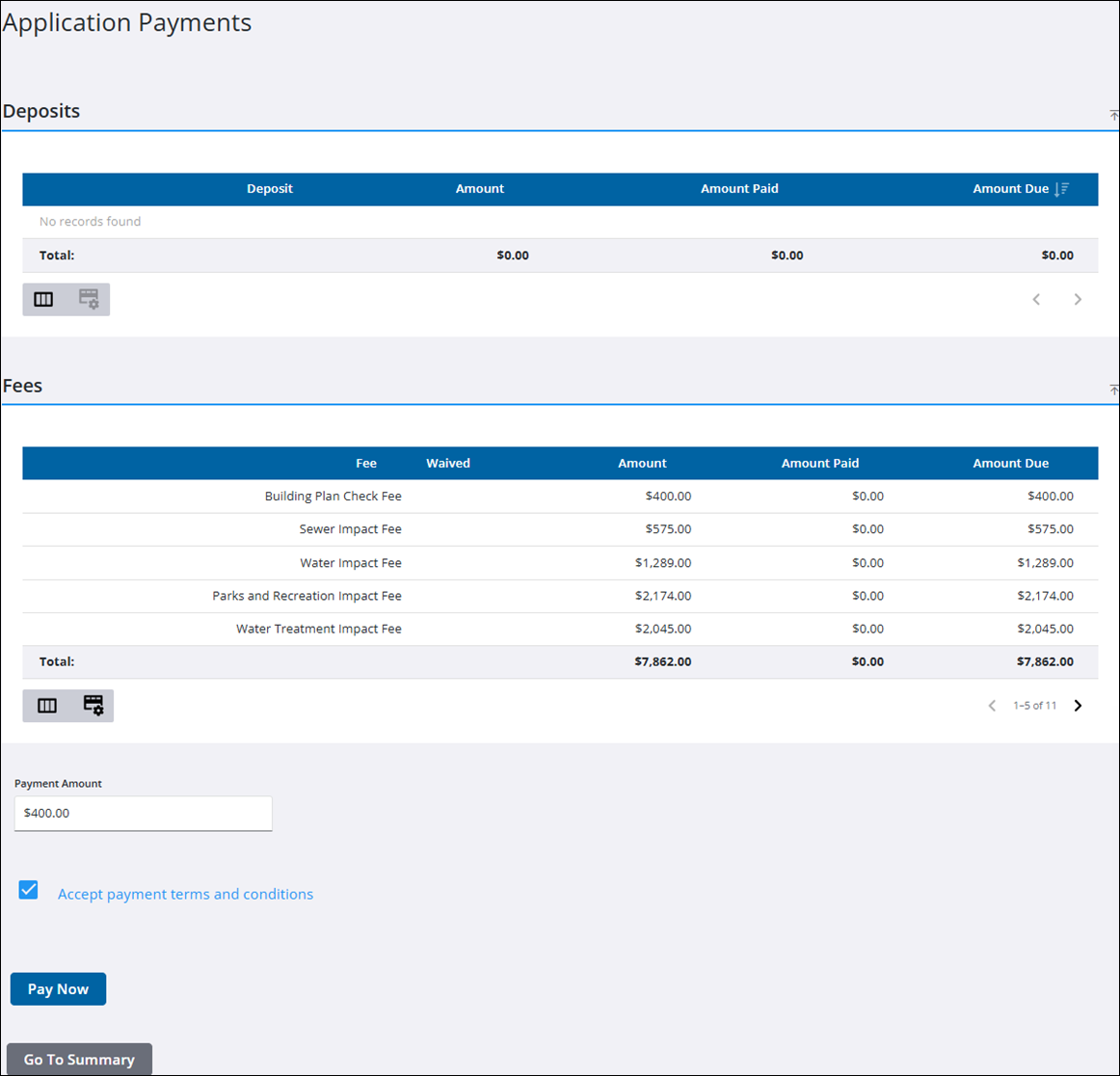
 IMPORTANT: A check mark in the Waived column indicates that the fee in question has been waived. Notice that the value in the Amount Due column for that fee is $0 and the Total Due differs from the Total Fees value accordingly.