Associated Forms
Forms (also known as associated forms or smart forms) simplify and standardize the collection, validation, and management of data across various work activities. These complex, dynamic forms are configured in Admin, can be added, edited, or deleted from a work activity in the Trimble Unity Field app, and then managed in Respond.
If your administrator linked a form to a specific field workflow action, the form opens automatically when you progress the workflow item. See Take Action to Progress the Workflow for more information.
Forms can be configured with scripting options that are completed during different phases of a form, when a new instance of the form is created, when an attribute is changed, and when a form is saved. A defined set of methods and key words can be used in these scripts to reference work activity and asset objects. Some examples of uses of scripting include:
- Auto-populating values in a form based off of referenced objects and methods
- Formulaic expressions to calculate values across data entered in fields to populate a separate field (e.g. flow calculations)
- Validation on data entered or forms captured before closing and saving an activity.
For more information on configuring these forms, see Script Editor in the Admin Guide for Trimble Unity Maintain and Trimble Unity Permit for more information.
Work activities can have one or more forms.
|
|
 IMPORTANT:
 NOTE: Smart Forms functionality is only available in the United States and Canada.
 Smart Forms Workflow
To manage the creation, collection, and reporting of data across work activities, smart forms follow a standardized three-stage workflow: Admin, Field, and Respond.
Step 1: Create the Form in Admin
Smart forms are created, designed, and configured in Admin. Once a smart form is created, it can be reused for other work activities.
- In Admin > Configure > All Forms, create a form. See
- Define fields, layout, and scripting logic (including advanced calculations and conditional rules).
- Define the form's required spatial data, including geometry type, accuracy requirements, tilt tolerance, and manual digitizing settings.
- Associate the form to one or more work activity templates. See
Step 2: Collect Data for the Form in Field or Respond
Data is collected in the field using the Field or Respond app. Work activities can have multiple smart forms, which are called associated forms in the app.
- Create a work activity using a work activity template associated with the form created in Admin. See
- Add an associated form to the work activity. See
- Capture various data types, including text, signature, barcode, user, geometry, and attachments.
- Sync the work activity to Respond if it was populated in Field. See
Step 3: Manage the Form in Field or Respond
Collected data can then be viewed, edited, and managed in Field or Respond .
- Open the work activity in Field or Respond.
- In Field, view, edit, or remove the forms from a work activity. See
- In Respond, view, edit or remove the forms from a work activity. See
GNSS Configuration Support
Smart forms requiring high-precision location data for asset management can be configured in Admin to enforce accurate data collection.
The following settings can be configured in Admin for smart forms:
- Accuracy Tolerance: Ensures GPS accuracy is within the specified tolerance when collecting locations in the Trimble Unity Field app.
- Tilt Tolerance (degrees): When using a GPS receiver with tilt compensation, ensures the angle of tilt on the receiver is within the specified tolerance.
- Disable Manually Digitizing: Forces the user to collect a location using GPS, by disabling the feature to capture it manually on the map.
- Geometry Type: Define the type of feature the form is designed to capture.
- Point
- Line
- Polyline
See Create a Form in the Admin Guide for Trimble Unity Maintain and Trimble Unity Permit for more information.
View a Form on a Work Activity
Forms are managed from the Associated Forms page of a work activity. The number in parentheses indicates the number of forms currently attached to that work activity. For example, Associated Forms (2) indicates that the work activity has two associated forms.
When opening, editing, or saving a form, a message configured by your administrator may appear. Follow the instructions in the message, or contact your administrator for more information.
- Open a work activity.
- Tap Associated Forms.
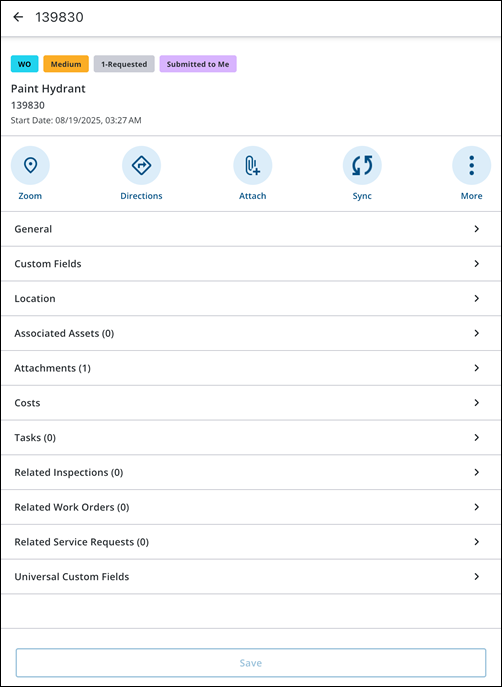
The Associated Forms page opens.
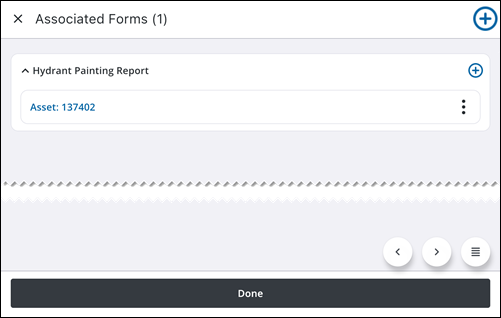
You can perform the following actions from this page:
- Drop-down icon: Tap to expand or collapse an associated form.
- Not Synced icon: This icon appears when the associated form is not currently synced and that you need to perform a manual sync. See View and Perform a Manual Sync for more information.
- Edit icon: Tap to edit the associated form. See Add or Edit an Associated Form for more information.
- Attach icon: Tap to open the Attachments page and add attachments to the associated form. The displayed count next to the Attach icon indicates how many attachments are associated with the smart form. See Manage Form Attachments for more information.
- Delete icon: Tap to delete the associated form.
- Add icon: Tap to add a new associated form.
Expand or Collapse a Text Field
When an associated form contains a text field configured for long descriptions or extensive notes, the field presents large blocks of data as an interactive object that remains compact by default to prevent text from overwhelming the screen layout and blocking other fields. This design provides a cleaner, more manageable user experience, allowing you to easily view all necessary data while keeping the rest of the form accessible with less scrolling.
You can expand or collapse the text area with a single tap to view or edit its entire contents while working online or offline.
- Open a work activity containing an associated form.
- Tap Associated Forms and select the form you want to work with.
- Locate the text field you want to modify.
- Tap the Expand icon on the right side of the field boundary to view the full text area.
The field expands downward, displaying the complete text blocks.
To streamline the form layout again, tap the Collapse icon.
NOTE: When a text field is set to read-only, you can still expand the layout to view long-form notes without modifying the data.

